Code 500 errors indicate that 'something' has gone wrong for which the system has no specific error message. The best indicator as to the cause of the issue, is the action taken prior to the message appearing. Furthermore, waiting 5mins in most cases will not resolve the issue.
It is essential access issues be reported to the school's IT Department or the SEQTA Support Team, so the issues can be promptly addressed.
The following are issues known to generate this error:
- TABLE OF CONTENTS
- Code 500 when accessing SEQTA Teach
- Code 500 when saving the Marks book
- Code 500 when accessing Marks book
- Code 500 or blank pane when entering comments
- Code 500 when printing from My Day
- Code 500 after logging in to SEQTA Engage and no student information appearing
- Code 500 when saving a new SEQTA Creator Portal page
- 500 Internal Server Error when cloning Sync UI input container
- 500 Internal Server Error
- Code 500 when viewing pastoral care notes on student summary pages
Code 500 when accessing SEQTA Teach
These fall into several categories which are outlined below.
- Affecting all staff - A system wide or server issue (eg. an incorrect server shut down due to power outage)
- Affecting users trying to log in - An authentication issue (eg. changes have been made to the domain controller or Active Directory)
- Affecting one or several accounts - User record setup issue (eg. a parent record missing the student parent link, or no campus assigned to the user record).
Code 500 when saving the Marks book
The value entered into the reporting section course type fields (ie. Mod %, Mod Gd) has more than 8 characters. If the result is being selected from a drop-down list, the label in the course type setup will need to be shortened.
The steps for editing a course type cut off label are as follows:
- Go to the Administration workspace > Curriculum setup > Course types
- Select the Course type
- Shorten the text for all the labels to 8 characters or less
- Click Save
Code 500 when accessing Marks book
This can occur when the Max value for an Assessment criterion is over ten characters.
The steps for identifying and correcting this issue are as follows:
- Go to the Teaching workspace > My classes
- Select the Load programme icon or click on the class
- Select Overview of assessments
- Select Print from the top of the page
- Check the printout for any long numbers in the column where the max score shows.
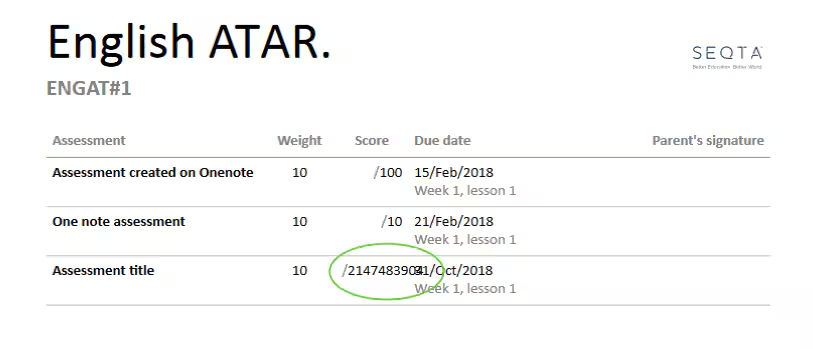
- If there is an assessment with a long number click the Edit icon for the assessment then correct the 'Max value' and click SAVE
- Click OK
Code 500 or blank pane when entering comments
This occurs when the comment bank:
- Has one or more entries with a 'Null' (blank) value in the 'type' or 'code' fields
- There are non-standard ASCII characters in the comment Details field
Steps for troubleshooting this issue are available in the article Comment bank FAQ and troubleshooting
Code 500 when printing from My Day
This issue can occur if:
- There is hidden formatting code that has been brought into SEQTA by copy-pasting content from other programmes such as Word or Excel. In most cases, this can be corrected by stripping the formatting using note pad or the like. See the article Issues copy pasting into the SEQTA Editor for more information
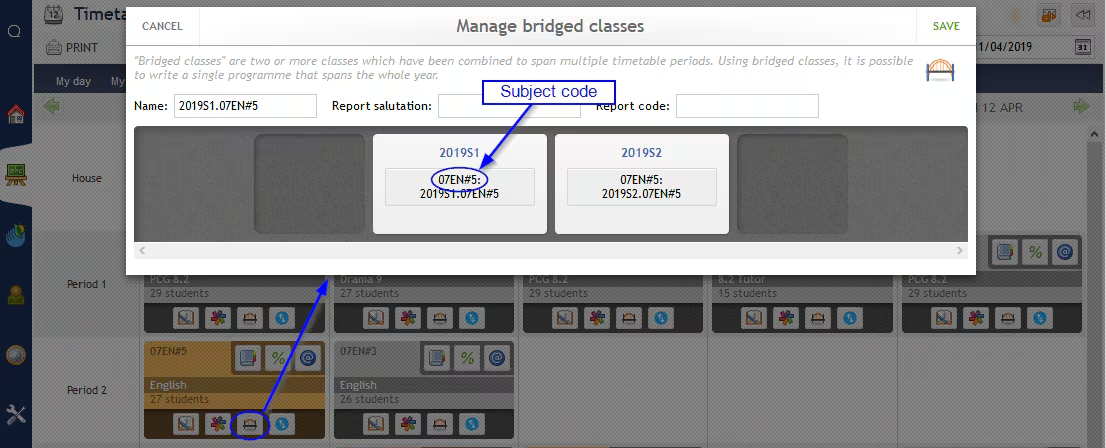
- The subject record linked to one of the teachers classes has been deleted. To check this, click on the Bridge icon on the class from the teachers timetable. The first code listed in the timetable block is the subject. Note the code and then check it exists under Administration workspace > Manage data > Subjects, the code should exactly match the code in the bridge icon.
Code 500 after logging in to SEQTA Engage and no student information appearing
This typically occurs if the parents username is not linked correctly to the student record or there is more then one account in SEQTA with the same username. The correct this follow the steps below:
- Go to the Administration workspace > User management
- Under Ready to revoke access search for the parent record. If it appears select the record and click Action > Revoke access
- Change from Ready to revoke access to Ready to provision and search for the parent record. If it appears select the record and click Action > Send welcome email. The parent will then receive an email for them to setup a new account
Code 500 when saving a new SEQTA Creator Portal page
This occurs when there are no modules placed in the work area. To resolve this, drag at least one module onto the work area then try save the page again.
500 Internal Server Error when cloning Sync UI input container
This occurs when attempting to name a sync container the same as one that already exists. To check this click cancel, refresh the page, and see if there is already on Input with that name.
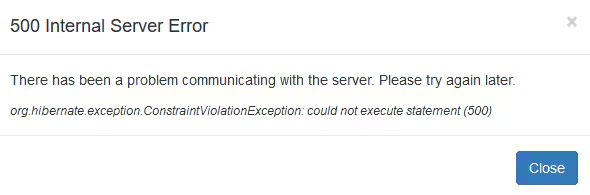
500 Internal Server Error
There has been a problem communicating wit the server. Please try again later.
org.hibernate.exception.ContraintViolationException: could not execute statement (500)
Code 500 when viewing pastoral care notes on student summary pages
This error can occur for a number of reasons. Most commonly, this occurs when the character count for the sub-category of the Pastoral care type is over 64 characters.
Was this article helpful?
That’s Great!
Thank you for your feedback
Sorry! We couldn't be helpful
Thank you for your feedback
Feedback sent
We appreciate your effort and will try to fix the article