TABLE OF CONTENTS
- Unbridging an incorrectly bridging class
- Bridging Untimetabled and Calendar Classes
- Bridging senior classes
- Ensuring There is no Programme Attached to the Current Class Before Bridging
In most cases, classes that continue on from one timetable period to the next will need to be bridged. Bridging two classes will carry forward the programme (and its marks book) so it can be accessed from the current class.
The bridging process is usually only required in the middle of the year to join the Semester 1 Classes and the Semester 2 Classes. Classes in a year-long timetable will not require bridging.
- Go to the Teaching workspace>Timetable>My classes/Traditional view/Calendar
- If bridging another teacher's class, select their name.
- Click on the Bridge icon for the class (usually the Semester 1 instance).

- In the bridging pop-up select the corresponding class and click OK.
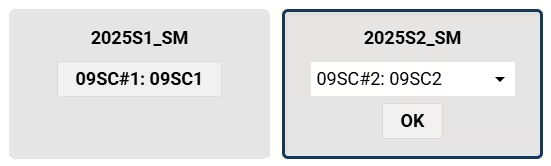
- Edit the Name to remove the reference to the semester. This is the name (label) which displays in the marks book and Programme page.
- Click Save. The Marks Book and Load Programme icons should now appear on both of the bridged classes.
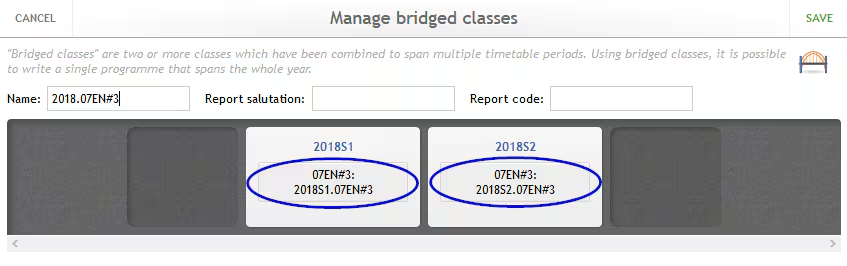
Image below: A year-long class bridged across the semester one and semester two timetable period.
Unbridging an incorrectly bridging class
If a class has been bridged to the incorrect class, please complete the following steps.
- Click on the bridge for the class. Set the right-hand class in the bridge to 'Unspecified (null)' then click OK > SAVE
- Click on the bridge icon and select the correct class to bridge to. Ensure the Name of the class has the class code in it (eg. 7EN#3) then click OK > SAVE
Bridging Untimetabled and Calendar Classes
Calendar Classes can only be Bridged to another Calendar Class. Untimetabled Classes can only be bridged to another Untimetabled Class.
Bridging senior classes
Your school may have a special timetable for Year 11 students to allow them to start studying their Year 12 subjects before the end of the Year 11 calendar year. In that situation you may need to bridge from the "short" timetable period in one calendar year to the standard Year 12 timetable period in the subsequent calendar year. This is a special case, so we recommend you consult with your school's SEQTA administrator before proceeding. If you need assistance, the Professional Services team can assist with customised training. Please contact the Support team via the Help portal and they will pass your request on to Professional Services.
Ensuring There is no Programme Attached to the Current Class Before Bridging
Check to see if there is already a Programme/Marksbook attached to the most recent class before bridging. If there is, check to ensure someone has not already bridged the class. If it's not bridged, check for results in the Marks book and if there are no results, un-share the Programme before proceeding.
If there are results, contact the SEQTA Support team or your school's SEQTA administrator (SEC/STC) before proceeding.
Related articles
Was this article helpful?
That’s Great!
Thank you for your feedback
Sorry! We couldn't be helpful
Thank you for your feedback
Feedback sent
We appreciate your effort and will try to fix the article