This article outlines how to troubleshoot and correct some bridging issues. In some cases, bridging issues can be resolved at your school by your staff. In others, the assistance of the SEQTA Support team may be required. When reporting issues be sure to include the class code and details of the issue (eg. "class 7ENG#2. is missing its Marks book").
The bridging process is usually only required in the middle of the academic year to join the Semester 1 Classes and the Semester 2 Classes. Classes in a year-long timetable will not require bridging.
Marks books that disappear or have results missing due to bridging issues can be restored by completing the steps in the article Finding unattached programmes and marks books.
This articles contains the following sections:
- Indications of bridging issues
- Establish if the class should be bridged
- Checking whether the class is bridged
- Checking the date in the Planner sub-page
- Check the previous year's class
Indications of bridging issues
- Two classes showing for the same subject/period on the timetable
- Missing Marks book
- Assessments or criterion that cannot be deleted
- Incorrect stats displaying for assessments (eg. 140%) - this can be seen through the Academic summary page
- Incorrect dates under the 'Planner' sub-page on the programme page
Establish if the class should be bridged
In most cases, classes should only be bridged when continuing on with the same group of students and the same subject (eg. 7MAT) and within the same academic year. However, there are exceptions to this, for example some classes taught on a rotation rather than by term or semester.
If in doubt, check the bridge for the previous year's class to see if it had been bridged. Alternately, contact your school's SEQTA Education Contact or Curriculum supervisor.
Checking whether the class is bridged
Check the class bridge by clicking on the Bridge icon.
- Go to the Teaching workspace>My classes
- If required change the teacher name or date to find the class
- Click on the Bridge icon for the class
- A bridged class will have two classes displayed. Whereas, un-bridged classes will only have the one class name.
- An indicator of an issue is where the Name does not match the classes selected under the timetable periods (eg. the Name might be 2017S2 but the timetable period is 2018S1)
The image below shows a class that has been correctly bridged across two timetable periods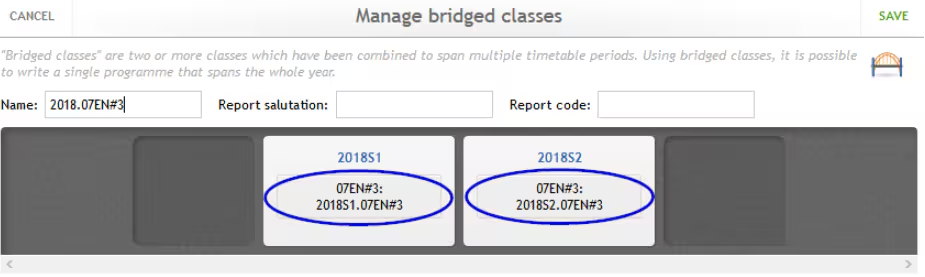
Checking the date in the Planner sub-page
The dates under the Planner sub-page in the programme should be in line with the course start and end dates. If the dates don't match it could indicate that the course has been bridged incorrectly to the wrong timetable period. However if the programme uses pathways the lesson dates can be different for each pathway, but in this case the variation would typically be minor and would still lie within the correct timetable period.
Check the previous year's class
From the teacher's timetable, change the date to sometime in semester two of the previous year. If the class is missing its Marks book, then it is possible the current class now has the programme attached. To correct this the programme will need to be unattached from the current class then reattached to the original.
If this appears to be an issue, please refer to the article Troubleshooting Programme Setup Issues , specifically the section Class bridged when it should not have been.
Was this article helpful?
That’s Great!
Thank you for your feedback
Sorry! We couldn't be helpful
Thank you for your feedback
Feedback sent
We appreciate your effort and will try to fix the article