TABLE OF CONTENTS
The My day tab, gives teachers immediate access to view and edit everything about their day, including lesson content, appointments, and bookings.
Accessing and using My day
- Go to the Teaching workspace > Timetable
- Select My day. By default, the current day will be displayed. To view other days, select the day of week or use the date selector, in the top-left corner.
- Select a class name to view the lesson content, resources, and information for that lesson. To access the 'Programme' page click on the Programme icon in the top-left corner.
My day indicators
Shared lessons
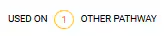
If the lesson being viewed is used on a pathway for another class, an indicator in the top-right corner. This will pulse a few times, when the lesson is first selected, then it will become still.
One lesson used for multiple instances in a week
When there are not enough lessons, for each instance of the class that week, the system will display the most recent lesson for the remainder of the lessons for the week. Additionally, an indicator for the lesson will be displayed saying which lesson is being used. Click here to view steps for adding additional lessons to a Programme.

Visibility of content in learn and engage
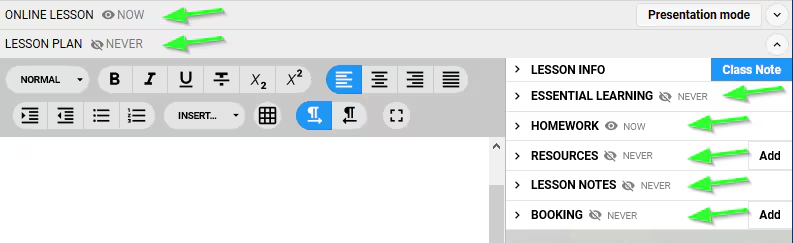
Each field on the 'My day' page, has an indicator showing the visibility of that component to students and parents. The visibility option settings are available on the Programme 'Cover page' and overview of Assessments. Click here to learn more detailed information and steps for changing the Programme visibility options.
Was this article helpful?
That’s Great!
Thank you for your feedback
Sorry! We couldn't be helpful
Thank you for your feedback
Feedback sent
We appreciate your effort and will try to fix the article