TABLE OF CONTENTS
The Cover page sub-page is used to create an overview of the course and provides access to
programme management functions, including marks book settings, collaboration settings and
programme restrictions.
Accessing the Programme Cover Page
- Go to the Teaching Workspace > Timetable > My classes/Traditional/Calendar.
- Click on the Load Programme on the class.
- Cover Page from the sub-menu.
- Access the applicable components outlined below (eg. The 'Overview' which displays in SEQTA Learn and SEQTA Engage).
Cover page components
- Title - The programme title is taken from the subject description.
- Programme Image - The Image associated with a programme, this shows in List of programmes and SEQTA Learn and SEQTA Engage.
- Owner - Used in conjunction with restrictions.
- Schoolyear - A label used to indicate what year the programme is associated with.
- Overview - The overview is displayed in SEQTA Learn and SEQTA Engage. The Overview is created using SEQTA Creator. The only way to prevent the Overview displaying in SEQTA Learn and SEQTA Engage is by selecting the option to 'Hide Entirely'.
- Outline - The Outline does not display in SEQTA Learn and SEQTA Engage. However, it may be included on Academic reports.
- In SEQTA Learn and SEQTA Engage - Settings for configuring Programme Visibility in SEQTA Learn and SEQTA Engage.
- Add files - This image is displayed when the course is selected in SEQTA learn and SEQTA Engage
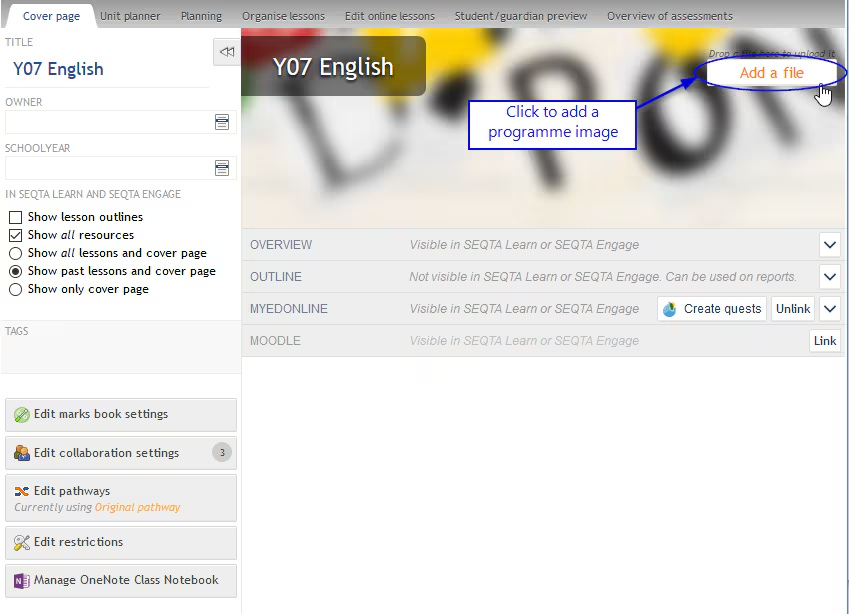
- Tags - Labels used to assist with search for a programme.
- Marks Book Settings - Enables management of course types, grading and marking
paradigms and setup and presentation for the marks book. - Collaboration Settings - Manages the way in which the programme is shared with or copied to additional classes.
- Pathways - Pathways provide additionally functionally for teachers to achieve various levels or collaboration.
- Restrictions - Restrictions are used to manage the edit rights to the Programme, Marks book and Unit planner.
- Integration Options - Different Integration options are available depending on which integrations are enabled.
Cover page image
Please refer to this article for information on the Cover page image such as blurring effects. recommended file type, and image size.
Was this article helpful?
That’s Great!
Thank you for your feedback
Sorry! We couldn't be helpful
Thank you for your feedback
Feedback sent
We appreciate your effort and will try to fix the article