TABLE OF CONTENTS
- Linking a SEQTA programme to myEdOnline - Adding sites (quests) and enrolling and unenrolling students.
- Accessing the myEdOnline Workspace
- Accessing myEdOnline through SEQTA Learn
- Locked aspects of myEdOnline Assessments
- Further assistance
SEQTA and myEdOnline have been integrated to allow staff to create and manage myEdOnline classes and sites through SEQTA Teach. The integration also allows students to access myEdOnline through SEQTA Learn and view myEdOnline results on the assessments page in SEQTA Learn.
Archiving a site by unenrolling all the students and clicking the 'Archive' button will result in loss of visibility of any work students have submitted for that site. Should this occur please contact the SEQTA Service desk for assistance. See below 'Further assistance' section for details.
Linking a SEQTA programme to myEdOnline - Adding sites (quests) and enrolling and unenrolling students.
This method allows teachers to access their myEdOnline sites through the SEQTA Cover page as well as the myEdOnline workspace.
- Click on Teaching workspace>Timetable>My classes/Traditional view/Calendar.
- Click on the Load programme icon for the class. Ensure you are viewing the Cover page.
- On the myEdOnline sub-section bar (bottom-right, below the programme image) click the Link button.
- Next click on the myEdOnline bar to open the myEdOnline quest view. This step is required for the class to show in the myEdOnline Workspace.
- The myEdOnline view should display the enrolled students for that class.
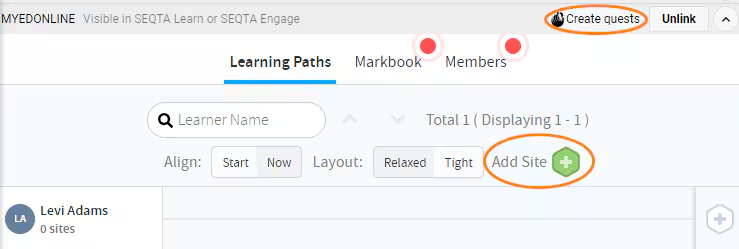
- To create a new site (quest) click on the Create quests button. This will open the myEdOnline Resource Libraries window in a new tab. Select the button New Site
- or select an existing site by clicking on the "+" next to New Site. You can also choose a site from any of the available libraries.
- Alternatively, on the Cover page view, choose Add Site to find and use an existing site.
- If creating a New Site, give the site a unique name and create the content.
- When ready select Share, then Publish to Learners.
- You will be prompted to select the class name.
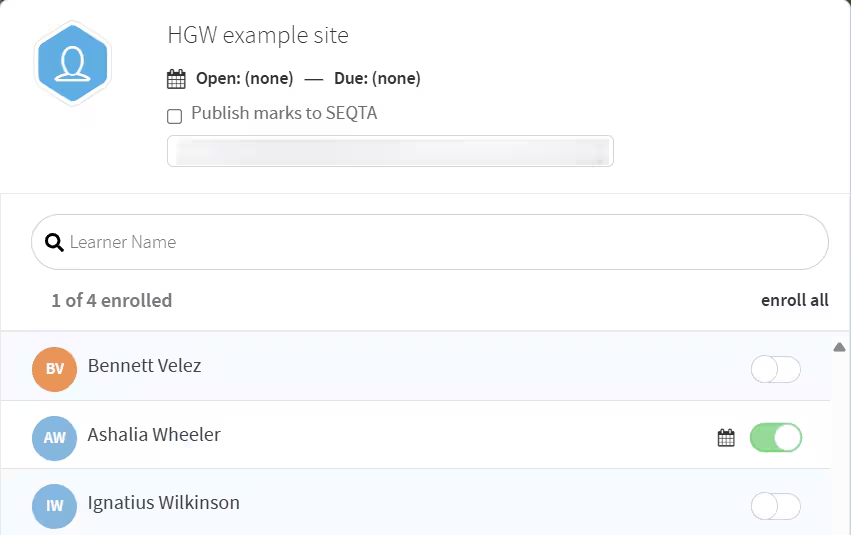
- Once ready for students to access, select enroll all or select individual students using the switch on the right-hand side of the row.
- If the site has content that will be marked, tick the Publish marks to SEQTA checkbox at the top of the pop-up window. Click Save. This will create an assessment in the SEQTA marks book and the Overview of assessments.
- When switching from the myEdOnline tab back to SEQTA Teach you may need to refresh/reload the page for the changes to show.
- The assessment will not appear under Assessments in SEQTA Learn or SEQTA Engage unless set as Visible.
Accessing the myEdOnline Workspace
- Log into SEQTA Teach.
- Click on the myEdOnline workspace icon on the left-hand spine in SEQTA Teach. myEdOnline will open in a maximised view with SEQTA workspaces visible in the spine.
- Any SEQTA classes that are linked to myEdOnline will be displayed. Click on the class to view the sites for that class.
- To access the Resource Libraries or My Learning hover over the myEdOnline House icon in the top left-hand corner (not the SEQTA icon in the spine).
- To open myEdOnline in its own tab, hover over the House icon in the top left-hand corner to access the left-hand workspace, then click on the myEdOnline logo at the bottom of the pane.
Accessing myEdOnline through SEQTA Learn
myEdOnline can be accessed through SEQTA Learn using the following methods:
- Clicking on the myEdOnline icon on the left-hand menu
- Clicking on Courses, then choose the Subject name then scroll down to the myEdOnline section. (This option is only available if the myEdOnline class is linked to the SEQTA programme Cover page).
- Clicking on Assessments then the Subject name. (This option is only available if: (a) Publish marks to SEQTA checkbox is selected for that site and (b) the assessment is set as visible in the Overview of assessments.
Locked aspects of myEdOnline Assessments
Certain actions and changes are not available in SEQTA Teach when managing myEdOnline assessments; these are listed below. Rather, they are managed externally through myEdOnline.
- You cannot edit the title, due date or overdue settings for the Assessment;
- You cannot allow alternative submission mechanisms for the Assessment; and
- You cannot add or remove criteria from the Assessment and you cannot edit the label or target score for criteria.
Further assistance
Please contact the SEQTA Support team for assistance. When reporting issues please include as much information as possible and where applicable, add screenshots (please include the URL in screenshots).
- Details of issue (eg. class needs to be unarchived, student work missing, deleted site needs restoring):
- Class code:
- Example student:
- Teacher name:
- Site name:
- Any relevant dates:
- URLs to sites and quests, these can be found in the browser address bar and when clicking on the site through SEQTA (see below screenshot)
Related Articles:
Was this article helpful?
That’s Great!
Thank you for your feedback
Sorry! We couldn't be helpful
Thank you for your feedback
Feedback sent
We appreciate your effort and will try to fix the article