TABLE OF CONTENTS
The Campion MyConnect integration allows teacher to use Campion resources through SEQTA Creator using the 'Campion MyConnect Connect Module'.
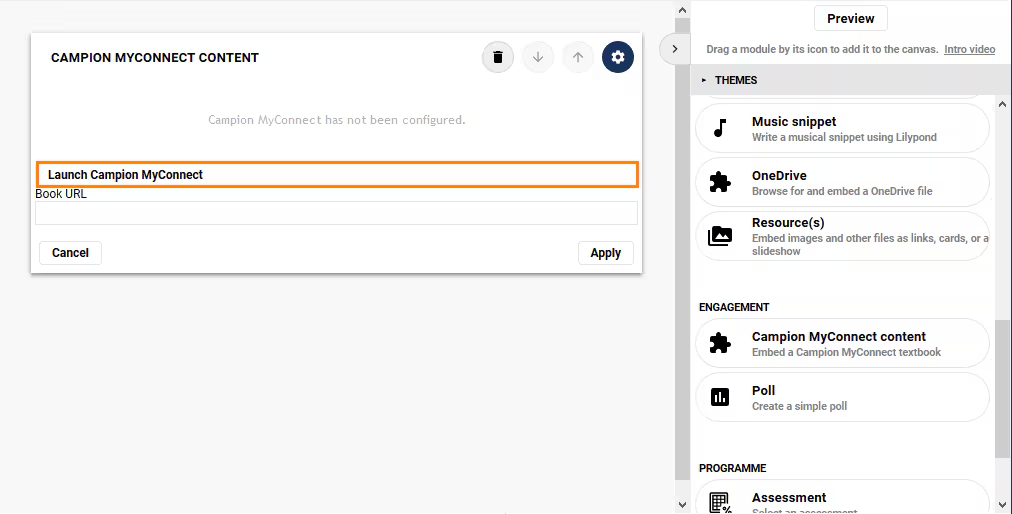
Once a Campion MyConnect module has been added to the canvas, the 'Launch Campion MyConnect' button can be used to find the book URL, which can then be pasted into SEQTA (steps below).
- Navigate to the Online lesson, Portal page or Programme overview and open SEQTA Creator.
- Click-drag the Campion MyConnect connect module from the palette to the canvas.
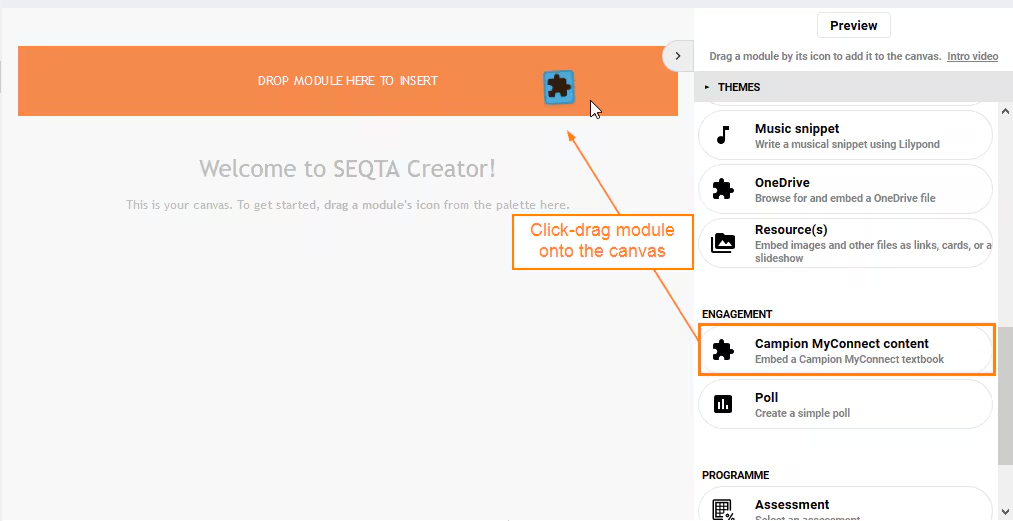
- Click the button Launch Campion MyConnect this should open Campion MyConnect in a new tab. If prompted, login to your Campion MyConnect account. NOTE: If there are any errors or issues opening My Connect open MyConnect directly in the browser, by going to http://myconnectshop.campion.com.au/login.htm. Next, login from there and obtain the URL to paste into SEQTA. Once done, SEQTA should remember and open MyConnect in future when the Launch button is selected.
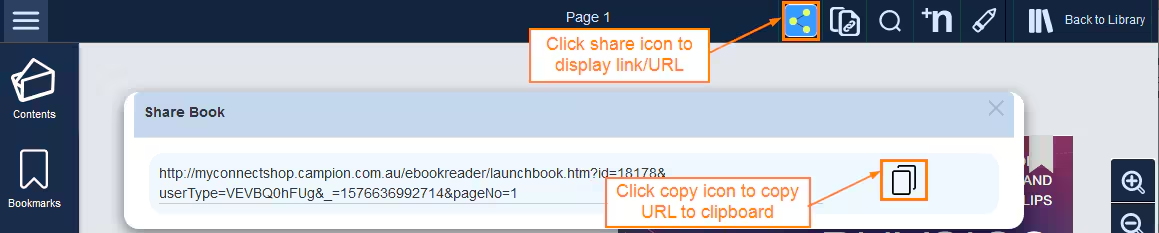
- Navigate to the resource you would like to add into SEQTA.
- Click the Share Icon, then the Copy Icon.
- Paste into the Book URL field in SEQTA.
- Click Apply.
Accessing Campion MyConnect Through SEQTA Learn
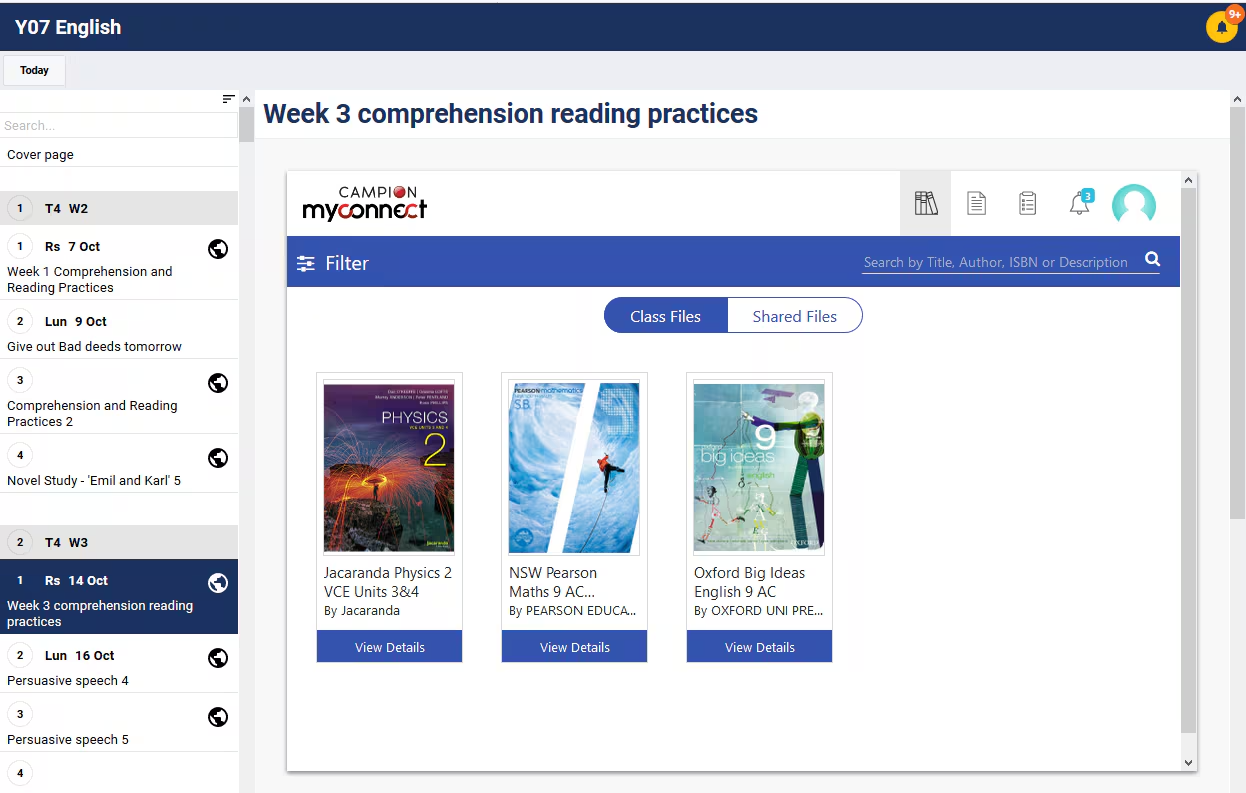
The below steps outline the process for student to access MyConnect through SEQTA Learn. Staff can also use the below steps by Masquerading as a student or parent to ensure everything displays as needed.
- Log into SEQTA Learn (students), SEQTA Engage (parents) or use the Masquerade option in SEQTA Teach (Teachers
- Select Courses from the left menu, then select the Course name (i.e. English). If the MyConnect content is in the Overview, it will display. Whereas if the content is in a lesson, the applicable lesson will need to be selected (if the lessons do not show select 'JUMP TO' from the top of the page).
- If prompted, enter the MyConnect username and password - the system should remember the details the next time MyConnect is accessed through SEQTA.
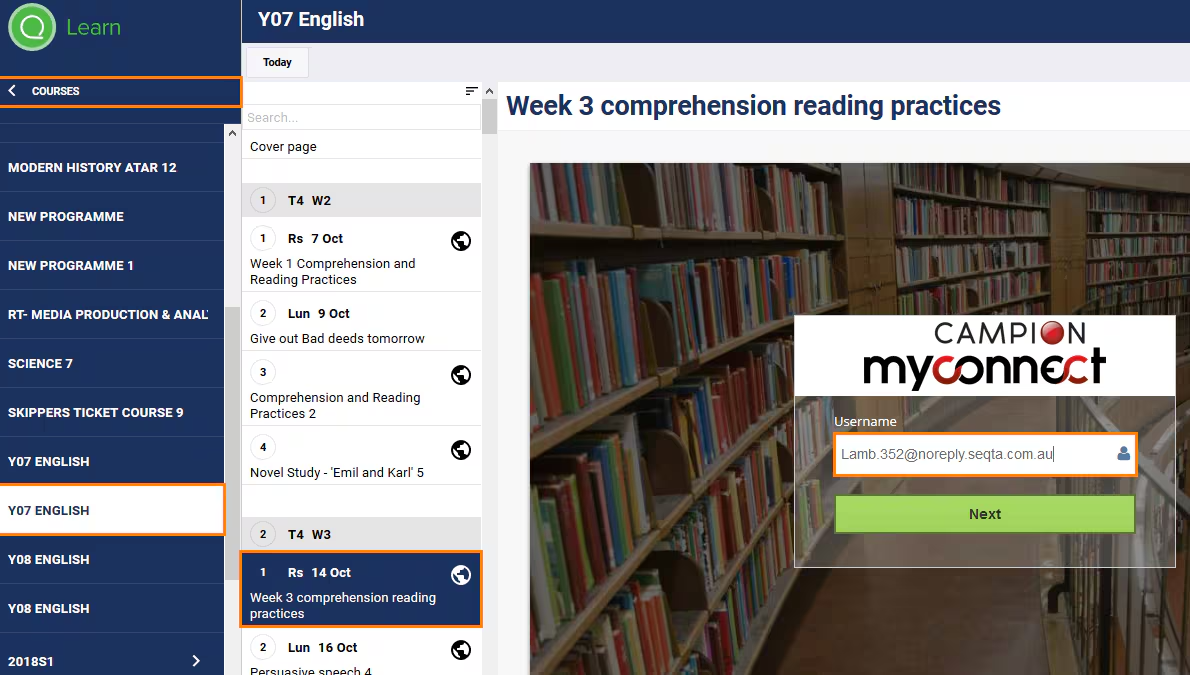
- Select the lessons, if the lessons do not display select Go To...
Was this article helpful?
That’s Great!
Thank you for your feedback
Sorry! We couldn't be helpful
Thank you for your feedback
Feedback sent
We appreciate your effort and will try to fix the article