TABLE OF CONTENTS
- Programme settingsAccessing the programme visibility settings
- Online Lessons, Lesson Outlines and Lesson Resources
- Assessments and Assessment ResultsAccessing Assessment visibility settings
- Enrolment end date
Teachers control the visibility of the various different aspects of the Programme through the Cover page and Overview of Assessments.
The timetable period the class is assigned to needs to be set as Visible in SEQTA Learn and SEQTA Engage for Programmes and Assessments to be visible.
Programme settings
The following can be set on the Programme Cover page. These are programme wide and will apply to all classes sharing that programme. This information is shown in SEQTA Learn and SEQTA Engage under 'Courses'.
- Hide the entire programme, including the assessments
- Set lesson visibility, the options are show all, show none or show past assessments
- Resource visibility, the option to hide the resources in the 'Planner'. Resources saved against hidden lessons do not show.
Accessing the programme visibility settings
- Go to the Teaching Workspace > Timetable > My Classes.
- Click on Load Programme icon for the class.
- Under the section on the right-hand side called 'In SEQTA Learn and SEQTA Engage'
- After the change has been made, it is possible to check in SEQTA Learn using the 'Masquerade' button in the SIP, to confirm it displays as required. If the change doesn't show refresh/reload the page.
Online Lessons, Lesson Outlines and Lesson Resources
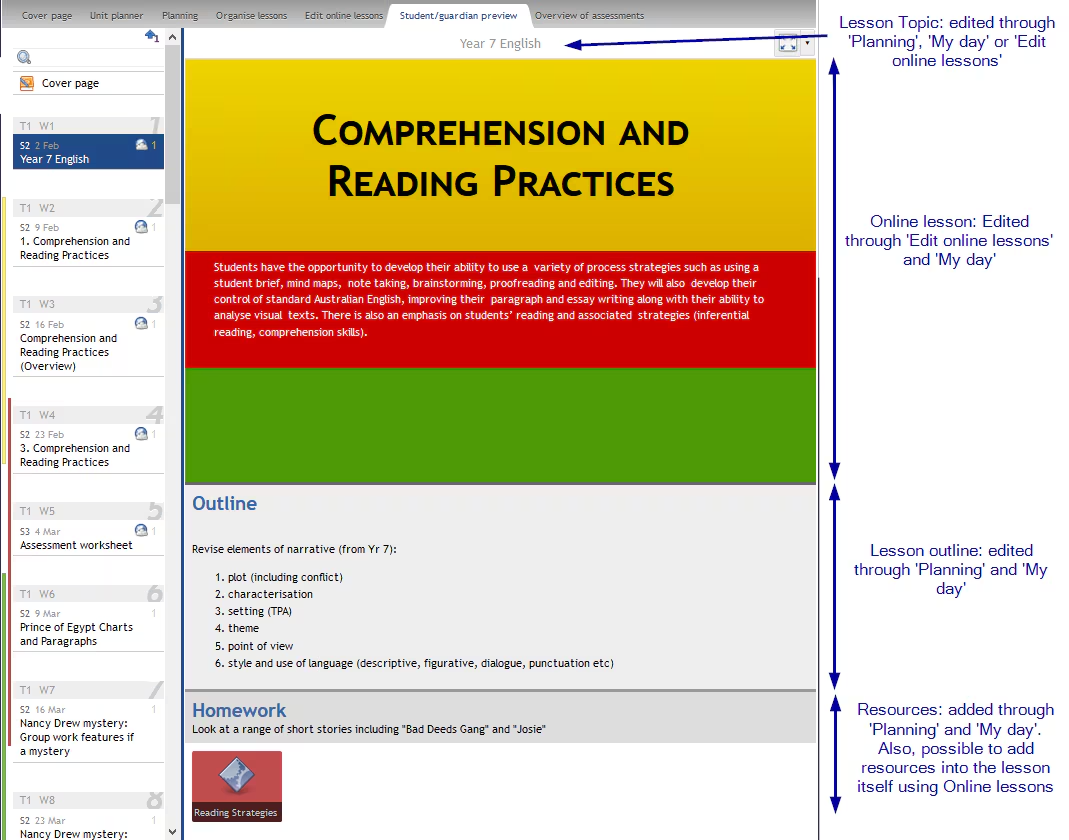
The 'Lesson Outlines' (PLANNER) are typically used by teachers for their own notes. These can be hidden so they don't appear in SEQTA Learn and SEQTA Engage via the Cover page.
Whereas 'Online lessons' (ONLINE LESSON EDITOR) are used for SEQTA Learn and SEQTA Engage and cannot be hidden without hiding the entire programme.
Assessments and Assessment Results
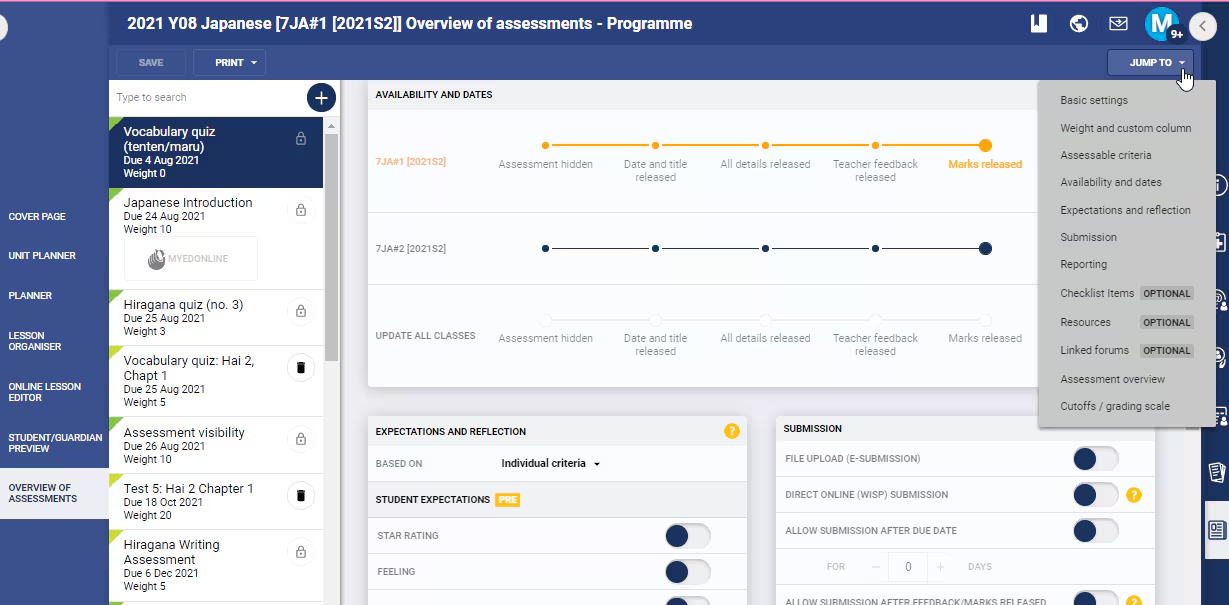
Assessment visibility (availability) and due dates are managed on a per-class basis. Whereas Reflection, expectation and submission settings are programme wide. This information is shown in SEQTA Learn and SEQTA Engage under 'Assessments'.
For more detailed guides on using online assessments please refer to the Assessment Article Index
Accessing Assessment visibility settings
- Click the Teaching Workspace icon.
- Select the class or click on the Load Programme icon.
- Select Overview of Assessments.
- Select the Assessment or check the "+" at the top of the page to create a new assessment.
- Scroll down or select 'Jump to' in the top-right to the sections called Availability and dates. This section along with the Expectation and Reflection and Submission settings control the visibility of various aspects of the assessments.
- Click SAVE.
Enrolment end date
The student's enrolment end date plays a role in the visibility of their archived course specifically where there is no assessment (green section) data present in the mark book. Either add a dummy assessment weighted zero with dummy results entered or contact our support team for a data fix to extend the students' enrolment end dates.
Was this article helpful?
That’s Great!
Thank you for your feedback
Sorry! We couldn't be helpful
Thank you for your feedback
Feedback sent
We appreciate your effort and will try to fix the article