TABLE OF CONTENTS
The Overall Grade (Mod Gd) and Overall Score (Mod %) can be displayed in SEQTA Learn and SEQTA Engage on the Assessment page by selecting the course.
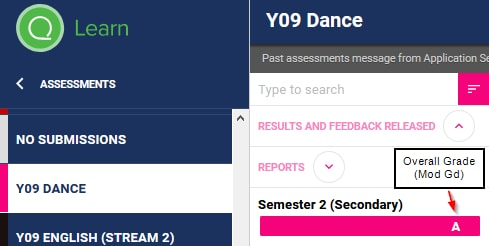
Enabling the Overall result visibility
Please check the following:
- Ensure the timetable is Visible in SEQTA Learn and SEQTA Engage.
- Ensure the Term<->Report record exists in the Data Management page (the steps to create this are below)
- Ensure the Programme is Visible in SEQTA Learn and SEQTA Engage The check box Hide Entirely on the programme Cover page should not be ticked.
- Ensure there is a Result in either the Mod% or ModG column in the Marks book.
- The assessment marks must have been released.
Note that the Mod columns only update when the marks book is saved. The teacher will need to save the Reporting results regularly for the Learn and Engage views to update (the purple columns). This would normally be done after each assessment is marked and released or weekly if that is more convenient.
Create the Term <-> Report record
The steps for this process are outlined below (the permission DATA: EDIT is required)
- Go to the Administration workspace>Data management.
- Select Term <-> Report.
- Select Add record.
- Select the applicable Timetable period and Report type.
- Tick the checkboxes for Show Mod grade and Show Mod score
- Click Save (bottom-left corner of the editing pane).
Related articles:
Was this article helpful?
That’s Great!
Thank you for your feedback
Sorry! We couldn't be helpful
Thank you for your feedback
Feedback sent
We appreciate your effort and will try to fix the article