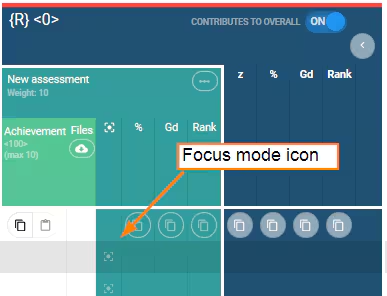
Results and Teacher submissions can be entered directly through the Marks book. However, teacher annotations, Rubrics marking and WISP annotations can only be entered through Focus mode. Click on the Focus icon  for the relevant student/assessment to enter Focus mode.
Information on how to display results and rubrics in SEQTA Learn and SEQTA Engage is available in the article: Displaying assessment results and rubrics in SEQTA Learn and SEQTA Engage.
- Go to the Teaching Workspace > Timetable > My Day/My Classes/Traditional view/Calendar.
- Click on the Marks Book icon for the class
 .
. - Click on the Focus modeicon for the student assessment.
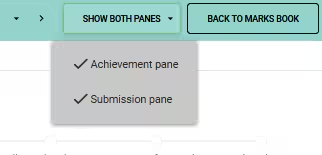
- The Teacher Marking and Feedback section and the Availability section should display jointly in place of the assessment page. To select each section singly, select Achievement pane or Submission pane from the drop-down in the top-right corner.
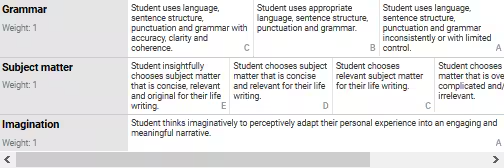
- To mark a criterion, use the Achievement pane. All criteria for that assessment will appear, but the layout will be different depending on the Assessment setup (Individual criteria or Whole assessment - see links below).
- If a Rubric has been assigned to an assessment criterion, it will display above the Teacher Feedbacksection. Click to select the applicable options.
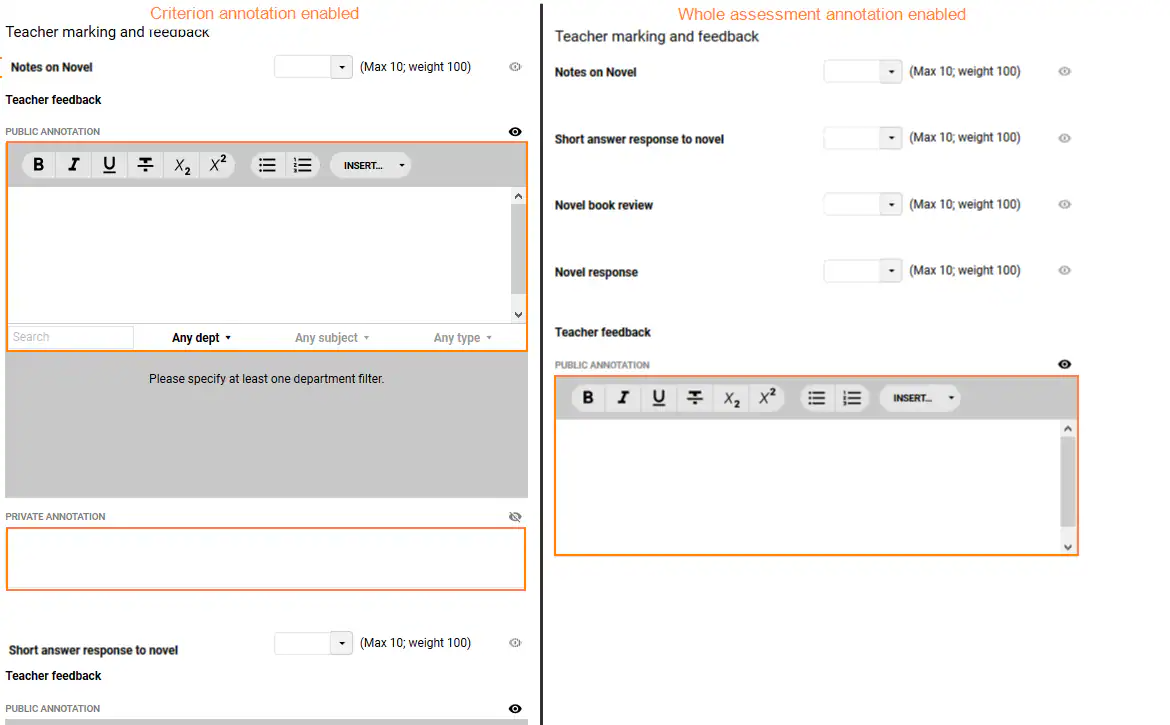
- If applicable, enter a Public Annotation (visible in SEQTA Learn and SEQTA Engage) and/or a Private Annotation (hidden from SEQTA Learn and SEQTA Engage). If the assessment setup is set to Individual criteria, each criterion will have a separate feedback section.
Image below: (left) Individual Criterion feedback , (right) Whole assessment feedback.
- If applicable, select Add Files (drag and drop), or navigate to the file location, select the file and click Open.
- To add results for additional students or additional assessments use the left and right arrows at the top of the work area to select the next student or assessment.
- Click 'SAVE' to keep changes.
- Once finished click the 'Back to marks book' button in the top-left corner.
Related articles
Was this article helpful?
That’s Great!
Thank you for your feedback
Sorry! We couldn't be helpful
Thank you for your feedback
Feedback sent
We appreciate your effort and will try to fix the article