TABLE OF CONTENTS
- Sharing Assessment Results
- Displaying Rubrics in SEQTA Learn and SEQTA Engage
- Viewing Results and Rubrics in SEQTA Learn and SEQTA Engage
Sharing Assessment Results
Complete the following steps to share Assessment results, Rubrics, comments and submissions with students and guardians through SEQTA Learn and SEQTA Engage. See below requirements for displaying Rubrics.
- Go to the Teaching Workspace > Timetable > My classes/Traditional/Calendar
- Click on the Load Programme icon for the class
- Select the Overview of Assessments sub-page
- Select the assessment. Alternately, create a new assessment and give it a title etc..
- Under 'Availability and Dates' set set the slider to either:
- Teacher feedback released: displays feedback, public annotation, descriptive rubrics, rubric selections and teacher files
- Marks Released: displays marks, feedback, public annotations, rubric points, rubric marks, and teacher files (Result must be entered)
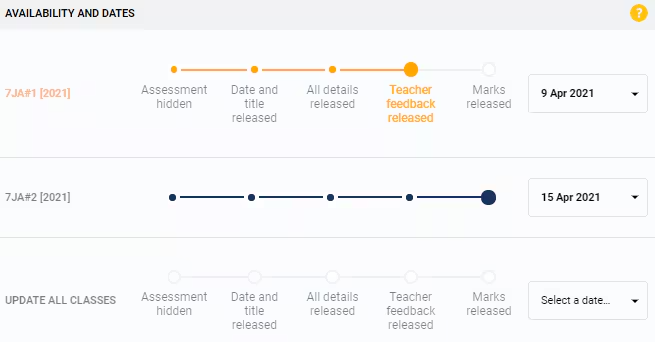
- Select SAVE
Displaying Rubrics in SEQTA Learn and SEQTA Engage
The following points outline the requirements for a Rubric to display SEQTA Learn and SEQTA Engage.
- To display a Rubric which has not been marked set the availability to 'All Details Released'.
- To display a marked (Explanatory) Rubric set to 'Teacher Feedback Released' or 'Marks Released'. If there is no Syllabus linked to the assessment, the Application setting 'Display Past Assessments (Task View)' also needs to be enabled.
- To display a marked ('Grades-Based' or 'Numeric') Rubric set to 'Marks Released'. Ensure a grade has been entered for the assessment/student.
Viewing Results and Rubrics in SEQTA Learn and SEQTA Engage
- Log into SEQTA Learn or SEQTA Engage, or Masquerade as a Student
- Select Assessments.
- Select the Course name.
- Click on the expand arrow next to Results and Feedback Released or Results Pending.
- Select the assessment.
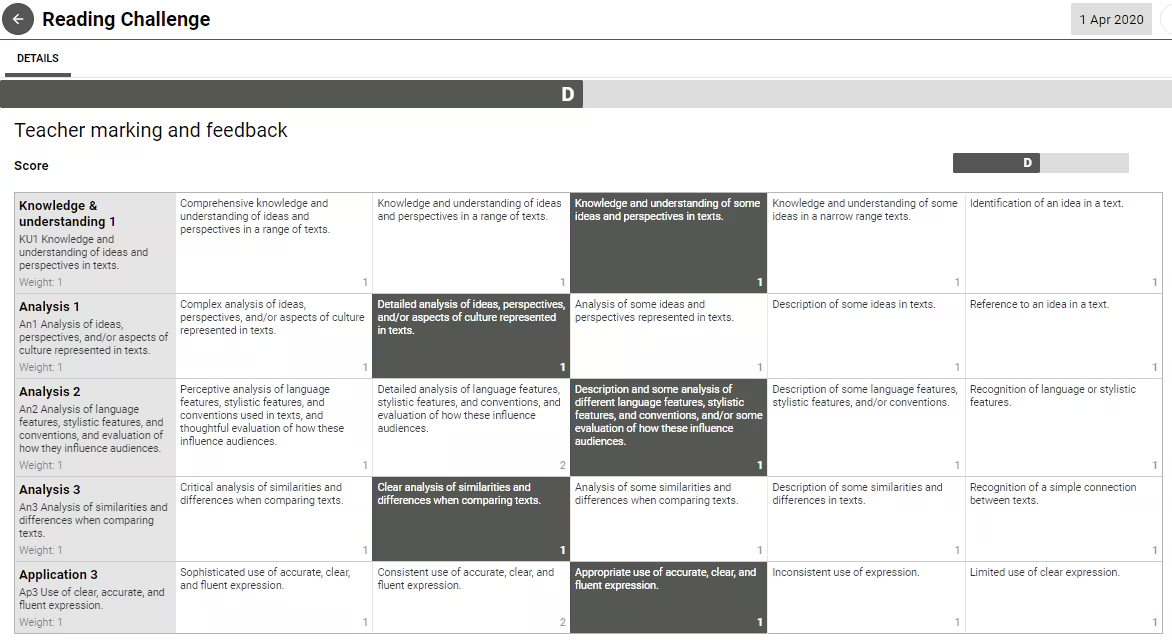
- The results display under 'Details'.
Image below: Example showing marked Rubric in SEQTA Learn and SEQTA Engage.
Was this article helpful?
That’s Great!
Thank you for your feedback
Sorry! We couldn't be helpful
Thank you for your feedback
Feedback sent
We appreciate your effort and will try to fix the article