The settings to configure, enable and disable Assessments page in SEQTA Learn and SEQTA Engage are available in the 'Application Settings' page. Once the Assessment page is visible teachers can configure their assessments so they are visible, and enable online submissions and display results.
Hiding the Timetable will hide any assessments for classes attached to the timetable. Bridging a class from a visible timetable to a hidden timetable will have the same effect.
- Go to the Administration Workspace > Application Settings > Application Settings.
- Type 'Assessments' in the search box in the top-right corner.
- Select 'All Categories' next to the search box and select the applicable category (assessment configuration settings can be set independently for SEQTA Learn and SEQTA Engage).
- In the 'Pages' pane, select 'Enabled' to show the 'Assessment' page or 'Disable' to hide.
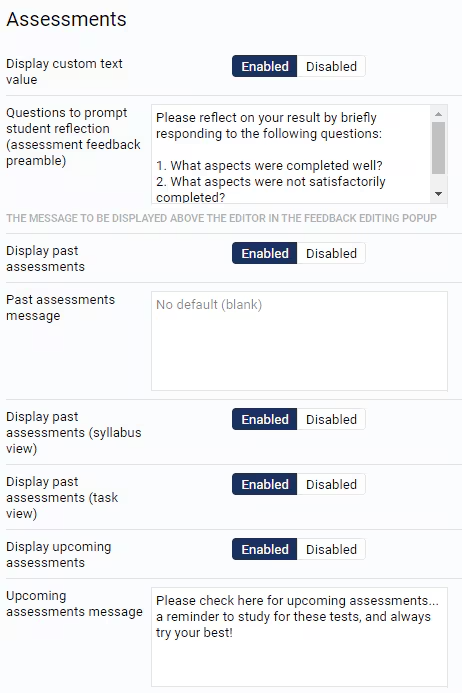
- In the 'Assessments' pane:
- Set the display options as required. The settings 'Display Past Assessments' and 'Display Past Assessments (Task View)' must be selected for results to show. The setting 'Display past Assessments (Syllabus View)' is a legacy setting and will be ignored.
- (Optional) Enter questions to prompt students when entering reflections.
- (Optional) Enter a message to display under Past and Upcoming assessments.
- Click 'SAVE'.
Was this article helpful?
That’s Great!
Thank you for your feedback
Sorry! We couldn't be helpful
Thank you for your feedback
Feedback sent
We appreciate your effort and will try to fix the article