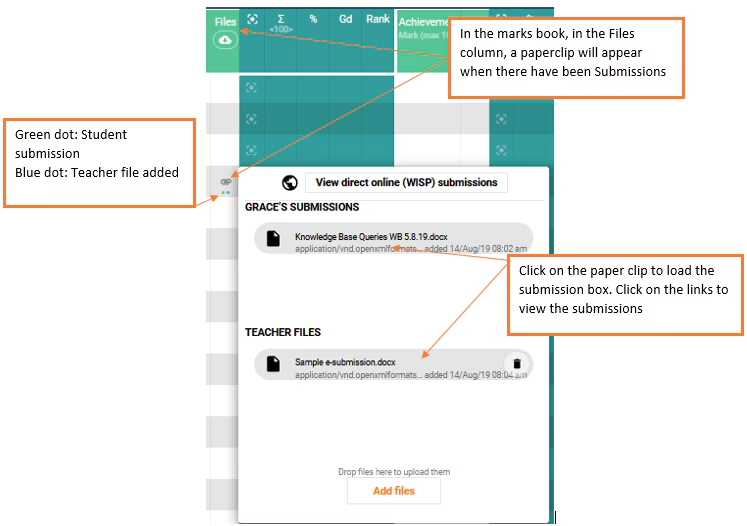
Submissions can be accessed through the marks book in the Files column (in the student row), or in the case of Turnitin, click on the Turnitin icon at the top of the Files column.
WISP submissions do not work as e-submissions do in that they do not display in the Marks book automatically once the student has completed work. Rather, for the submission to show in the Marks book either the due date will need to have past, or the student will need to have taken a 'Snap' and submitted it to the teacher.
- Go to the Teaching Workspace > Timetable > My Classes/My Day/Traditional/Calendar.
- Click on the 'Marks book %' icon for the class.
- Click on the 'Paper Clip' symbol next to the assessment/assessment criterion.
- Click on the Submission to view.
- Annotate if required.
Was this article helpful?
That’s Great!
Thank you for your feedback
Sorry! We couldn't be helpful
Thank you for your feedback
Feedback sent
We appreciate your effort and will try to fix the article