The 'Assessment Availability Track' is used to configure the assessment visibility, along with the Submission Settings and Expectations and Reflections.
- Go to the Teaching Workspace > Timetable > My Day/My Classes/Traditional View.
- Click on the Load Programme icon for the class.
- Select Overview of Assessments from the sub-page menu.
- Select an existing assessment, or click the "+" to create a new assessment.
- Scroll down to the Availability and Dates Pane or use the 'Jump to' drop-down in the top-right corner.
- Set the availability and due dates for the assessment. These can be set independently for each class or all classes in the Programme share.
- Click Save to keep the changes.
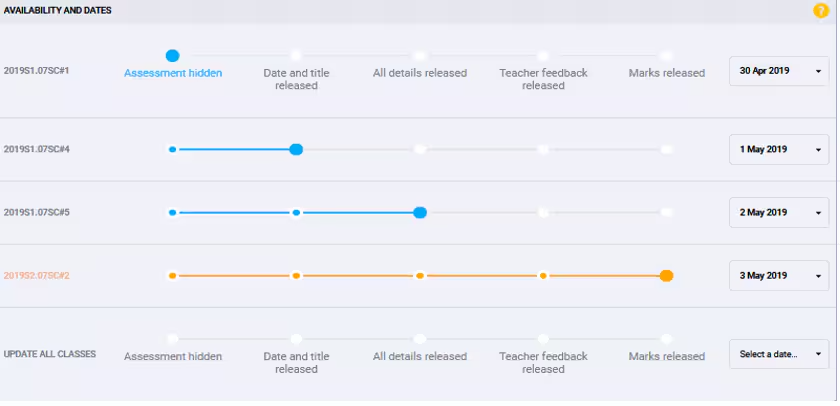
Table below: Visibility of assessment data at various stages on the Assessment track.
Assessment Hidden | No assessment details are visible to the students or guardians |
Date and Title Released | Assessment name and due date |
All Details Released | Assessment overview, assessment files (resources), assessment criterion, Rubrics |
Teacher Feedback Released | Annotations, Rubrics, teacher files |
Marks Released | Assessment Results (i.e. grades/scores), Rubric points |
Date | The due date for the assessment |
Was this article helpful?
That’s Great!
Thank you for your feedback
Sorry! We couldn't be helpful
Thank you for your feedback
Feedback sent
We appreciate your effort and will try to fix the article