This article outlines the process for creating and managing online assessments and assessment submissions. For information on managing late submissions please refer to the article Managing Late Submissions for Online Assessments.
- Go to the Teaching Workspace > Timetable > My Classes/Traditional/Calendar.
- Click on the 'Load Programme' icon for the class
- Select 'Overview of Assessments' from the sub-menu
- Select an existing assessment, or click the plus icon "+" to create a new assessment.
- Scroll down to find the 'Availability and dates' pane or select 'Jump to > Submission' in the top right-hand corner
- Select 'All Details Released'. NOTE: If there is Teacher feedback or Marks in the Marks book the slider will need to be changed accordingly or the student will not see the assessment.
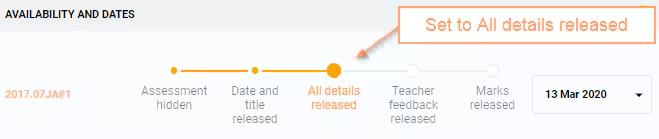
- To allow submission prior to the due date, set the 'Due Date' to a point in the future.
- Scroll down to the 'Submission' pane or select 'Jump to > Submission' in the top right-hand corner.
- (Optional) Allow submission after due date or results have been entered (optional). These settings work in conjunction with those set on the Assessment availability track.
- To allow late submissions select 'Allow Submission After Due Date, for "x" Days'.
- To allow submissions after results and annotations have been entered select 'Allow Submission After Feedback/Marks Released'.
- Toggle ON one of the following Assessment Submission Types. Note: To avoid confusion only one type should be used for each assessment.
- File Upload (E-Submission)
- Direct Online (WISP) Submission - Allows student to create their submission using the SEQTA Editor
- Turnitin
- Click 'SAVE'.
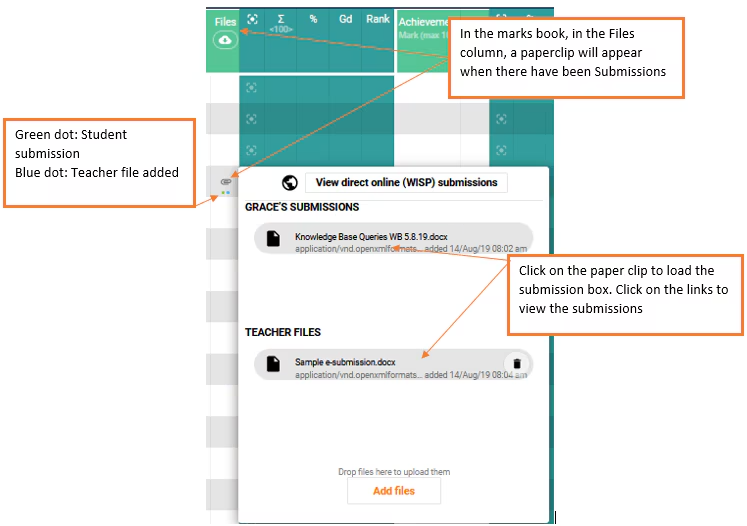
- Once the students have submitted work it can be accessed through the submission column in the Marks book or through Focus Mode.
Image below: viewing student submissions through the Marks book
Was this article helpful?
That’s Great!
Thank you for your feedback
Sorry! We couldn't be helpful
Thank you for your feedback
Feedback sent
We appreciate your effort and will try to fix the article