Assessments can be configured to allow students to enter any combination of text response, star rating, feeling, and expected score, both before an assessment (Expectations PRE) and after the assessment (Reflections POST).
The steps and screenshots to show how students can enter expectations and reflections are available in the Knowledge Base article: Entering Assessment Expectations, Reflections and Viewing Feedback in SEQTA Learn
- Go to the Teaching Workspace > Timetable > My Classes/My Day/Traditional/Calendar.
- Click on the Load Programme icon on the class.
- Select the sub-page Overview of Assessments.
- Select the Assessment title. Alternatively, click the "+" to create a new assessment.
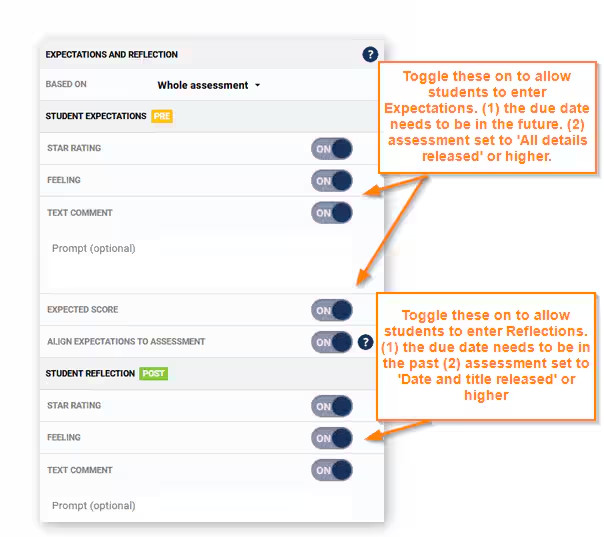
- Navigate to the 'Expectations and Reflection Pane.' Alternatively, select the Jump To option in the top-left corner and select Expectations and Reflections.
- Configure options as required. Refer to table at the end of this article for setting definitions.
- Click SAVE.
Was this article helpful?
That’s Great!
Thank you for your feedback
Sorry! We couldn't be helpful
Thank you for your feedback
Feedback sent
We appreciate your effort and will try to fix the article