TABLE OF CONTENTS
The below information outlines the steps for entering expectations, reflections and viewing teacher feedback in SEQTA Learn.
Entering Expectations Before an Assessment
- Log into SEQTA Learn or Masquerade as a Student in SEQTA Teach
- Select Assessments.
- Select the Course name.
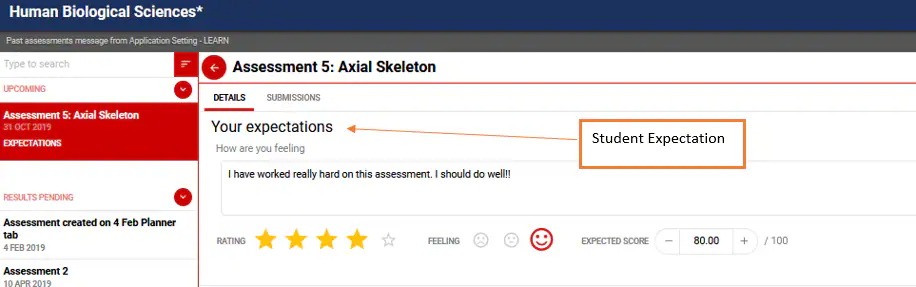
- Select the expand arrow next to Upcoming.
- Select the assessment.
- Enter your expectations.
Viewing Teacher Feedback and Entering Reflections
- Log in to SEQTA Learn.
- Select Assessments from the left-hand menu.
- Select the Course name.
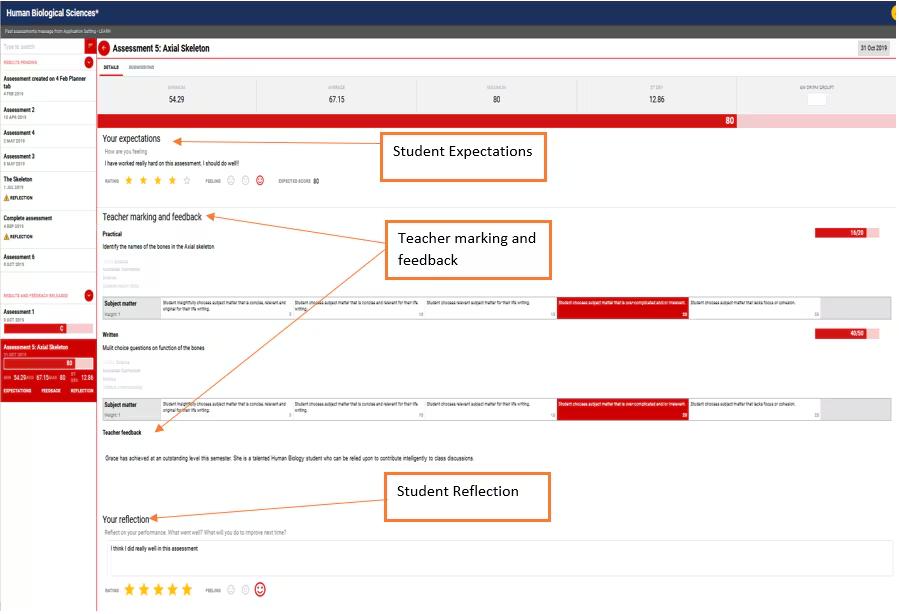
- Select the expand arrow next to Results and feedback released or Results pending.
- Select the assessment - any teacher marking and feedback will be displayed.
- Enter your reflections.
Was this article helpful?
That’s Great!
Thank you for your feedback
Sorry! We couldn't be helpful
Thank you for your feedback
Feedback sent
We appreciate your effort and will try to fix the article