TABLE OF CONTENTS
Students and guardians can assign a colour to a course through the timetable in SEQTA Learn and SEQTA Engage. Changes to the course colour show on the timetable, and next to the course title in the menu on the 'Assessments' and 'Course' pages.
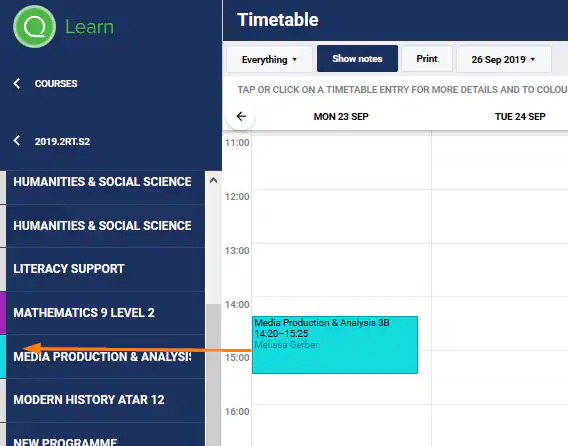
Assigning a Colour to a Course in SEQTA Learn and SEQTA Engage
- Log in to SEQTA Learn or SEQTA Engage. Alternately, Masquerade as a Student or Guardian.
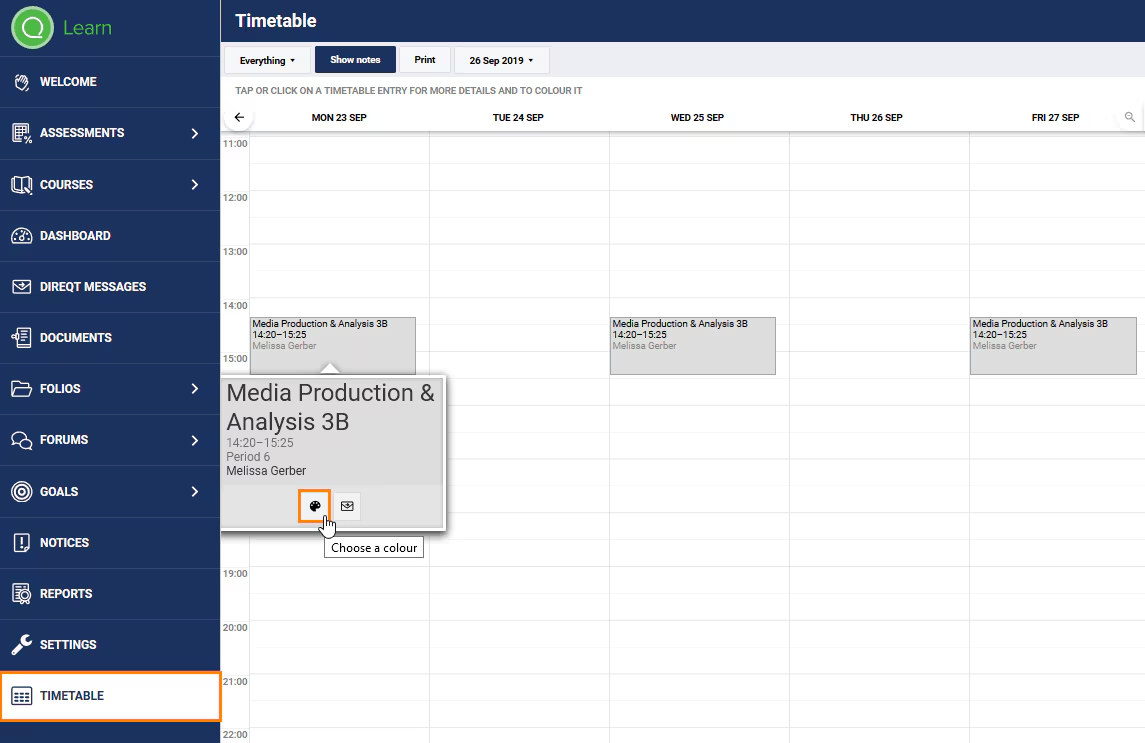
- Select Timetable in the left-hand menu.
- Click on the class then select the the colour palette icon.
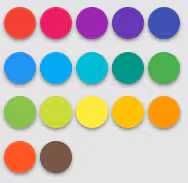
- Choose one of the following options:
- Select a colour from the palette.
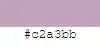
- Enter a Hex colour code (example below).
- Use the slider and selector to select using the colour square.
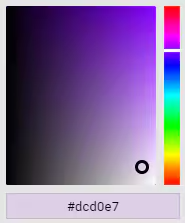
- Select Random for the system to assign a colour.

- Select a colour from the palette.
- Click OK to save the change.
Was this article helpful?
That’s Great!
Thank you for your feedback
Sorry! We couldn't be helpful
Thank you for your feedback
Feedback sent
We appreciate your effort and will try to fix the article