TABLE OF CONTENTS
- Creating and Editing Folios (SEQTA Learn)
- Viewing folios (SEQTA Engage and SEQTA Learn)
- Commenting on a folio (SEQTA Learn and SEQTA Engage)
- Commenting on a Folio (SEQTA Teach)
- Deleting and Un-Publishing Folios (SEQTA Learn)
- Enabling Teacher Comments (SEQTA Learn)
- Using Tags to Filter Folios
Students can create, edit and delete their own folios in SEQTA Learn. Additionally, they can share and public folios with teachers, parents and other students and enable access for comments.
Only students can create Folios. While all teachers can see all Folios, they can only comment on them if the student has explicitly added them by clicking on the 'Edit' button and selecting their name.
Creating and Editing Folios (SEQTA Learn)
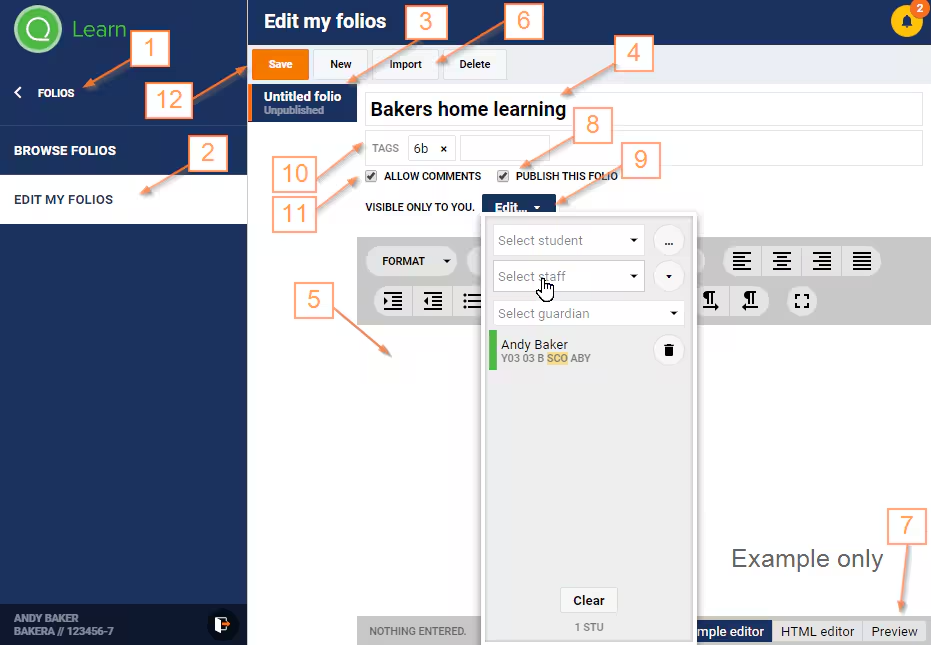
Log into SEQTA Learn, or Masquerade as a Student in SEQTA Teach.
- Select Folios from the left-hand menu.
- Select Edit my folios.
- Select New folio from the top menu. Alternately, to edit a folio, click on the folio name.
- Enter a Title of the folio.
- Add content into the main work area using the editor.
- If required select Import a select a WISP assessment.
- Select Preview folio button from the bottom right corner. This will display the folio exactly as it will be displayed in SEQTA suite.
- Once the folio is ready to be shared select the option Publish this Folio.
- Select the Edit and add the people you would like to share the folio with.
- Enter a Tag.
- Check the Allow Comments option if wanting to allow people to comment on the folio.
- Click Save.
Viewing folios (SEQTA Engage and SEQTA Learn)
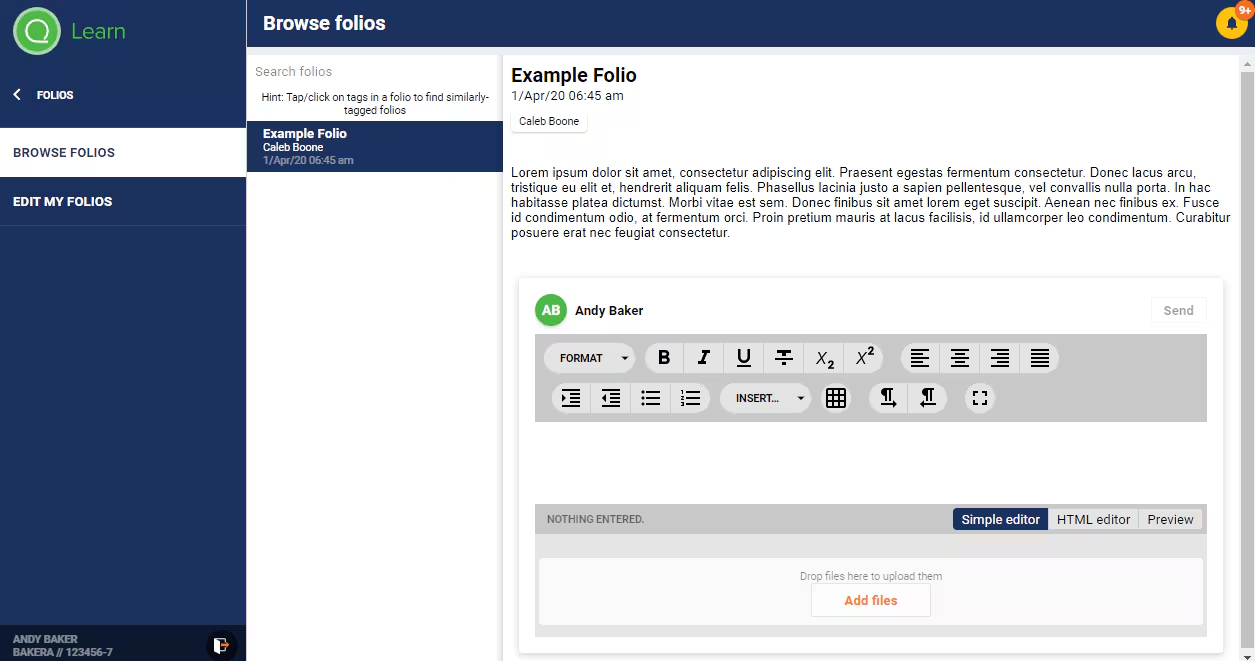
- Log in to SEQTA Engage (parents) or SEQTA Learn (students).
- Select Folios from the left hand menu.
- Select Browse Folios.
- Click on the folio name to view that folio.
Commenting on a folio (SEQTA Learn and SEQTA Engage)
People that have view access folios, can comment on them, providing the 'Allow comments' option is selected by the student who created the folio.
- Log into SEQTA Learn, or Masquerade as a Student in SEQTA Teach.
- Select Folios from the left hand menu.
- Select Browse folios.
- Select the folio to comment on. To do this, either search or select from the list.
- Scroll to the bottom of page.
- Type in comment and any other information required (i.e. images, links, attachments etc.).
- Click Send.
Commenting on a Folio (SEQTA Teach)
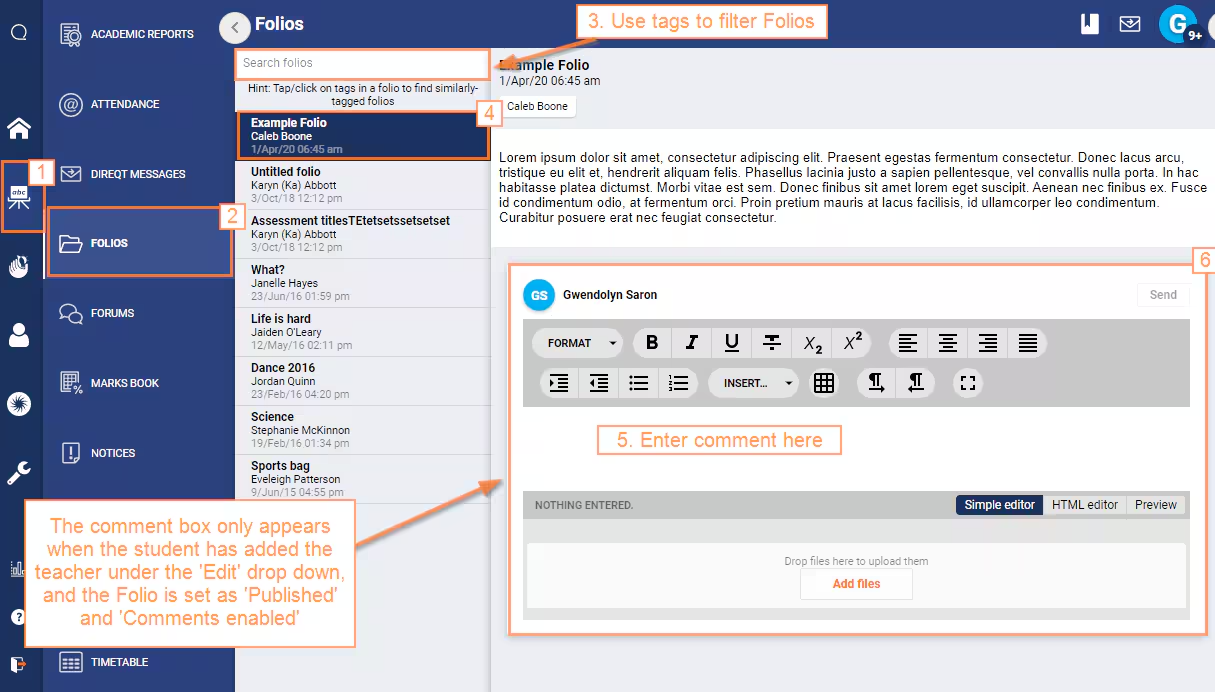
This option requires the student to; add the teacher to the folio using the 'Edit' tab, select 'Allow comments' and 'Publish this Folio'.
- Go to the Teaching Workspace > Folios.
- If available enter a tag to filter the folios.
- Click on the Folio you would like to comment on.
- Type in a comment.
- Click Send.
Deleting and Un-Publishing Folios (SEQTA Learn)
Folios can be deleted through SEQTA Learn by the students that created them. Alternately, students may choose to prevent others from viewing their folio by deselecting the Publish this Folio check-box.
- Log in to SEQTA Learn.
- Select Folios from the left hand menu.
- The following options are available:
- Delete the folio: Click the Delete button, then click Delete to confirm.
- Keep the folio: Untick Publish this Folio and click Save.
Enabling Teacher Comments (SEQTA Learn)
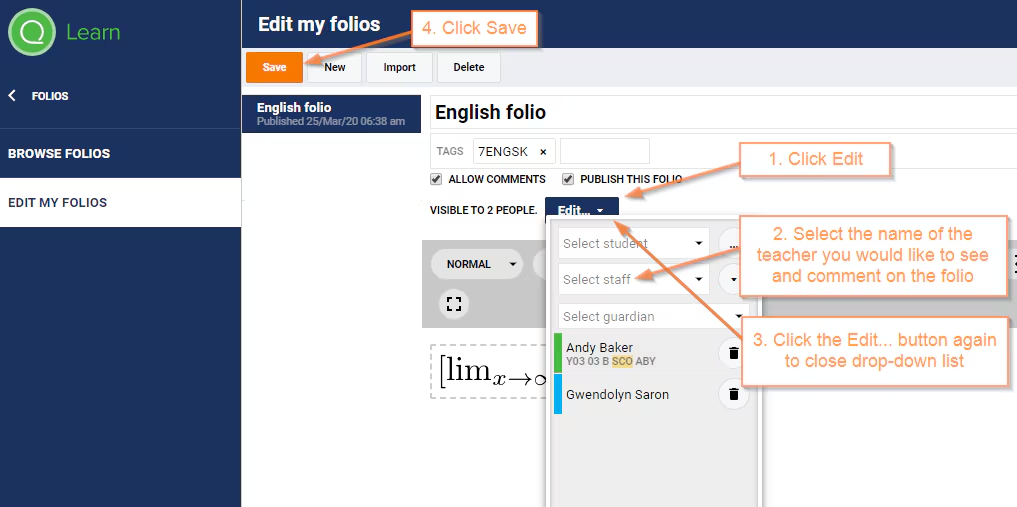
- Log into SEQTA Learn or Masquerade as a student through SEQTA Teach.
- Select Folios > Edit my Folios.
- Select the Folio name or create a new Folio.
- Select Edit.
- Add the teacher name.
- Click the Edit icon again to close the drop-down menu.
- Select Allow Comments and Publish this Folio.
- It is recommended teachers give students a key word to type into the Tags fields, this will allow the teacher to filter and view only the applicable folios (i.e. teacher initials or class code).
- Click Save.
Using Tags to Filter Folios
Tags are used to allow teachers to filter the Folios when viewed in SEQTA Teach. Otherwise, the teacher will see all the Folios including once created for other teachers. For this option to be available the student's will need to type a keyword (i.e. teacher initials or class code) in the 'Tags' field when creating or editing the Folio.
Related Articles:
Was this article helpful?
That’s Great!
Thank you for your feedback
Sorry! We couldn't be helpful
Thank you for your feedback
Feedback sent
We appreciate your effort and will try to fix the article