TABLE OF CONTENTS
Uploading E-Submissions (Files) Through SEQTA Learn
- Log into SEQTA Learn or Masquerade as a Student
- Select Assessments > Upcoming.
- Select on the Expand arrow for the course and then select the Assessment.
- Select Submissions.
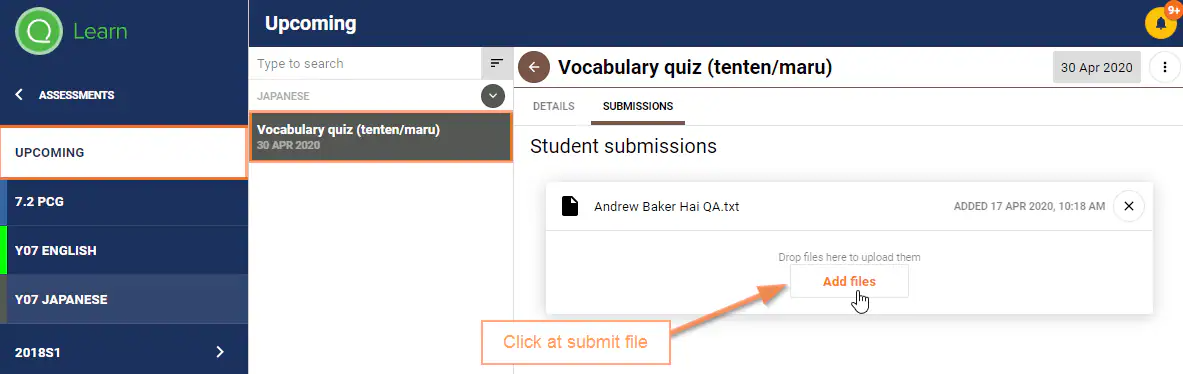
- Select the Add Files button.
- Navigate to the file location then select Open. The assessment submission will automatically save.
Deleting E-Submissions Through SEQTA Learn
E-Submissions can be deleted through SEQTA Learn providing no feedback or results have been entered for the student/assessment and due date not passed.
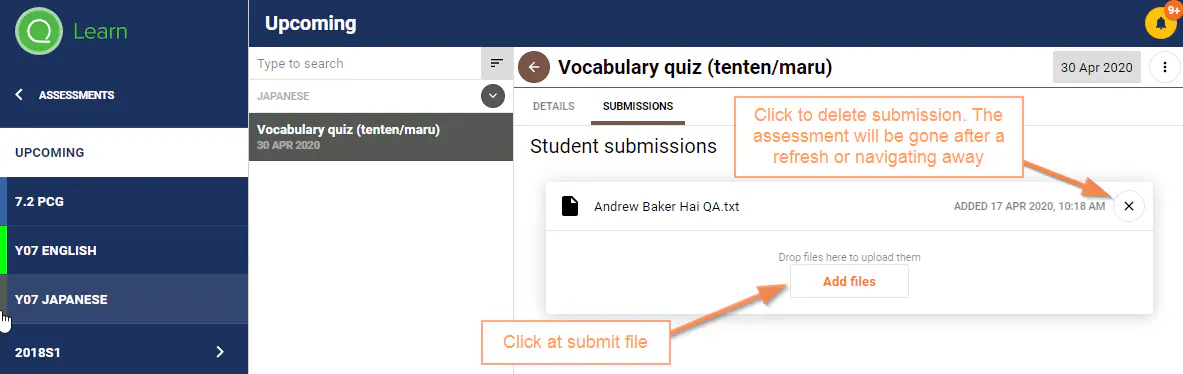
Please note to confirm the file has been deleted, refresh the page or navigate away and coming back and it should be gone. In addition, the assessment needs to be set to Allow Online Assessment Submissions.
- Log into SEQTA Learn or Masquerade as a Student
- Select Assessments > Upcoming.
- Select on the Expand arrow for the course and then select the Assessment.
- Select Submissions.
- Select the Add Files button.
- To delete a submission click on the x button. The xwill then change to an undo arrow.

- To confirm it's deleted, refresh the page or navigate away and coming back and the submission should be gone.
Was this article helpful?
That’s Great!
Thank you for your feedback
Sorry! We couldn't be helpful
Thank you for your feedback
Feedback sent
We appreciate your effort and will try to fix the article