TABLE OF CONTENTS
Teacher feedback files, student e-submissions cannot be deleted. However, they can be removed, this provides the option to restore the file at a later point if required.
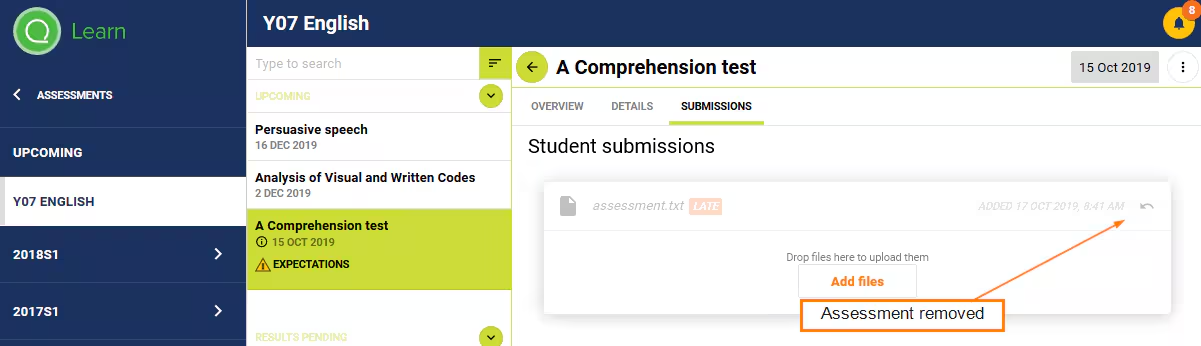
Once a teacher feedback file or e-submission has been deleted the 'Bin' icon will change into an 'Undo' icon'. Selecting the Undo icon will restore the file.
Removing Teacher Feedback Files
- Go to the Teaching Workspace > Timetable > My Day/My Classes/Traditional/Calendar.
- 'Marks Book' icon for the class.
- Delete the submission using one of the following options:
- Click on the 'Submission' icon (paperclip).
- Click on the 'Focus Mode' icon.
- Click the 'Bin' icon next to the teacher file that needs to be removed.
- Click 'Save'.
Removing Student E-Submissions
E-submissions can be removed by students through SEQTA Learn, or staff by Masquerading as a Student.
It is not possible to remove an assessment submission once the due date has passed or a result has been entered
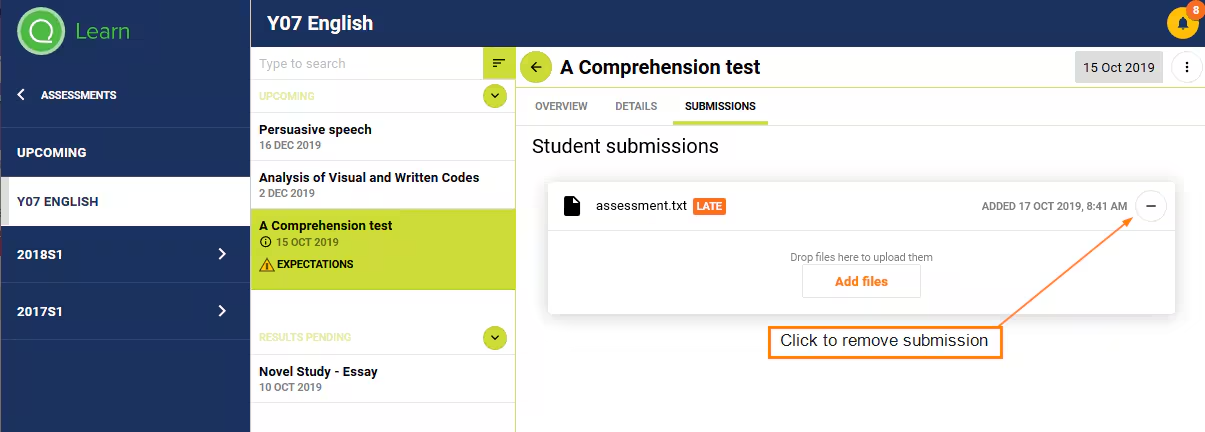
- Log into SEQTA Learn or Masquerade as student.
- Select 'Assessments'> then select the Subject Name.
- Select 'Submissions' from the top of the work area.
- Click on the '-'symbol to the right of the file name.
- To re-add the submission click on the 'undo arrow'.
Was this article helpful?
That’s Great!
Thank you for your feedback
Sorry! We couldn't be helpful
Thank you for your feedback
Feedback sent
We appreciate your effort and will try to fix the article