TABLE OF CONTENTS
- Attendance on the student's timetables
- Unresolved absences dashlet
- Enabling the Unresolved absences dashlet
Attendance on the student's timetables
While not specific to Unresolved absences, attendance icons can be displayed on the student's timetable in SEQTA Learn and SEQTA Engage by setting the appropriate choice in Application settings.
- Go to Administration workspace > Application settings > Application settings.
- In the search box in the top-right corner, type 'attendance' (without quotes).
- Scroll to the SEQTA Learn and/or SEQTA Engage area and find the Timetable pane.
- Set Attendance in timetable to Enabled.
Unresolved absences dashlet
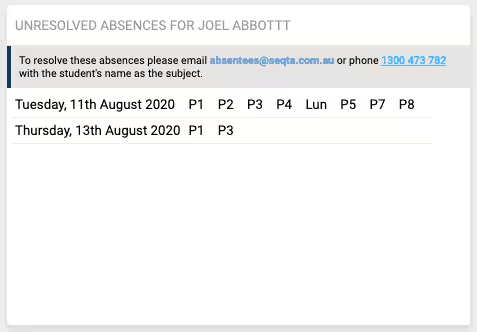
The Unresolved absences dashlet displays attendance types which meet the below conditions. The number of days before showing the absence can be set in the Dashboard management setup. SEQTA Learn and SEQTA Engage are set independently from each other.
- Marked as absent (Considered Present? = no)
- Is not resolved (Resolved? = no)
- Is not authorised (Authorised? = no)
Enabling the Unresolved absences dashlet
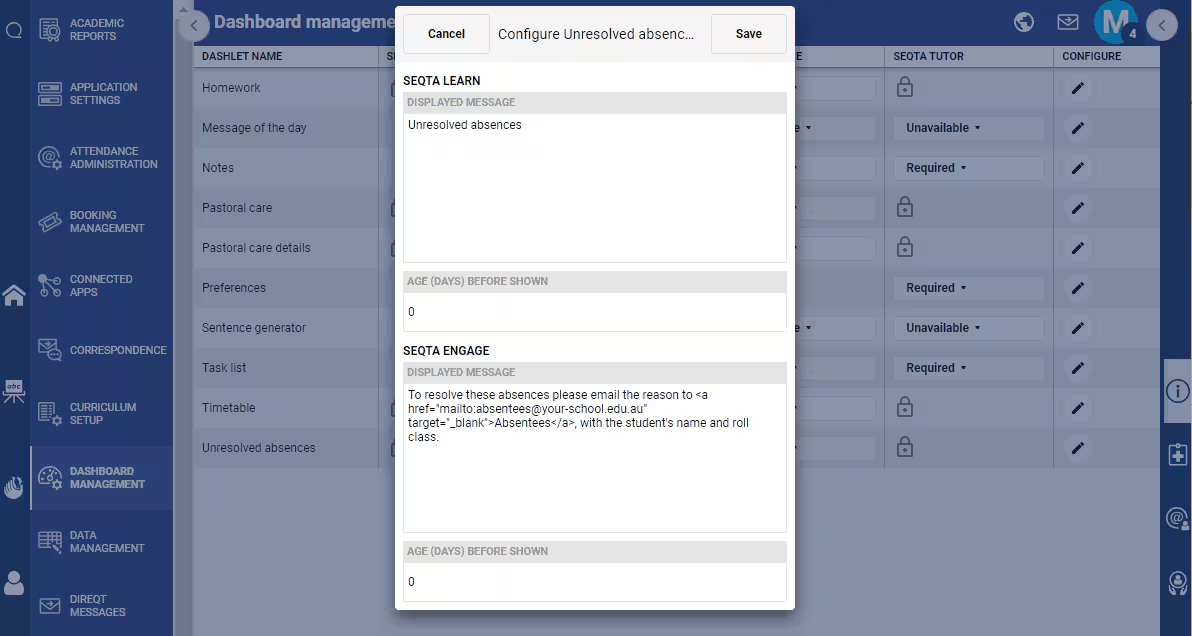
The Unresolved absences dashlet can be enabled and configured through the Administration workspace > Dashboard management.
- Click on the pencil icon in the Configure column for Unresolved absences.
- Displayed message: This can be entered as plain text or HTML.
- Age (days) before shown: Set the number of days before showing attendance. Setting as '0' will display all unresolved absences
Was this article helpful?
That’s Great!
Thank you for your feedback
Sorry! We couldn't be helpful
Thank you for your feedback
Feedback sent
We appreciate your effort and will try to fix the article