To access lessons from other Pathways, teachers will need to go into the Lesson organiser and drag the lesson from the Unused lessons pane (right-hand side) onto their Pathway. Once this has been done, there is the option to Clone the lesson (when viewed in the Planner) if the teacher would like their own copy of the lesson to edit.
You can only see the lesson Topic in the Unused lessons browser. Lessons are listed alphabetically by topic, so blank topics will be at the top of the list. To see the content of a lesson you will need add the lesson back into the Planner (steps 1-6 below).
The following steps will add the Lesson to the Pathway assigned to the current class. If other Pathways need to share or clone the lesson, the teachers using those Pathways will need to complete the below process as well.
- Go to Teaching workspace>Timetable>My classes/Traditional view/Calendar.
- Click on the Load programme icon on the class you would like to add the lesson.
- Go into the Lesson organiser sub-page.
- Click on the Arrow icon in the top-right corner to open the Unused lessons browser.
- Find the lesson that needs to be added, using the search box or by scrolling.
- Click-and-drag the lesson onto the applicable week and then click SAVE.
- The process is now complete. Click on the Planner or Online lesson editorto check the lesson content.
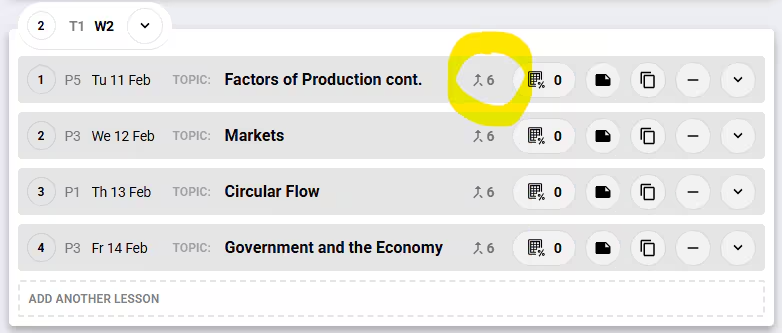
- You are now using a lesson that is possibly in use by other teachers that collaborate on the programme. Changes you make will affect other teachers. To check which pathways are using that lesson, hover over the pathway number indicator (highlighted below).
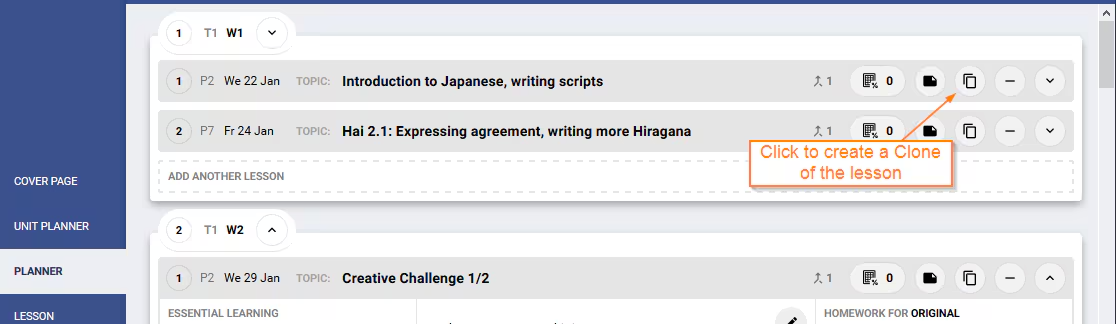
- (Optional) Clone the lesson. If you don't want to actively use the same lesson with other Pathways but still want the content from a lesson, go into the Planner sub-page and click on the Clone this lesson icon on the lesson topic bar. In the current Pathway, this will create a copy of the lesson on the Planner and the original lesson will placed back into the Unused lessons section. On all other pathways, the copy of that lesson will be placed into the Unused lessons section.
Was this article helpful?
That’s Great!
Thank you for your feedback
Sorry! We couldn't be helpful
Thank you for your feedback
Feedback sent
We appreciate your effort and will try to fix the article