TABLE OF CONTENTS
Pathways provide extra functionality for managing lessons in shared programmes. They provide the option for teachers to have their own set of lessons, while sharing the same set of assessments, and allowing the marksbook to view the entire cohort at once. Homework is linked to the Pathway, therefore Pathways are required for teachers to set homework for the specific needs of their class.
We recommend you review the following articles before starting the setup of Pathways, so that you have a fuller understanding of the process. Once teachers start to use the Pathways setup, it is very hard to undo changes, as multiple classes might be affected. See the note in point 9 below.
- Click on Teaching workspace>Timetable>My classes/Traditional view/Calendar.
- Click on the Load programme icon for the class.
- Select the Planner. It's important to add all shared lessons before setting up Pathways. Any lessons added after Pathways are setup will not be shared.
- A new programme will have one lesson per week for the current timetable period. Click Add All if you would like one lesson for each class instance.
- If the programme is year long click Add Week enough times to cover the entire length of the course. Add individual lessons to untimetabled weeks if required by clicking on Add Another Lesson on the lesson topic bar.
- Select the Cover Page.
- Click the Pathways button.
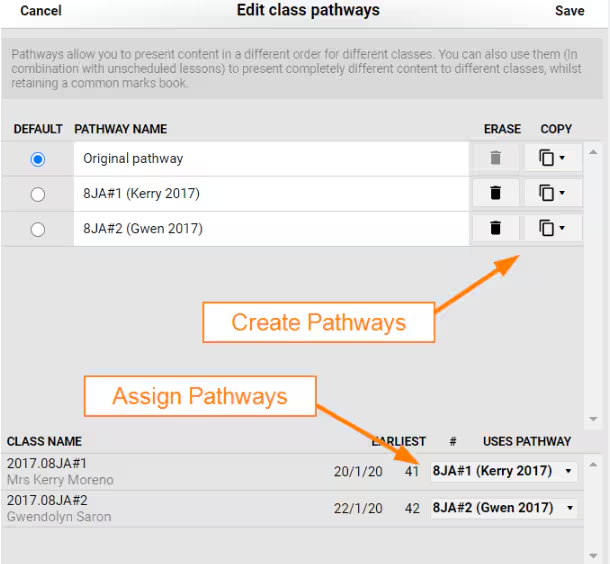
- Note: the top part of the pop-up is to create pathways. It will list all pathways that belong to that programme. The bottom part of the pop-up is where you assign pathways to the classes.
- Click the Copy icon next to the pathway you would like to make a copy of.
- Select one of the following options. Review the article When to Setup Pathways for more information on the available options.
- Use Existing Lessons: This will create a pathway that shares the same set of lessons as the pathway being copied. Changes to lessons will apply to all classes sharing the lesson.
- Copy All Lessons: This clones the lessons in the pathway being copied and adds them to the new pathway. Changes can be made to cloned lessons without affecting the original lessons and vice versa.
- Create New Lessons: This create a new pathway with a new set of blank lessons. Changes to lessons will not affect the pathway being copied.
- Click the Pathway name and rename it to something meaningful to staff (eg. class code, staff initials).
- Create one Pathway for each of the classes requiring their own Pathway.
- Note: Do not edit the original pathway. Leave the original pathway as is, and set the radio button as Default. By doing this, if there are any issues the class can be placed back onto the Default pathway until able to follow-up with the SEQTA Support team.
- Under the Uses pathway heading at the bottom of the editing pop-up, select a pathway for each of the classes.
- Select Save.
Accessing and cloning lessons from other Pathways
When a teacher adds a lesson to their Pathway it will not show on other teacher's Pathways, even if the Pathways were originally created using Use existing lessons. If a teacher wants a lesson added to their Pathway they can drag it out of the Unused lesson browser. This browser will hold all lessons from other pathways that are not currently in your pathway. If you are using a Pathway that is also being used by another teacher, they will see your change in their Planner.
Note: A lesson brought in from the Unused lesson browser is shared with the other teachers who already have that lesson on their Pathway, so changes to the lesson will affect all teachers who are using that lesson.
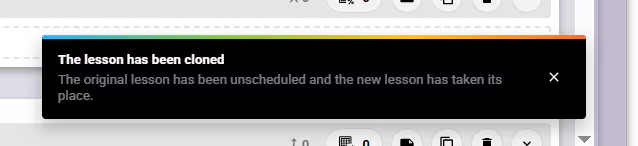
Using the unused lesson browser to access lessonsShould a teacher not want to share their lesson, but you would like a copy of it, they can go into their Planner and clone the lesson. Note: the clone will replace the lesson in the Planner.
What pathways use a lesson?
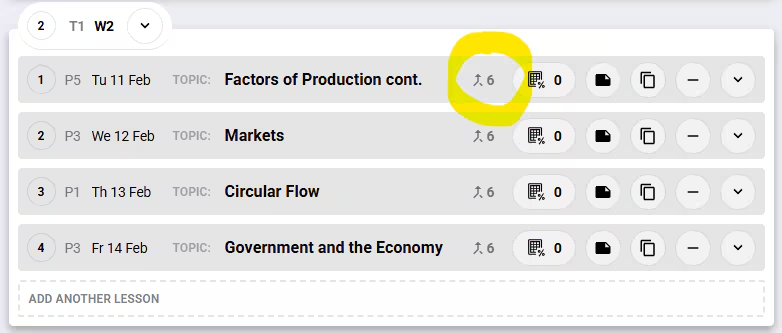
To see which Pathways a lesson is on, go to the Planner then hover over the number on the lesson topic bar.
Was this article helpful?
That’s Great!
Thank you for your feedback
Sorry! We couldn't be helpful
Thank you for your feedback
Feedback sent
We appreciate your effort and will try to fix the article