TABLE OF CONTENTS
- Steps for Creating Pathways with Shared Lessons
- Adding Additional Lessons after Pathways has been setup
- Related Articles:
Setting up pathways with shared lessons (typically the same year group, same subject, and multiple classes) provides teachers additional functionality to allow a degree of independence with regards to managing lessons.
Ensure the programme is fully set up and enough weeks and lessons have been added to cover the entire period of time for which the course runs (eg: one year) BEFORE setting up Pathways! Lessons added after Pathways is setup will not be automatically shared with other Pathways (see below for more information).
Some of the functionality offered by Pathways with shared lessons:
- Re-ordering lessons will not affect classes on other Pathways.
- If homework is entered or edited it will only apply to the current Pathway. This is to allow different homework to be set for each class should the teacher need it.
- If the ADD ANOTHER LESSON is clicked, or a lesson is cloned, the lesson will only be added to that one Pathway. Where this is the case, to add the lesson to the other Pathways using the below steps.
- Go into the Programme through the other class.
- Select LESSON ORGANISER.
- Open Unused lessons (the black arrow in the top right-hand corner).
- Click drag the lessons onto the correct week.
- Click SAVE.
- Any changes to a shared lesson will apply to all classes.
Image below: In the Planner the number on the lesson topic bar indicates which pathways a lesson is shared with

Steps for Creating Pathways with Shared Lessons
- Go to the Teaching workspace>Timetable>My classes/Traditional view/Calendar.
- Click on the Load Programme icon for one of the classes in the programme share (it doesn't matter which one).
- Select the Planner. Any lessons added after Pathways are setup will not be shared by default. For this reason it's important to add them before setting up Pathways.
- A new programme will have one lesson per week for the current timetable period. Click Add All if you would like one lesson for each class instance.
- If the programme is year long click Add Week enough times to cover the entire length of the course. Add individual lessons to untimetabled weeks if required by clicking on Add Another Lesson on the lesson topic bar.
- Select the Cover Page.
- Click the Pathways button. If this option is not available please contact the Programme owner.
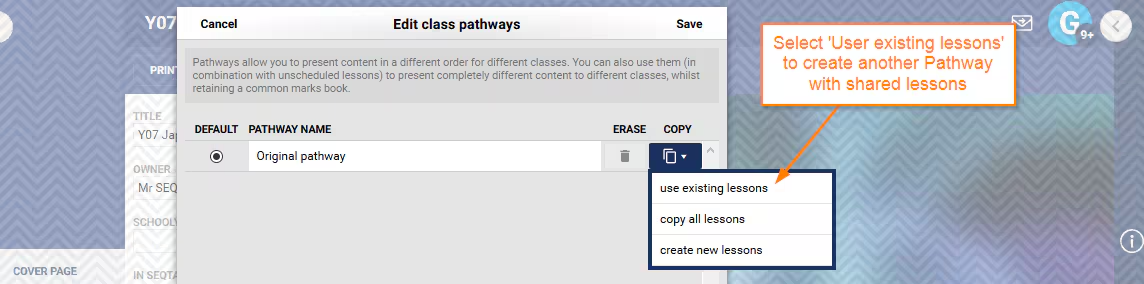
- Click the Copy icon for the pathway with the required lessons and choose Use Existing Lessons.
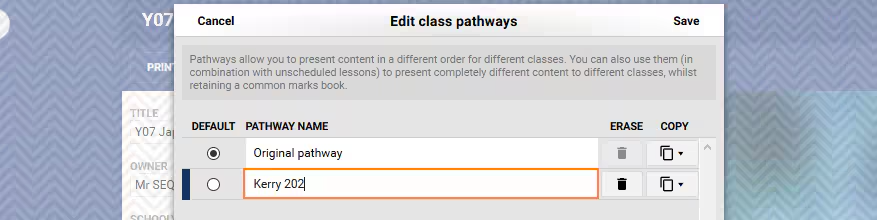
- Rename the new pathway (eg: use the teacher name, class code).
- Under Uses Pathway, assign the various pathways to the applicable classes.
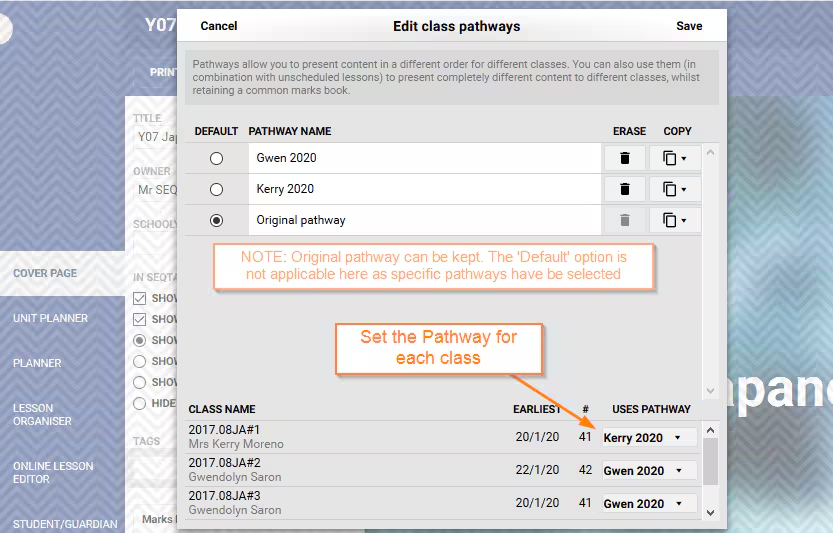
- Click Save.
Adding Additional Lessons after Pathways has been setup
Any lessons added to the pathways after the set up process is completed, will only be added on the Pathway they were created on.
Sharing the lesson requires the additional step of dragging the lesson from the Unused Lesson Browser on the applicable Pathway. The steps for this process can be found here.
Related Articles:
- Why are my lessons no longer shared after bridging?
- Creating and Managing Pathways
- Understanding Pathways
- Adding Lessons from Other Pathways (And if Required Cloning Them)
Was this article helpful?
That’s Great!
Thank you for your feedback
Sorry! We couldn't be helpful
Thank you for your feedback
Feedback sent
We appreciate your effort and will try to fix the article