TABLE OF CONTENTS
Some of the navigation elements have been reorganised in the overhaul of the SEQTA Suite UI in release 2019.6. This article provides a brief overview of the changes and steps for navigating the new interface.
Please also refer to this three minute video on navigating the SEQTA Teach interface:
This article contains the following sections:
General navigation
To navigate to the various areas in SEQTA, work from left-to-right, selecting the Workspace > Page > Sub-page (not all areas in SEQTA have sub-pages).
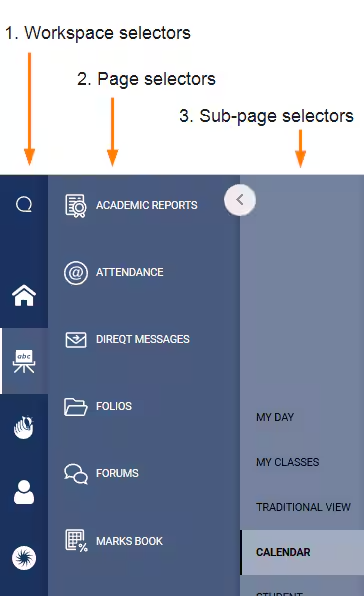
Workspace selectors
These remain as they were on the furthermost left-hand side of the screen. Hovering over the icon will display which workspace the icon is for.
Page selectors
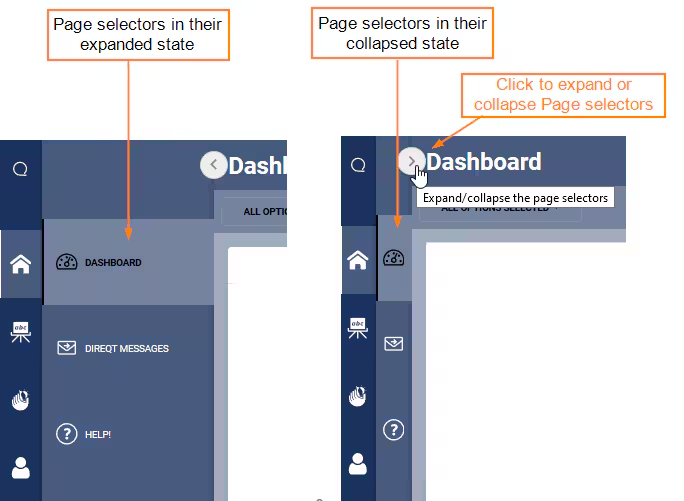
The Page selectors were previously across the bottom of the screen. These can now be found on the left-hand side, to the right of the spine. The page selector menu can be collapsed to allow more room in the main work area. As with the Workspace selectors, hovering-over the icon will display what the icon is for.
Image below: Using the Expand/Collapse arrow.
Sub-page selectors
The Sub-page selectors were previously horizontally across the top of the screen (where available). These can now be found on the left-hand side, to the right of the Page selectors.
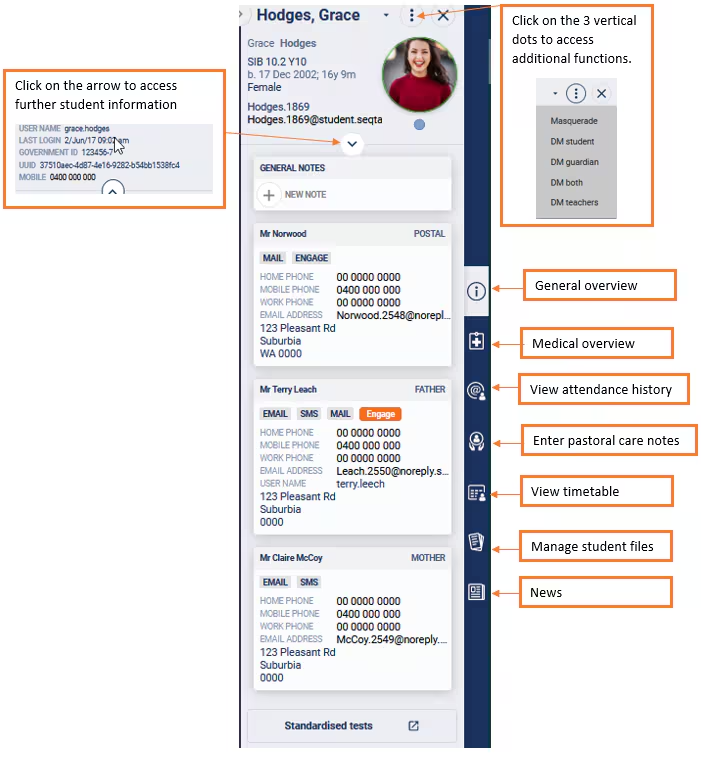
Student information panel (SIP)
The Student information panel can be found on the right-hand side. If the SIP panel isn't visible, this indicates that it has been collapsed. However, even in the collapsed state, the tabs to the right of the SIP are still visible and when clicked on, will navigate you directly to the selected page. To expand the SIP, click on the arrow in the top-right corner. The SIP can be collapsed to allow more room in the main work area.
More detailed information on the SIP can be found in the article The Student information Panel (SIP)
Was this article helpful?
That’s Great!
Thank you for your feedback
Sorry! We couldn't be helpful
Thank you for your feedback
Feedback sent
We appreciate your effort and will try to fix the article