TABLE OF CONTENTS
- Syllabus from educational curriculum authorities (eg: State or Federal departments, or a body such as International Baccalaureate) is not managed by your school. These are managed centrally by SEQTA and are published to the Syllabus warehouse. If changes or additional items are required, please contact the SEQTA Support team via the Help portal with the details. In the first instance, please check the Syllabus management page as a later version may already be available.
- Individual syllabus items for custom syllabus can be added and managed through the Data Management page (see para below).
- Bulk changes for custom syllabus can be added to a spreadsheet (in CSV format) and sent to the Support team via a ticket. These are customised for your school by the Professional services team who can provide a quote for this work. If unsure as to which data goes into which fields notify the Support team with your requirements and an example spreadsheet can be be provided.
- IMPORTANT: If bulk syllabus changes are required for academic reports please notify the Support team of the date required, as during busy periods this may require a lead time of at least 10 working days.
NOTE: In SEQTA the term Syllabus is used interchangeably with Curriculum, Outcomes or Competencies.
Adding custom Syllabus items via the Data management page
Individual Custom syllabus items can be edited or created through the Data Management page. This method should not be used for official Syllabus sets from educational curriculum authorities, as these are managed centrally in the Syllabus Warehouse.
- Go to Administration Workspace > Data Management (NOTE: the permission 'DATA: EDIT' is required to access this page).
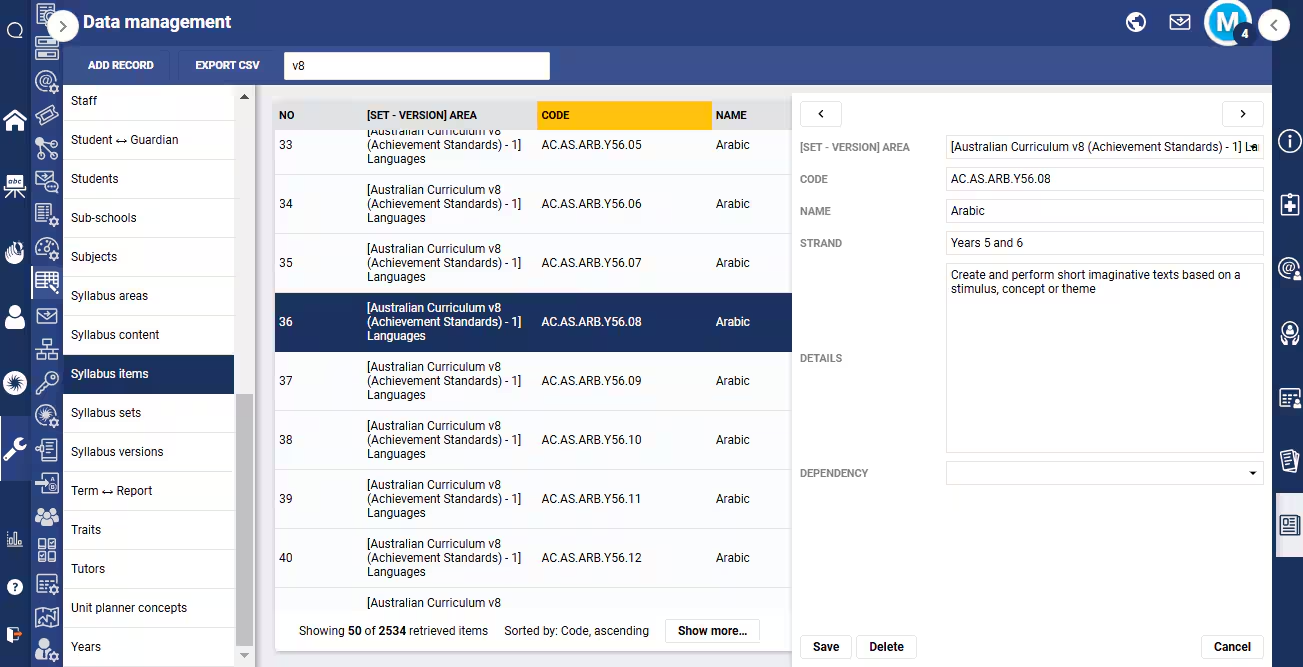
- Select Syllabus items from the list of data types.
- Choose one of the following options:
- Click Add Record to create a new Syllabus item.
- HINT: Check an existing syllabus item to see which data goes into each field (and to also ensure it hasn't already been added).
- NOTE: Bulk changes are best done using a spreadsheet upload. Please refer to the bullet point in the opening paragraphs.
- To Edit an existing Syllabus item, search for the Code (or Name, Strand, etc) then select the record to open the edit window. Check that the item you wish to edit belongs to the Set, Version and Area that you wish to modify. The field [SET - VERSION] AREA in Syllabus items will draw data from Syllabus sets, Syllabus versions and Syllabus areas.
- NOTE: by default, only the first 50 records are displayed on screen. You might need to use a different search term, or click the Show more... button to see more results.
- The view within Data management can be sorted by clicking on the column heading, which will then be highlighted. Sorting a column will clear the search field, so choose the sorting column first then enter a search term.
- Select the [Set - Version] Area from the drop down (if creating a new Syllabus item).
- Enter or edit the Syllabus item Code (eg: VA.09).
- Enter or edit the Syllabus item Name (eg: Visual Arts).
- Enter or edit the Syllabus item Strand (eg: Apply Literacy Skills).
- Enter or edit the Syllabus item Details (eg: Reads short predictable texts with some fluency using strategies to monitor meaning).
- Click SAVE. Refresh/Reload the page. The Syllabus should now be available for selection in teacher's Programmes and Reporting Syllabus sets.
- Click Add Record to create a new Syllabus item.
Custom syllabus data mapping
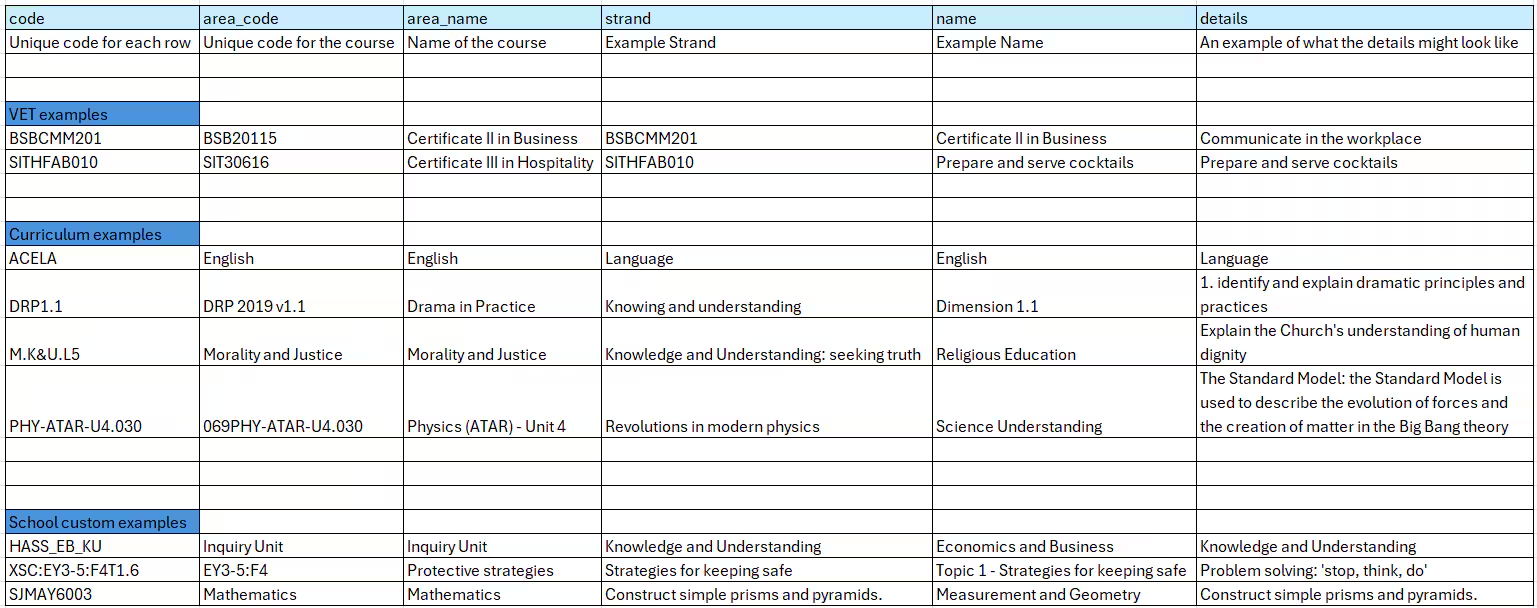
The image below shows some examples of how to populate a custom syllabus spreadsheet. The column headings in light blue must be used.
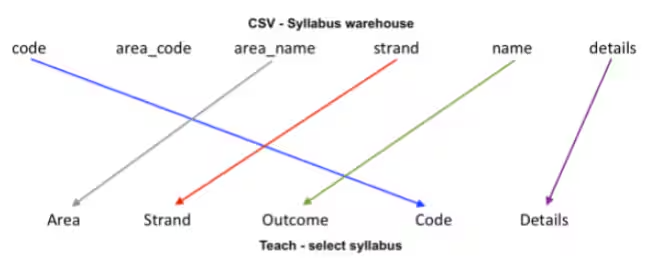
The image below shows the mapping of Syllabus fields (as seen as the columns in the spreadsheet) to the SEQTA Teach interface.
Further Assistance
If assistance is required with managing Syllabus or completing the custom syllabus spreadsheet, please contact the SEQTA Support team via the Help portal. Include an example Syllabus item and details, your reason for the creation of the custom set and/or expected outcome, the date required and any other relevant information.
Was this article helpful?
That’s Great!
Thank you for your feedback
Sorry! We couldn't be helpful
Thank you for your feedback
Feedback sent
We appreciate your effort and will try to fix the article