Freshworks Logo
SEQTA help and support portal
  • Home
  • Knowledge base
  • Submit a ticket
  • Login
  1. Home
  2. Knowledge base
  3. SEQTA Administration
  4. Integrations
  5. ...
    • Knowledge base
    • SEQTA Administration
    • Integrations
  6. Setting up YouTube Media Integration
Recent Searches

No recent searches

    Popular Articles


      Articles
      View all

        Topics
        View all

          Tickets
          View all
            no results

            Sorry! nothing found for

            Setting up YouTube Media Integration

            Modified on Wed, 8 Apr at 5:02 AM

            The Media Integration Page allows schools to choose where they would like media files to be stored when uploaded into SEQTA. Different methods can be set for audio and video interdependently for each SEQTA module.


            The default setting is to use SEQTA's 'Built-In' functionally to transcode files and store copies of the files on the School's SEQTA Server. This can be changed to use YouTube by completing the below steps.


            Configuring SEQTA to integrate with YouTube can reduce the space userfiles take up on the school's SEQTA Server.

            The steps for configuring Media integration for YouTube are as follows:

            1. Go to the Administration Workspace > Application Settings > Media Integration
            2. If only the 'Built-In' item listed click on the Add Configuration button and edit the item name to 'YouTube (Students)' for SEQTA Learn, or 'YouTube (Staff)' for SEQTA Teach .
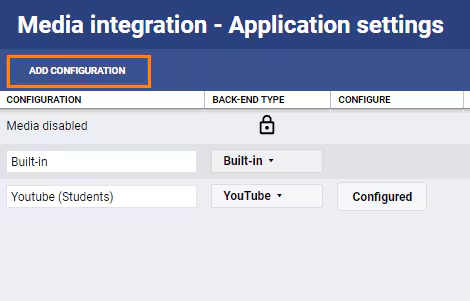
              image.png

            3. To configure and item set the 'Back-End Type' to YouTube. Next, click the 'Not Configured' button. If the initial integration setup is not working click 'Configured' and continue on with the steps below.
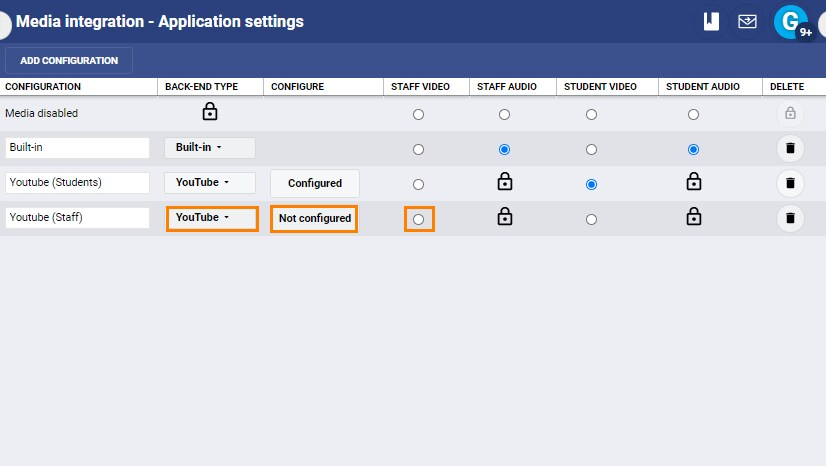
              image.png

            4. Select the 'Generate a New Token' button. 
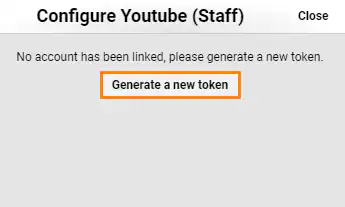
              image.png

            5. Copy the Confirmation Code into the clipboard. To do this select the text and press <Ctrl>+C. 
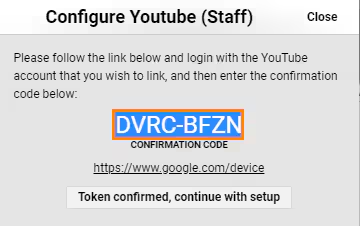
              image.png

            6. Click the URL in the popup to go to the URL https://www.google.com/device. 
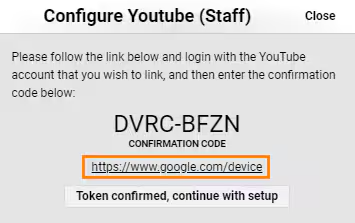
              image.png

            7. Paste the code into the box <Ctrl>+V and click Next.
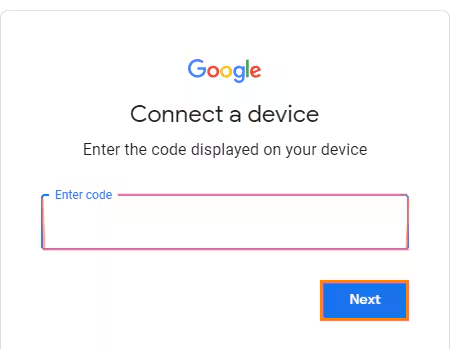
              image.png

            8. If prompted with 'This App Isn't Verified' click the link 'Advanced'.
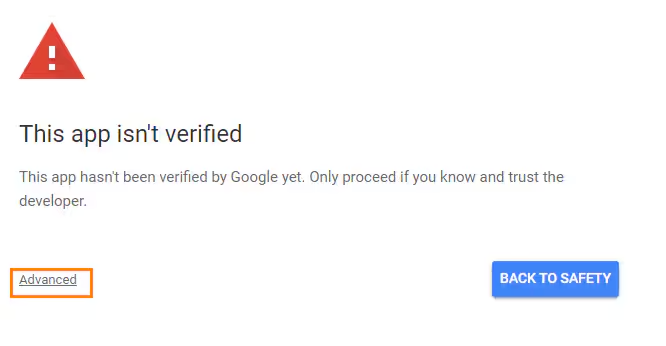
              image.png

            9. Click the link 'Go to SEQTA YouTube Uploader (unsafe)'. 
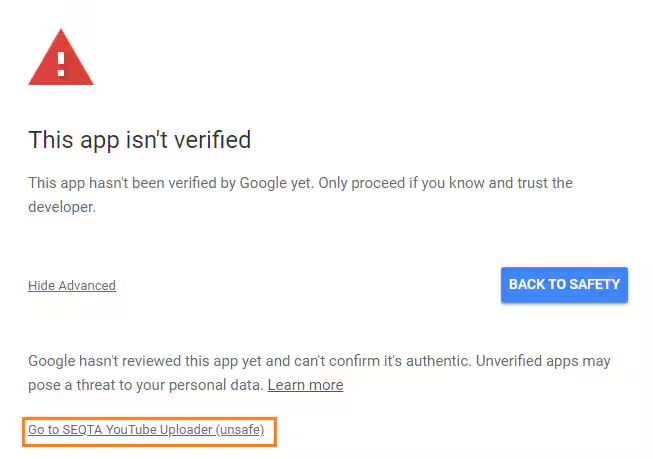
              image.png

            10. Sign into the Schools Admin Google account.
            11. If a prompt appears regarding the SEQTA YouTube, read then confirm by clicking 'Allow'.
            12. A message 'Success! Device Connected' should display. The Google account setup side is now complete.
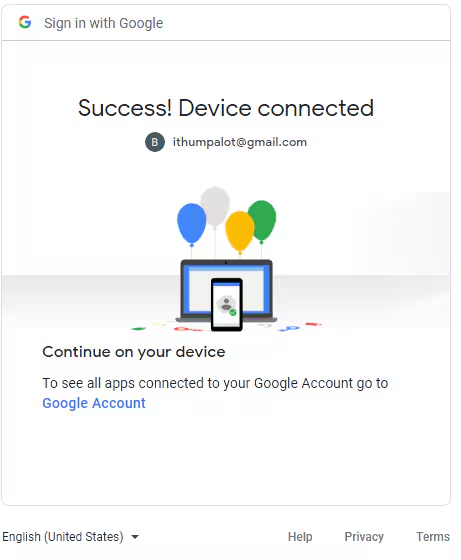
              image.png

            13. Go back to SEQTA TeachToken confirmed, continue with setup.
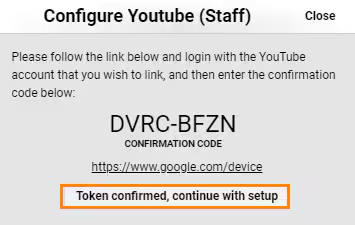
              image.png

            14. If successful, the message 'An Account has been Linked and a Token has been Stored' will display. Click 'Close'. The setup process is now complete. 
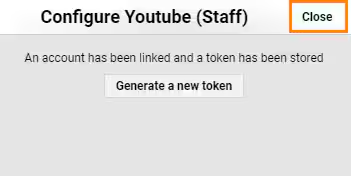
              image.png

            Related Articles:

            • Media Processing - How SEQTA Handles Video and Audio Processing
            • Transcoding and Media processing delays
            • Media - Using Audio / Video / Screen Recording
            • Enabling the Audio / Video / Screen Recording in SEQTA

            Was this article helpful?

            That’s Great!

            Thank you for your feedback

            Sorry! We couldn't be helpful

            Thank you for your feedback

            Let us know how can we improve this article!

            Select at least one of the reasons
            CAPTCHA verification is required.

            Feedback sent

            We appreciate your effort and will try to fix the article

            Print

            Articles in this folder -

            • Enabling and disabling connected apps (integrations)
            • Integrating SEQTA with MS Teams
            • OneDrive integration setup
            • Setting up YouTube Media Integration

            You may like to read -

            • Changing and configuring Application settings
            • What is the Difference Between Built-In and YouTube Media Settings?
            • Transcoding and Media processing delays
            • Media - Using Audio / Video / Screen Recording
            Preview
            0 of 0

            This Knowledgebase is licensed by the owner of the relevant web domain and uses HTTP cookies for essential functionality and to improve your experience. Click here for more information about the cookies used. Please refer to this site’s Cookie Policy for more information.

            Cookie Preferences Manager

            Your Privacy

            We use cookies to give you a better experience in SEQTA help and support portal

            You can learn more about what kind of cookies we use, why, and how from our Privacy Policy. Because we respect your right to privacy, you can choose not to allow some types of cookies. Click on the different category headings in our cookie banner to change our default settings. However, blocking some types of cookies may impact your experience of the site and the services we are able to offer. For more details, check out our Privacy Policy link below.

            Strictly Necessary Cookies

            These cookies are necessary for the website to function and cannot be switched off in our systems, but do not store any person information. They are usually set in response to your actions that triggers a request for services, such as setting your privacy preferences, logging in or filling forms. You can change your browser settings to alert you about these cookies, but some parts of the Website may not work.

            View Cookies
            Strictly Necessary Cookies List of cookies
            Name Host Duration Description
            _x_w tesglobal.freshdesk.com Session Contains the shard ID at which the account runs on.
            _x_m tesglobal.freshdesk.com Session Contains the state of the shard.
            _helpkit_session tesglobal.freshdesk.com Session Your secret key for verifying cookie session data integrity. If you change this key, all old sessions will become invalid!
            helpdesk_node_session tesglobal.freshdesk.com Session An encrypted hash that stores the secret key and id of the login attempt.
            user_credentials tesglobal.freshdesk.com 2 months Used for user authentication.
            wf_order tesglobal.freshdesk.com Session Used to check in which the order the tickets are filtered for custom ticket filters eg: due_by, agent_responded_at, requester_responded_at, etc.
            wf_order_type tesglobal.freshdesk.com Session Used to check if the order is ascending or descending for custom ticket filters.
            wf_filter tesglobal.freshdesk.com Session Denotes which filter is applied for the tickets list.
            Article views count