TABLE OF CONTENTS
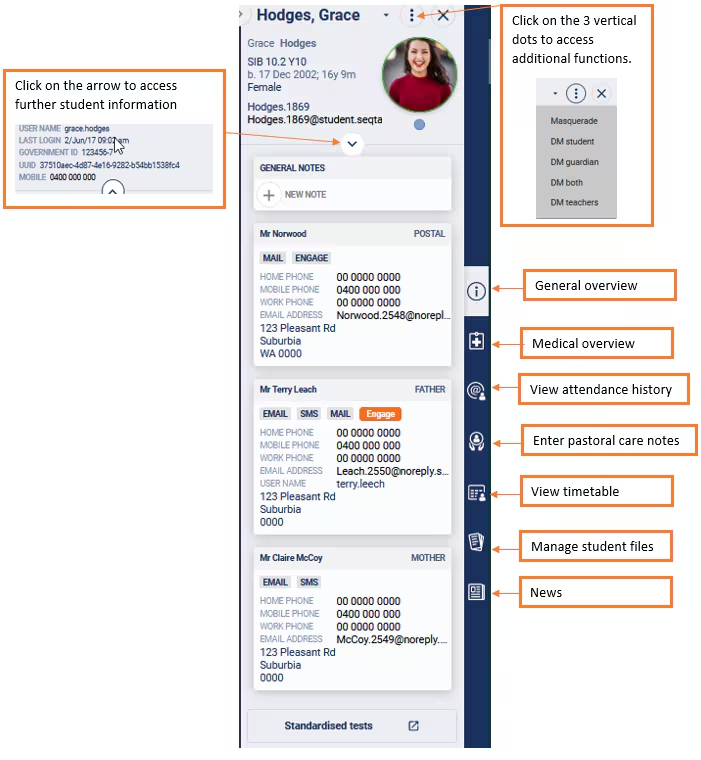
The Student Information Panel, also known as the 'SIP', can be found on the right-hand side in SEQTA Teach. The SIP contains information pertaining to the selected student. This includes but is not limited to general information (eg. contact details), archived reports,student files and medical information. In addition, the SIP is used to create Pastoral care notes and manage attendance.
SIP Panes
The SIP consists of seven panes (General overview, Attendance history etc. ). These are outlined in detail in the table below. To switch between these, click on the icons on the right-hand side of the SIP. The SIP can be hidden by clicking on the 'Expand/collapse' arrow in the top-right corner.
SIP permissions and Application settings
Specific panes can be hidden, depending on the user's permissions and the configuration options in Application settings. The information available in the SIP can also be limited, as can the option to perform certain actions, depending on the user's permissions and configuration options in Application settings.
Table below: Details and configuration options for the SIP panes
| Icon | Full name | Description | Configuration |
 | General overview | Details of the students' Guardians. This includes the Correspondence and SEQTA Engage flags . | Correspondence Permissions |
 | Medical overview | Medical information | In most cases, this is managed by the sync. The option to embed Consent2Go is also available. |
 | View attendance history | SIP Attendance history (viewing and managing attendance) . Calendar class attendance is displayed onto under time-based as they are not associated with any periods. | Attendance Permissions |
 | Enter Pastoral care notes | Creating Pastoral Care Notes | Pastoral Care Note Permissions |
 | View timetable | Viewing and printing timetables | Data drawn from the timetable. |
 | Manage student files | Student files SIP pane (viewing and uploading Student Files) | Student Files Permissions |
 | News | By default this displays SEQTA News (managed by SEQTA). Application settings are available should school want to have their own content show in the SIP (Notices etc.) | SIP News application settings |
Was this article helpful?
That’s Great!
Thank you for your feedback
Sorry! We couldn't be helpful
Thank you for your feedback
Feedback sent
We appreciate your effort and will try to fix the article