TABLE OF CONTENTS
- Method 1: Accessing a Student's Plan Through the Student Plan Alert Icon
- Method 2: Accessing Student plans through the Student plans page
The Student plans page is used to create student plans (i.e. IEP, Medical etc.) directly in SEQTA. Student plans can be accessed by clicking on the green student plan alert icon, next to the student's name in the SIP and other areas in SEQTA.
Additional information
- Resources/files can be attached and accessed through the Student Plan page. In addition, if the Application setting, 'show files in the "Select plan" popup' is enabled, the Student plan files can also be accessed by clicking on the 'Student Plan' icon.
- Administrators can create Student plan types that work as a template for the creation of student plans.
Method 1: Accessing a Student's Plan Through the Student Plan Alert Icon
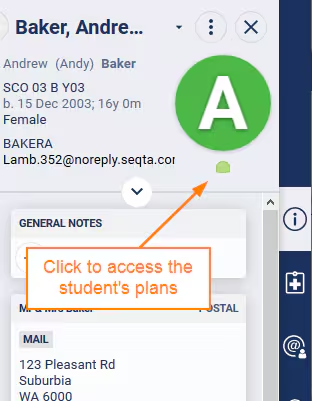
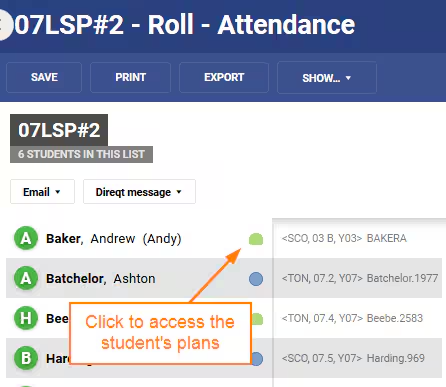
Student plans can be accessed by clicking on the Student plan alert icon. The Student plan alert icon also shows on the teacher's Attendance roll and Marks book.
- Select the student in the Student Information Panel (SIP) on the right-hand side in SEQTA Teach, or navigate to the Attendance Roll page or Marks Book for one of the classes the student is enrolled in.
- Click on the green student plan alert icon for the student student name. The icon displays under the student photo in the SIP, or if in the Attendance roll page and Marks book, next to the student's name.
Method 2: Accessing Student plans through the Student plans page
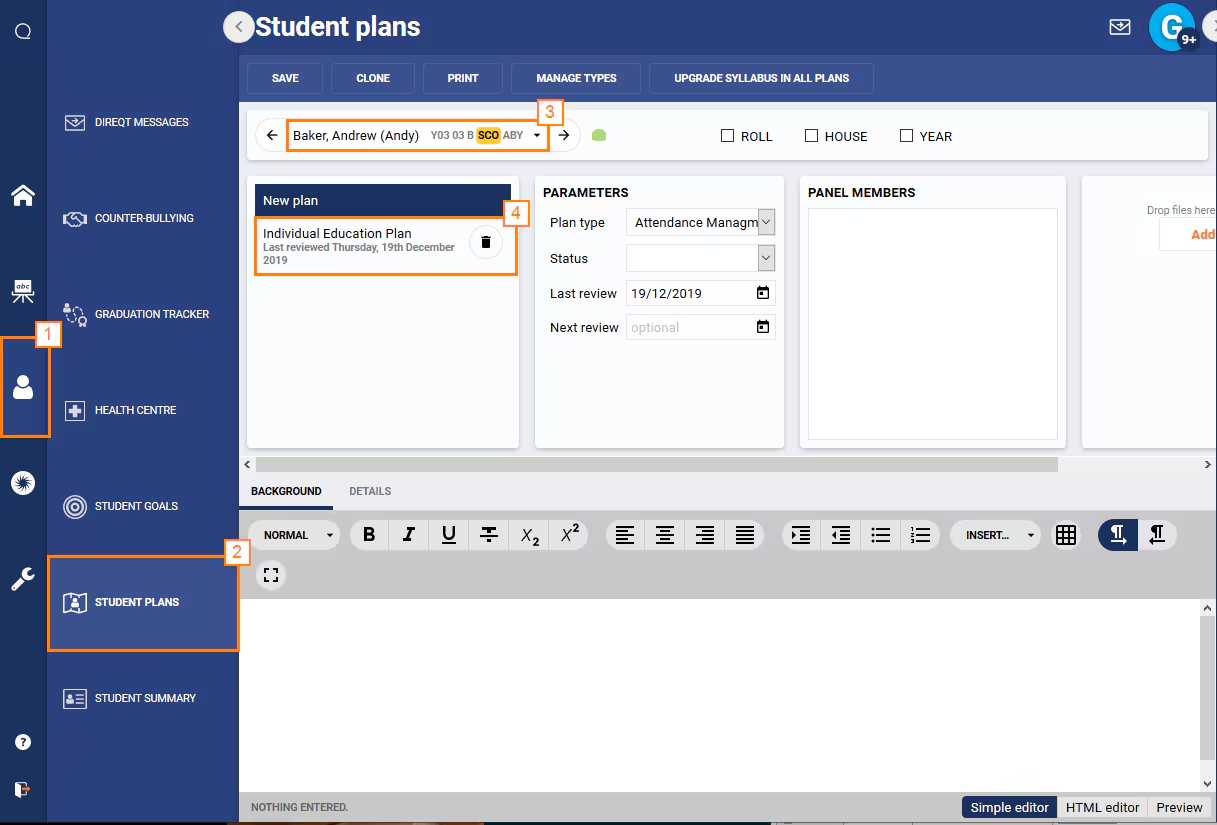
- Go to the Pastoral Care Workspace.
- Select the Student Plans page.
- Select the student's name.
- Click on the Plan to display. If there are no plans the only option displayed is 'New plan'.
Was this article helpful?
That’s Great!
Thank you for your feedback
Sorry! We couldn't be helpful
Thank you for your feedback
Feedback sent
We appreciate your effort and will try to fix the article