TABLE OF CONTENTS
- Permission for Counter-Bullying
- Recording a Counter Bullying Incident
- Editing and Printing a Counter-Bullying Incident
- Printing Reports for Counter-Bullying Incidents
- Quantitative Analysis for Counter-Bullying Incidents
The Counter Bullying page is designed to allow schools to track behaviour between students that may have elements of bullying.
Permission for Counter-Bullying
The permission to access the Counter-Bullying sub-page and managing incidents is called 'BULLY'.
Recording a Counter Bullying Incident
- Go to the Pastoral Care Workspace > Counter-Bullying > Incident Editor.
- Add each of the the involved parties. To do this:
- Select the student or staff members name from the drop-down.
- Select the persons role (Aggressor, Victim etc.).
- Select the reporting name under 'Report By'.
- Fill out the rest of the details as per school policy.
- Click 'SAVE'.
- Click 'Print' to open as PDF to either save or print.
Editing and Printing a Counter-Bullying Incident
- Go to the Pastoral Care Workspace > Counter-Bullying > Incident Editor.
- Select 'Open' from the top menu.
- Use the filters and click 'Search' to find the incident.
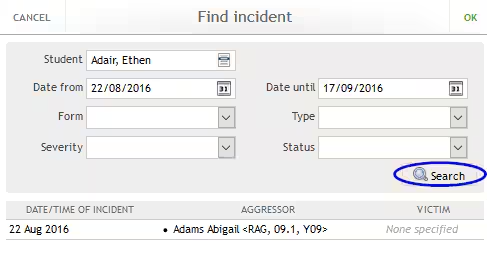
- Select the incident then click 'OK' to open in an edit window.
- Make changes and click 'SAVE'.
- Click 'Print' to print the current record.
Printing Reports for Counter-Bullying Incidents
- Go to the Pastoral Care Workspace > Counter-Bullying > Reporting.
- Select the report List of Incidents.
- Set the Date-Range.
- Click Print.
Quantitative Analysis for Counter-Bullying Incidents
- Go to the Pastoral Care Workspace > Counter-Bullying > Quantitative Analysis.
- Set the filters to display the information as required
- Click the 'Print' button to display in graph and table view.
Was this article helpful?
That’s Great!
Thank you for your feedback
Sorry! We couldn't be helpful
Thank you for your feedback
Feedback sent
We appreciate your effort and will try to fix the article