There are three main areas within the SEQTA Help portal; Cases, Training and Consulting and the Knowledge base.
Cases
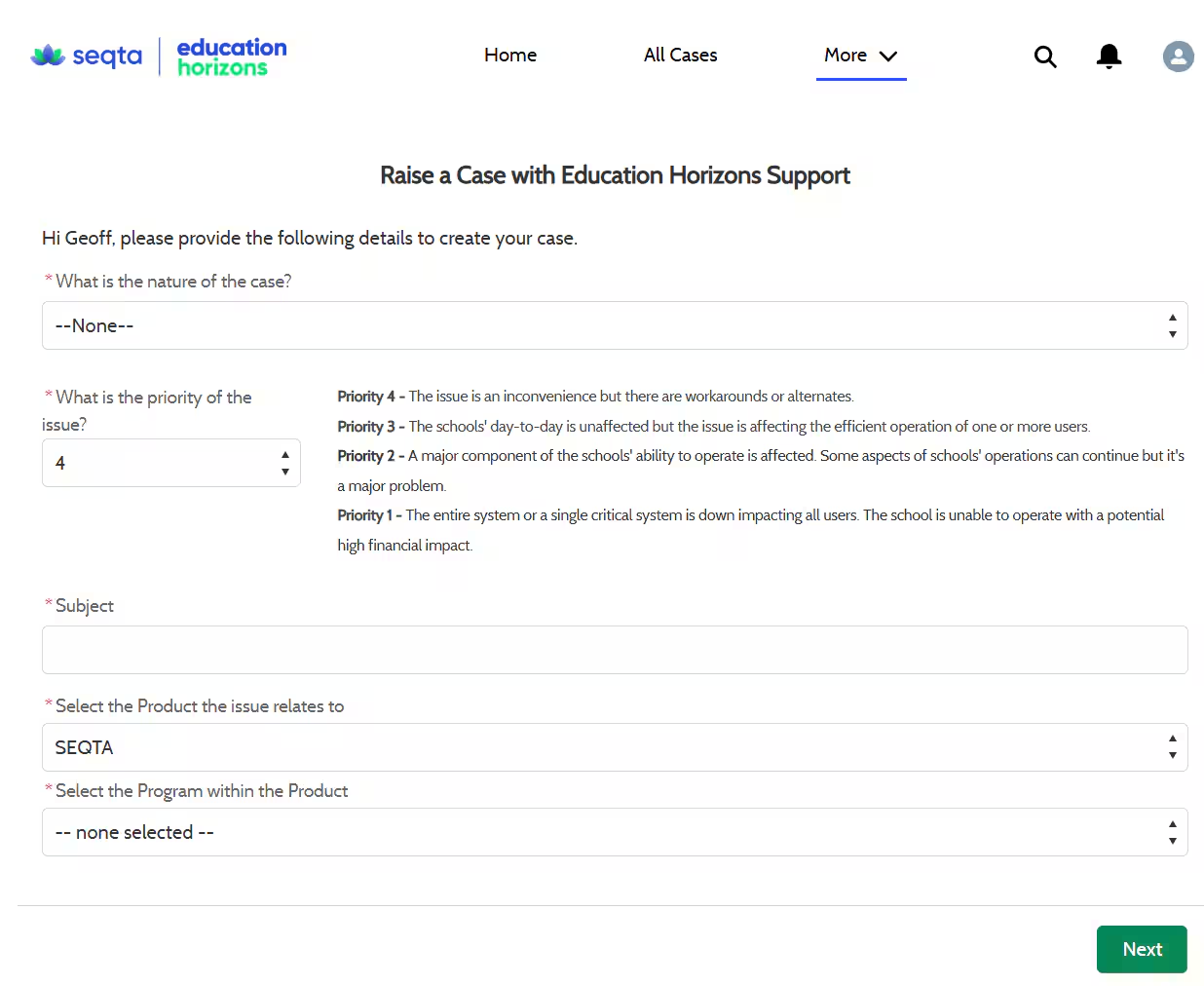
- Raise Cases: This involves creating cases to report issues, or tasks that require attention. You can describe the issue, categorise it and once lodged, the case will be routed to the appropriate team or individual.
- Track Cases: You can track all your cases by clicking on the All Cases selection at the top of the Portal Page and utilise the filter options available for active vs closed cases. You are also able to see any updates relating to your open cases, including the owner and status.
- Track Bugs: Tracking bugs are a subset of raising cases, specifically used for you to track our current bugs. These are logged as Problem Cases and can be viewed by clicking on the Problems selection at the top of the Portal Page. Our product team will supply updates on the Problems when they become available.
- Case Sharing: This allows your School Education and Technical contacts to view all cases reported by your school.
- Problem Sharing: This allows your School Education and Technical contacts to view all Problems affecting your school. If you have multiple Education Horizons products, you are able to view all product related problems under the All Problems section at the top of the Portal Page.
Training and Consulting
Training and Consultancy can be booked with our Professional Services team by clicking on the Training and Consulting option on the Portal Home Page.
Knowledge base
Knowledge Topics: This part of the system provides searchable access to over 700 articles in our Knowledge base. It may include documentation, FAQs, guides, manuals, and other resources to help you find solutions to common problems or information required to perform tasks.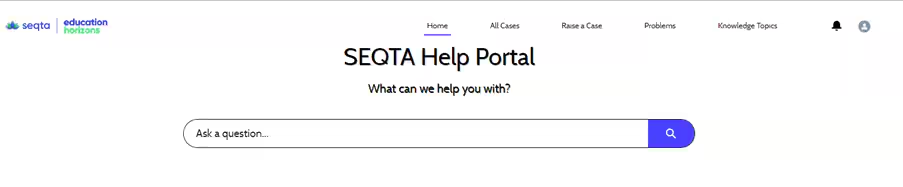
The Help portal includes a notification system to keep schools informed about changes made to cases and problems.
Notification System: The notification system is designed to alert users when there are updates, changes, or new information related to their cases and problems.
Bell Icon: The bell icon is located at the top of the Portal Page, this serves as a notification center. When there are new notifications, a number will appear on the bell icon.
Email Notifications: You can choose to receive emails when notifications become available. This can be set as a preference by clicking on your profile icon at the top right of the Portal Page and selecting Settings and Preferences.
Can't log into the portal?
Ensure you have reset your Portal password. If you have done so and are still experiencing an issue logging into the Portal, please check the following:
Ensure you type your password to avoid caching issues.
Try an Incognito/Private browsing mode within your browser.
Try a different PC or web browser.
Still not working? Please contact our support desk on 1300 498 642.
Was this article helpful?
That’s Great!
Thank you for your feedback
Sorry! We couldn't be helpful
Thank you for your feedback
Feedback sent
We appreciate your effort and will try to fix the article