TABLE OF CONTENTS
- Recommended merge fields for filename pattern
- Changing the Default Filename Pattern in Application Settings
- The importance of using the correct filename pattern
The filename pattern is used when archiving reports to determine the name of the PDF files when reports are archived. In addition, they are also used to filter reports in the Report archive which are used to find the reports.
Example Filename Pattern (Recommended): {term}_{type}_{schoolyear}_{code}_{surname}_{firstname}
Example output: 2021S2 Semester 2 Y07 Baker Andre 1234.pdf
Recommended merge fields for filename pattern
The following merge fields are required for the report filters in the report archive and to correctly match students in cases where they have the same first and last name.
| Merge field | Examples | Description |
| {term} | 2021S2, 2021P | Timetable Period |
| {type} | Semester 2, Interim 1 | Report type |
| {code} | BAKERA, 1234 | Used to uniquely identify each student |
| {schoolyear} | Y07 | Students school year |
Changing the Default Filename Pattern in Application Settings
The default filename pattern can be entered into the Application Settings. This can assist with ensuring the same naming convention is used from year to year.
- Click on the Administration Workspace > Application Settings > Application Settings.
- Type 'filename' (without the quotes) in the search box.
- In the setting 'Filename pattern (when batched)' enter the required merge fields. The recommended filename pattern is as follows (copy-paste as is, do not edit):{term}_{type}_{schoolyear}_{code}_{surname}_{firstname}
- Click 'Save'.
- Refresh/Reload the page.
- Try print the reports again (Do not enter anything in the 'Filename pattern' field when printing the report)
The importance of using the correct filename pattern
The File Name Pattern recommended for archiving reports is as follows: {term}-{type}-{code}-{schoolyear}-{surname}_{firstname}.
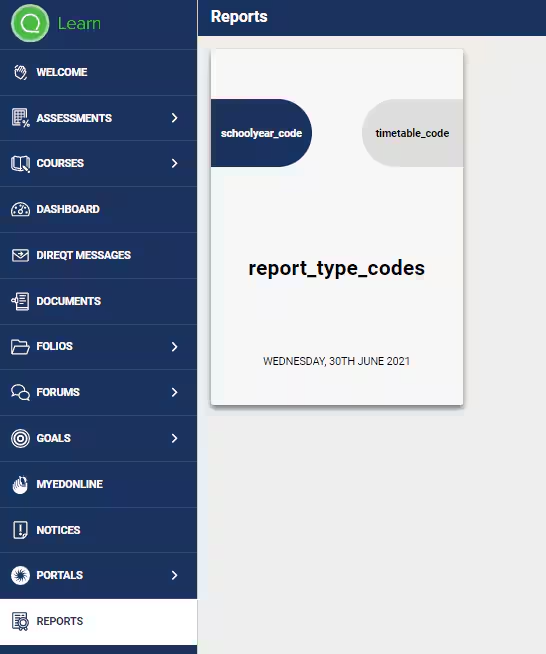
The following merge fields are required to display reports under the correct Report archive filters and SEQTA Engage and SEQTA Learn are {term}-{type}-{schoolyear}-{code}
Image below: Example showing were data is drawn from on the Reports page
Was this article helpful?
That’s Great!
Thank you for your feedback
Sorry! We couldn't be helpful
Thank you for your feedback
Feedback sent
We appreciate your effort and will try to fix the article