TABLE OF CONTENTS
- 1. Unprogrammed classes:
- 2. Sanity Check:
- 3. Academic sanity (by student):
- 4. Proof by subject (CSV):
- 5. Values completedness:
- 6. Academic completedness (spreadsheet):
- 7. Attendance statistics for reports
- 8. Test run of the actual report
- Other useful reports:
- Entering test data
- Programme setup checklist
- Related articles:
The reports outlined below are used to ensure academic reports are correct and complete ready for reporting time. Reports with cross-tabulated, spreadsheet, Excel or csv in the report name will produce a spreadsheet-compatible file.
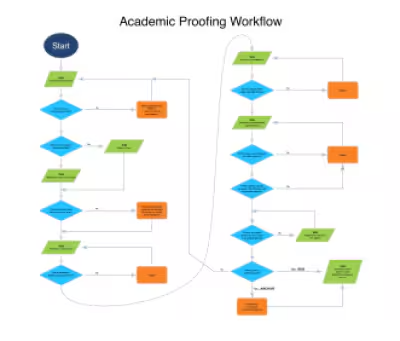
For best results, academic proofing reports should be run in the following order:
- Unprogrammed classes
- Sanity check
- Academic sanity (by student)
- Proof (by subject (CSV)
- Values completedness
- Academic completedness (spreadsheet)
- Attendance statistics for reports
- Test run of the academic report using a subset of students
The report proofing process should be started well before the final publishing date to ensure there will be sufficient time available should any issues arise or changes be required.
1. Unprogrammed classes:
- The Unprogrammed classes report lists classes that do not have a programme attached. This report may also be of help with identifying any classes that may require bridging.
To print this report:
- Go to the Teaching workspace > List of programmes.
- Select the applicable timetable period(s) using the Timetable period drop-down at the top of the work area.
- Select the applicable staff using the Staff drop-down at the top of the work area. To check for all staff remove all names using the Bin icon.
- Click Print > select Unprogrammed classes.
- Select Click here to access your document once report is complete.
2. Sanity Check:
- The Sanity check displays classes and students that have no reporting data at all entered, sorted by class.
- To print, go to Administration workspace > Academic reports > Reporting
- Choose the Sanity check report
- Set the Timetable period and Report type(s)
- Click PRINT
3. Academic sanity (by student):
- This is very similar to the Sanity check report. It displays classes and students that have no reporting data at all entered, but is sorted by student.
- To print, follow the above instructions but choose the required report.
4. Proof by subject (CSV):
- This report shows grades, syllabus scores, affectives and comments that have been entered into the reporting section.
- To print, follow the above instructions but choose the required report.
5. Values completedness:
- For the selected students it will display No data found, or the count of the fields in the Value template that have been partially filled.
- To print, follow the above instructions but choose the required report.
6. Academic completedness (spreadsheet):
- Indicates which parts of the reporting section of the marks book have only been partially filled in. If all sections are filled in, or if there is no data at all for the programme, the student and class will not appear in the spreadsheet.
- To print, follow the above instructions but choose the required report.
7. Attendance statistics for reports
- This report must be run if attendance data is to be shown on the report.
- To print, follow the above instructions but choose the required report.
8. Test run of the actual report
- When you are confident that all data has been added, the next step is to test a small cohort of students, covering a range of years, subjects, houses, home groups, etc.
Other useful reports:
The following reports can also be used to get more information about the status of the Marks book or Values data, typically for a small number of students.
Academic Summary:
- Displays data entered into the reporting section of the Marks book (eg. Mod grade, affectives and comments). Please note the 'Calc Gd' and 'Calc %' are only saved to the database if reporting data is entered or edited, then saved.
Values Summary:
- Displays the school values and pastoral care comments entered for students.
Entering test data
If reporting data has not yet been entered, then enter dummy data for one of the students. Be sure to add all required data and a long comment. This data can be deleted once proofing has been completed. In addition to the proofing reports, please print a sample of student academic reports to check for any name changes, formatting or customisations that may be required.
Programme setup checklist
The following items need to be set correctly for reports to print with the required information. This includes affectives, grades, checking if subjects aren't appearing, as well as incorrect teacher names appearing on reports.
- Run the Proofing reports to ensure staff have entered the reporting data for their subjects and pastoral care comments (school values)
- Check the correct teacher is displaying for each subject. If this is not correct, please refer to the Changing the Staff Salutation (names) on Academic Reports article for steps on resolving this issue.
- Teachers with subjects reporting on Syllabus or Outcomes will need to set their Programmes accordingly. See: Reporting on syllabus article.
- The Programme Course type will need to be set correctly.
- Reports that include Absences will need to ensure the attendance has been pushed onto the correct 'Values template'. See: Displaying attendance on academic reports article.
Related articles:
Was this article helpful?
That’s Great!
Thank you for your feedback
Sorry! We couldn't be helpful
Thank you for your feedback
Feedback sent
We appreciate your effort and will try to fix the article