TABLE OF CONTENTS
It's important to archive academic reports straight after the final print run - this ensures the reports on file are identical to those provided to the parent. We recommend that schools save these reports on their local school server as an additional backup for when it is required.
At latest, reports should be archived prior to the student roll over at the end of the year, as once this occurs, past reports will print with incorrect data (such as school year and roll group). A backup restore will be required to regenerate the reports with the correct data. This would need to be performed by our Professional Services team and would attract a charge.
We recommended that large schools print one cohort (year group, roll group, etc) at a time - waiting for each batch to complete before starting the next one. This will minimise the load on the school's SEQTA Server.
Archiving Academic Reports
Standard process - archiving by cohort
- Go to the Administration workspace > Academic reports > Reporting.
- Select the students.
- Select the Report Semester report (or other relevant report).
- Select the Timetable period and Report type.
- Set the Printing mode to Multiple small reports (batched).
- Set Report archiving (when batched) to Only archive new reports.
- Check the Filename pattern (when batched). The default filename pattern should have been set in Application settings. It can be changed here if needed for this print run only. A recommended filename pattern is as follows: {term}-{type}-{code}-{schoolyear}-{surname}_{firstname}.
- Click Print.
- If prompted, click OK - This will run the report as a background process. Once complete, it will display on the notification icon in the top-right corner.
Archiving individual reports (where a report exists and needs to be replaced)
- Follow steps 1 to 5 in the standard process.
- Set Report archiving (when batched) to Overwrite all archived reports.
- NOTE: The Overwrite option will only overwrite reports where the student name, Timetable period and Report type are all the same as the previous report. Other students are not affected.
- Check the Filename pattern (when batched). The default filename pattern should have been set in Application settings. It can be changed here if needed for this print run only. A recommended filename pattern is as follows: {term}-{type}-{code}-{schoolyear}-{surname}_{firstname}.
- NOTE: we strongly recommend that the filename pattern used is the same as the previous report.
- Click Print.
- If prompted, click OK - This will run the report as a background process (see step 9 above). However for small numbers of students the process may run in the foreground and you will see the Click here to access your document popup.
Backing up PDF reports
It is recommended that you create a ZIPped file of individual PDF academic reports that can be saved on a local school server for easy access when needed.
- Follow steps 1 to 5 in the standard process.
- Set Report archiving (when batched) to Don't archive.
- Check the Filename pattern (when batched). The default filename pattern should have been set in Application settings. It can be changed here if needed for this print run only. A recommended filename pattern is as follows: {term}-{type}-{code}-{schoolyear}-{surname}_{firstname}.
- NOTE: we strongly recommend that the filename pattern used is the same as the previous report.
- Click Print.
- If prompted, click OK - This will run the report as a background process (see step 9 in the standard process).
- Download the ZIP file and save it to a secure location in case it is needed.
Setting archived reports as visible in SEQTA Learn and SEQTA Engage
Reports can be set to show in SEQTA Learn and SEQTA Engage through the Report Archive. The steps for this process are available in the article Displaying Academic Reports or Archived Documents in SEQTA Learn and SEQTA Engage .
The importance of using the correct filename pattern
The File Name Pattern recommended for archiving reports is as follows: {term}-{type}-{code}-{schoolyear}-{surname}_{firstname}.
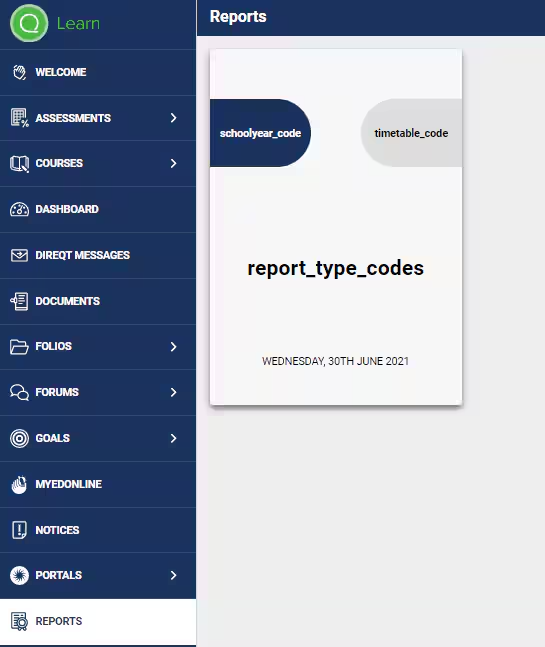
The following merge fields are required to display reports under the correct Report archive filters and SEQTA Engage and SEQTA Learn are {term}-{type}-{schoolyear}-{code}
Image below: Example showing where data is drawn from on the Reports page
Related articles:
Was this article helpful?
That’s Great!
Thank you for your feedback
Sorry! We couldn't be helpful
Thank you for your feedback
Feedback sent
We appreciate your effort and will try to fix the article