TABLE OF CONTENTS
- IMPORTANT:
- Merge fields must be contained within curly brackets, for example {firstname}.
- When using Preview, merge fields need to have data available in the database for at least one selected student, otherwise the system will display an error.
- Available Merge Fields
- Merge Fields Referencing Gender
- Correspondence Mode Overview and Available Merge Fields (email, letter and SMS)
- Comment Bank Merge Fields
- SMS-specific merge fields
- Application settings > SMS template (general)
- Application settings > SMS template (attendance)
- Data management > Pastoral care types: SMS templates
Merge fields can be used as placeholders to display unique data for each student without the need to have many different versions of the correspondence or comment. There is a wide range of placeholders available to merge student, parent, attendance and pastoral care information into comments and correspondence. The available merge fields will vary based on which page of SEQTA Teach is being used.
In Correspondence, merge fields are found in the drop-down list labelled Insert Fields. They can also be typed in directly as long as the correct syntax is used. Creating a new Comment bank item does not have a drop-down list; the merge field needs to be typed directly.
IMPORTANT:
Merge fields must be contained within curly brackets, for example {firstname}.
When using Preview, merge fields need to have data available in the database for at least one selected student, otherwise the system will display an error.

Available Merge Fields
Different merge fields are available depending on where in SEQTA they are being used. Please refer to the following sections for list of available merge fields:
- Information: Merge Fields Referencing Gender
- Correspondence Mode Overview and Available Merge Fields
- Mode: Basic Student Data
- Mode: Attendance Data
- Mode: Pastoral Care Data
- Mode: Plain Message
- Comment Bank Merge Fields
- SMSes (SMS Templates in Application settings and Data management)
Merge Fields Referencing Gender
The merge fields for gender use the male pronouns. The output will display according to the gender listed in the student record. For example, {he} will display as either 'he', 'she' or 'they' depending on gender of the student.
Correspondence Mode Overview and Available Merge Fields (email, letter and SMS)
The available merge fields will depend on which Mode is selected in Correspondence. See below for lists of merge fields available for each Mode. For SMS, see also the special SMS areas in Application settings and Data management > Pastoral care types.
NOTE: Take care using merge fields when sending an SMS. Some fields will not display correctly, eg: Attendance table.
The available modes are as follows:
- Plain Message: This uses generic merge fields only. No merge fields related to the student, attendance or pastoral care data are available in the drop-down.
- Basic Student Data: In this mode only merge fields with student and contact information are available.
- Attendance Data: This shows Basic student data fields and Attendance data merge fields.
- Pastoral Care Data: This shows Basic student data fields and fields from Pastoral care data entries.
Merge fields for ad-hoc data
In the lists below, an asterisk indicates ad-hoc merge fields, such as Field 1, Signatory 1 and Position 1. These are available under all Modes. These fields must be manually populated with the text you want to appear in the correspondence, as they do not display data from the database. Choosing one of these merge fields will cause a new field to appear below the Insert field drop-down; this is where you enter your data.
Mode: Plain Message
These merge fields below are always available and do not require a Preset to be selected.
| Name | Notes |
|---|---|
| {salutation} | Recipient salutation |
| {reply_to} | Reply-to address |
| {mobile_number} | Mobile number |
| {subject} | Subject (i.e: Message subject) |
| {field1}...{field5} | Field 1...5 Custom fields* |
| {staff1} | Signatory 1* |
| {position1} | Position 1* |
| {staff2} | Signatory 2* |
| {position2} | Position 2* |
Mode: Basic Student Data
These merge fields below are always available and do not require a Preset to be selected.
| Name | Notes |
|---|---|
| {salutation} | Recipient salutation |
| {contact_title} | Contact title |
| {contact_firstname} | Contact firstname |
| {contact_surname} | Contact surname |
| {prefname} | Student preferred name (If a preferred name is not available, the merge field will use the student's first name) |
| {surname} | Student surname |
| {firstname} | Student first name |
| {title} | Student title |
| {him} | him / her / them |
| {his} | his / her / their |
| {his_cap} | His / Her / Them |
| {he} | he / she / they |
| {he_cap} | He / She / They |
| {himself} | himself / herself / themself |
| {son} | son / daughter / child (NOTE: may not be suitable if contacts are Grandparents etc) |
| {rollgroup} | Student's rollgroup name |
| {house} | Student's house name |
| {schoolyear} | Student's yeargroup |
| {campus} | Student's campus |
| {boarder} | Student’s boarder status |
| {gender} | Student’s gender |
| {schoolyear_coordinator} | Yeargroup coordinator |
| {subschool_coordinator} | Sub-school coordinator |
| {rollgroup_coordinator} | Rollgroup coordinator |
| {house_coordinator} | House coordinator |
| {schoolyear_phone} | Yeargroup phone number |
| {subschool_phone} | Sub-school phone number |
| {rollgroup_phone} | Rollgroup phone number |
| {house_phone} | House phone number |
| {campus_phone} | Campus phone number |
| {reply_to} | Reply-to address |
| {mobile_number} | First contact Mobile number |
| {subject} | Subject (ie: Message subject) |
| {field1}...{field5} | Field 1...5* |
| {staff1} | Signatory 1* |
| {position1} | Position 1* |
| {staff2} | Signatory 2* |
| {position2} | Position 2* |
Mode: Attendance Data - extra fields
The merge fields for attendance data are only valid if there is attendance entered for the student that meets the filters set in the selected Preset. Attendance data fields include all of the above in Basic student data mode plus the following:
| Name | Notes |
|---|---|
| {block_periods} | Attendance table (with periods) |
| {block_dates} | Attendance table (no periods) |
| {block_dates_l} | Attendance table (no periods, mark late) |
Mode: Pastoral Care Data - extra fields
The merge fields for pastoral care data are only valid if there are pastoral care notes for the student that meet the filters set in the selected Preset. Pastoral care fields include all of the above in Basic student data mode plus the following:
| Name | Notes |
|---|---|
| {from} | The date/time from |
| {until} | The date/time until |
| {details} | Details: The text of the pastoral care entry |
| {type} | Category |
| {tag} | Sub-category |
Comment Bank Merge Fields
The following merge fields are available when using the Comment Bank to add comments for reporting results, school values or assessments.
To have the {firstname} display as the 'preferred name', enable the setting 'Use student preferred name' on the Application Settings > SEQTA Teach > Marks book pane. Please note that changing this setting after comments have already been entered will not automatically update the preferred name.
| Name | Notes |
| {firstname} | Student preferred name or first name (based on the application setting referred to above) |
| {surname} | Student surname |
| {him} | him / her / them |
| {his} | his / her / their |
| {His} | His / Her / Their |
| {he} | he / she / they |
| {He} | He / She / They |
| {himself} | himself / herself / themself |
SMS-specific merge fields
There are three areas where merge fields can be used to aid SMS communications.
- Correspondence page (as referenced above). Correspondence also requires an Application settings entry.
- Attendance SMSes (in Application settings)
- Pastoral care SMS templates (in Data management)
Application settings > SMS template (general)
The following three fields are supported in the General SMS template in Application settings. The General template is used when an SMS is sent using the Correspondence page. As the Correspondence page has its own method for using merge fields in the message, the Application settings > Correspondence > SMS template (general) usually contains only the {body} merge field.
Merge field | Notes |
|---|---|
{body} | Contents of SMS message |
{subject} | Subject of SMS |
{phone_mobile} | Guardian's mobile number |
Application settings > SMS template (attendance)
These fields are supported in the SMS template (attendance) in Application settings. Application settings > Correspondence > SMS template (attendance). This template is used when attendance admin staff use the Absentee SMSes page in Attendance administration.
Name | Notes | Data management |
|---|---|---|
| {salutation} | Recipient salutation | Guardian |
| {contact_title} | Contact title | Guardian |
| {contact_firstname} | Contact firstname | Guardian |
| {contact_surname} | Contact surname | Guardian |
| {prefname} | Student pref. name (If a preferred name is not available, uses the student's first name) | Student |
| {day_name} | Current day | |
| {day_date} | Current date | |
| {surname} | Student surname | Student |
| {title} | Student title | Student |
| {him} | him / her / them | Student |
| {his} | his / her / their | Student |
| {his_cap} | His / Her / Them | Student |
| {he} | he / she / they | Student |
| {he_cap} | He / She / They | Student |
| {himself} | himself / herself / themself | Student |
| {son} | son / daughter / child (may not be suitable if contacts are Grandparents etc) | Student |
| {roll} | Student's rollgroup code | Roll |
| {roll_name} | Student's rollgroup name | Roll |
| {house} | Student's house code | House |
| {year} | Student's year level code | Year |
| {year_name} | Student's year level name | Year |
| {campus} | Student's campus | Campus |
| {year_coord} | Year coordinator | Year |
| {subschool_coord} | Sub-school coordinator | Sub-school |
| {roll_coord} | Roll coordinator | Roll |
| {house_coord} | House coordinator | House |
| {phone} | Sub-school phone | Sub-school |
Data management > Pastoral care types: SMS templates
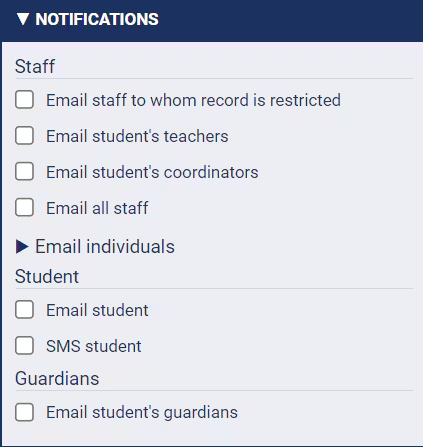
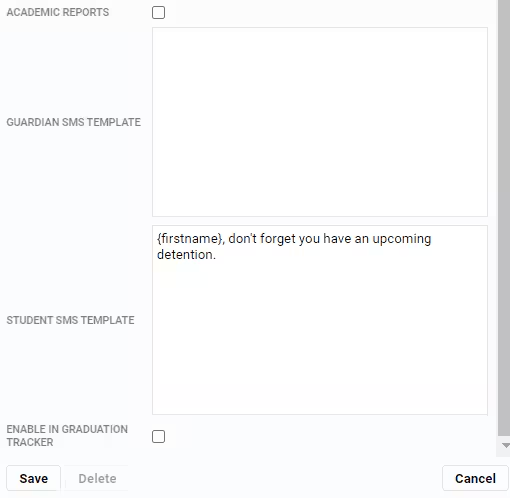
For each Pastoral care type, a text template can be created to display merged data when sending an SMS to either the student or the guardians. If both template fields are populated it will use both as appropriate. If the template field contains text it will display an extra checkbox in the Notifications section when a pastoral care note is being created. Your school will need to have an active SMS configuration for the SMS to be processed.
Was this article helpful?
That’s Great!
Thank you for your feedback
Sorry! We couldn't be helpful
Thank you for your feedback
Feedback sent
We appreciate your effort and will try to fix the article