TABLE OF CONTENTS
- Creating and Managing Assessment Groups
- Assigning assessments to groups
- Setting an Assessment group as Reportable
- Setting an Assessment group to a weighting of zero
Creating and Managing Assessment Groups
- Go to the Teaching Workspace > Timetable > My Classes/Traditional view/Calendar.
- Click on the Load Programme icon for the class, then select the Cover Page from the sub-page menu.
- Click on the Marks Book Settings button.
- Under General Settings locate the Assessment Groupssection.
- To create a new group select + ADD GROUP.
- To delete a group select the X button at the right-hand side of the row. The Undo Arrow will display, but the change will not apply until SAVEis selected. Any assessments assigned to the group will automatically be relocated to the previous group.
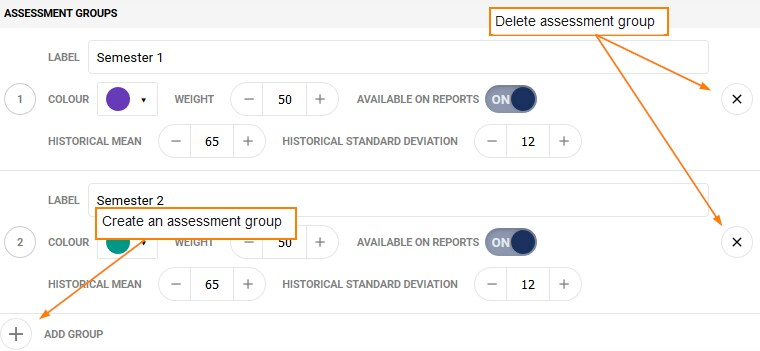
- Configure assessment group as required:
- Label: The name of the Assessment group, which will display in the Marks book. It also is used in the marks book to sort assessments into alphabetical order.
- Colour: The selected colour will display as an indicator on the assessment title under Overview of Assessments.
- Weight: The weighting at which the results for each assessment group contribute to the overall calculated scores in proportion to the other assessment groups.
- Available on Reports: Academic reports can be customised to draw assessment data, syllabus scores and results onto the report from this group. See the sections below.
- Historical Mean and Historical Standard Deviation: These are set values through which marks book raw data can be parsed when using the Adjusted view of the marks book, to indicate how scores may be moderated based on historical performance.
- Click Save
Assigning assessments to groups
- Go to the Teaching Workspace > Timetable > My Classes/Traditional view/Calendar
- Click on the Load Programme icon for the class
- Select Overview of Assessments from the sub-page menu
- Select the assessment
- Under Group select the Assessment group from the drop-down menu
- Click Save
Setting an Assessment group as Reportable
The Available on reports option allows or prevents assessments (and syllabus linked to assessments) from appearing on reports. The academic report may need to be edited to take advantage of this change.
- Go to the Teaching Workspace > Timetable > My Classes/Traditional view/Calendar.
- Click on the Load Programme icon for the class
- Click on the Marks book settings button
- In the Assessment groups section, toggle Available on reports to ON or not, as required.
- Click Save
Setting an Assessment group to a weighting of zero
This will stop the Assessments in the group from contributing to the Overall grade (Calc Gd and Calc %). This is typically used for Formative assessments.
- Go to the Teaching Workspace > Timetable > My Classes/Traditional view/Calendar.
- Click on the Load Programme icon for the class
- Click on the Marks book settings button.
- In the Assessment groups section, set the Weight to 0
- Click Save
Independent of this setting is one in the Marks book called CONTRIBUTES TO OVERALL, which can can be toggled off or on. However the change is only seen in the Marks book and does not affect academic reports.
Was this article helpful?
That’s Great!
Thank you for your feedback
Sorry! We couldn't be helpful
Thank you for your feedback
Feedback sent
We appreciate your effort and will try to fix the article