TABLE OF CONTENTS
The article steps through the Programme setup process for reporting on music subjects. This process is not suited in all instances and will depend on the school's reporting requirements. For assistance please contact the Client Success Manager through the SEQTA Service desk.
It is important to ensure Programmes are set up correctly prior to Teachers entering results to ensure marks do not need to be re-entered at any point.
- If the Music classes are not Timetabled classed in SEQTA , create either an Untimetabled class or a Calendar Class for each Instrument (assuming instruments are reported on separately)
- If new to Music reporting create a new programme on one of the classes by clicking on the class and selecting New programme. Create the Assessment groups and assessments are per the steps below. Otherwise, skip strait to step 3.
- Set up a programme on the classes as per the steps below
1. Creating Calendar classes or Untimetabled classes
Untimetabled classes are typically used for Music classes, they are much quicker and simpler to setup. Calendar classes are typically only required if teachers require dates next to the lessons in the PLANNER or need to record attendance.
The steps for creating classes are available in the following articles:
Be sure to create a class for each instrument, for example if a teacher teaches 3 Flute classes you only need to create one Flute Class. Whereas, if a teacher teaches one Flute class and one Oboe class, you will need to create two classes (one for each subject).
Reporting using affectives
- Create a Report template for Music and ensure it is visible. Enter the affectives (eg. Rhythm, Style & Expression, Practice) and mapped values.
- Enter results into the Marks book. If using the Custom reports tool there needs to be either a Mod G or Mod Score or an assessment on the report.
2. Programme setup
- Click on the class and select New programme
- If there is more then one class for that instrument go into the newly created programme and Share it with the other classes
- Have the teacher enter the reporting data into the Reporting section
Reporting using assessments
2. Creating a music programme for reporting
In most cases this step will not be required as a copy of a Music programme from a previous reporting period can be used.
- Click on one of the classes (it doesn't matter which one), then select New programme.
- Change the Programme title to 'Master music programme'. Once the programmes are setup on their respective classes the title can be changed to the subject which needs to show on the report.
- Click on Marks book setting create two Assessment groups called 'Semester one' and 'Semester two'. The 'Reports' box for the Assessment groups 'Semester 1' will need to be turned off when reporting for 'Semester 2' (this will ensure Semester one assessment results do not show on Semester two report.
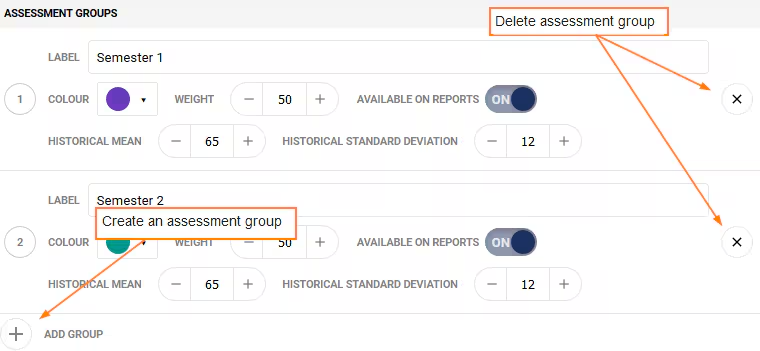
- Click on the Overview of assessments tab and create the Assessments. Then assessment 'Title' will show as on the music reports.
3. Programme setup (reporting with assessments)
- Copy the MasteProgramme once to each instrument class. This means, if there are five flute classes with three teachers you need to copy the programme to only one of the flute classes (eg. FLU#1) then continue on with step two below.
- If there is more then one class in the cohort go into the class with the new copy of the Programme (ie. FLU#1), then Share it with to the other classes in the same cohort. Otherwise skip to step three below
- Checking a programme share the programme should be attached to all of the classes of the same type. Example: all flute classes will be listed.
- Have the teachers enter their reporting data into the Marks book
Was this article helpful?
That’s Great!
Thank you for your feedback
Sorry! We couldn't be helpful
Thank you for your feedback
Feedback sent
We appreciate your effort and will try to fix the article