TABLE OF CONTENTS
- Setup and Configure the Google Drive API for SEQTA
- Enter the Client ID and API Key into the SEQTA Application Settings
- Google Drive first time authentication for each user
- Testing the Google Drive Integration
This article outlines the process required to set up Google Drive to integrate with SEQTA. Once this process has been completed, Google Drive can be accessed through SEQTA when adding files.
Setup and Configure the Google Drive API for SEQTA
This process will set up the Drive API for use with SEQTA and will provide the 'Client ID' that needs to be entered into SEQTA's Application settings. Note: Additional options may appear if you have not yet agreed to the Terms of Service for Google drive. This will need to be done to proceed.
- Go to the link https://console.developers.google.com/project to access the Google APIs. If prompted, log in with the school's Google drive admin account.
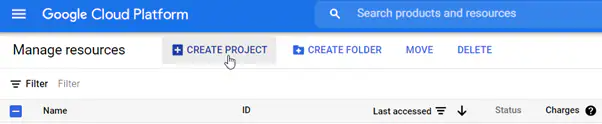
- Select 'Create Project' from the top of the page.
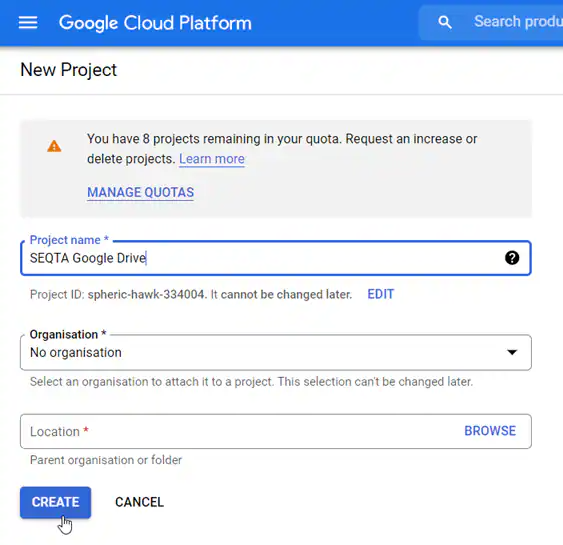
- Type in a Project name (ie. SEQTA APP) and click Create.
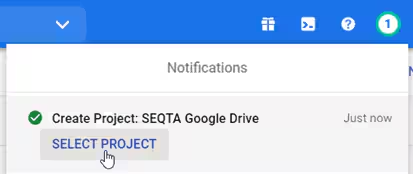
- Click on the 'Notification Bell' icon in the top-right corner and select 'Create Project: SEQTA APP'
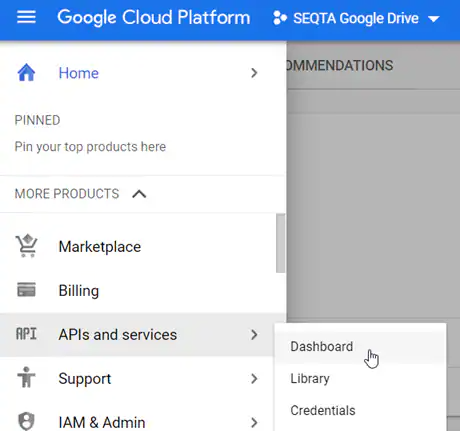
- Select the Menu (Hamburger) button in the top-left corner, then select 'APIs & Services', then 'Dashboard'.
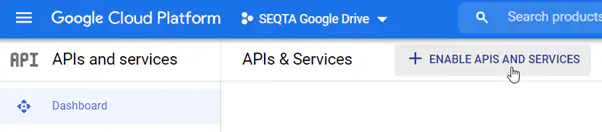
- Click 'Enable APIS and Services'.
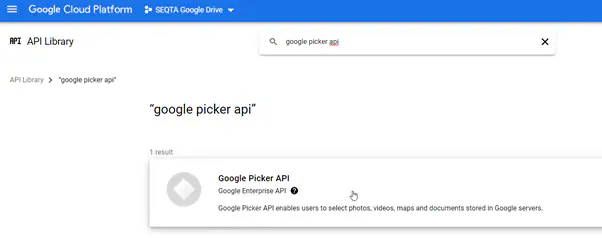
- Type 'Google Picker' into the search box then select 'Google Picker API'.
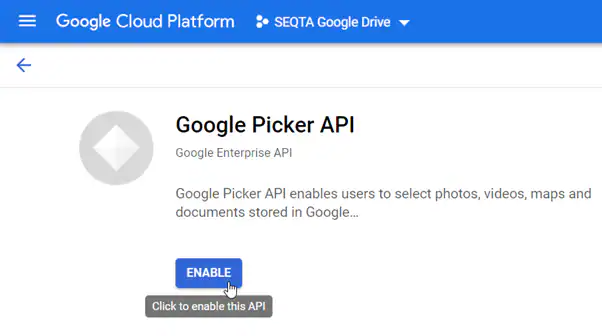
- Click the 'Enable' button at the top of the page.
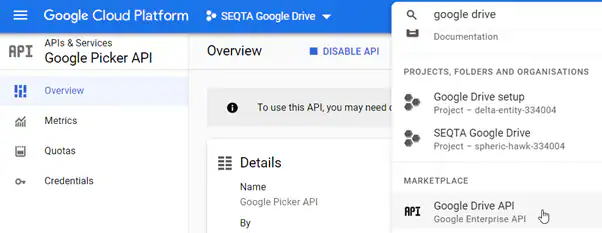
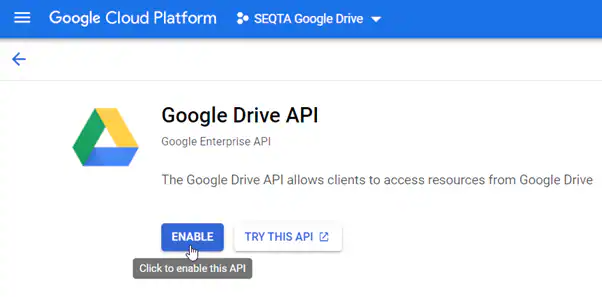
- In the search box at the top of the page type 'Google Drive' in the search box and select 'Google Drive API'.
- Click 'Enable'.
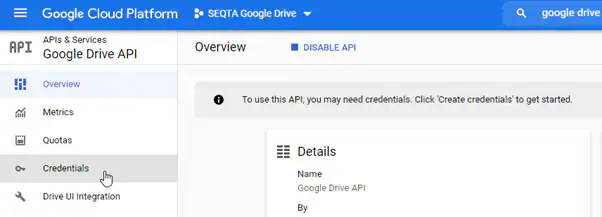
- Select 'Credentials' from the menu.
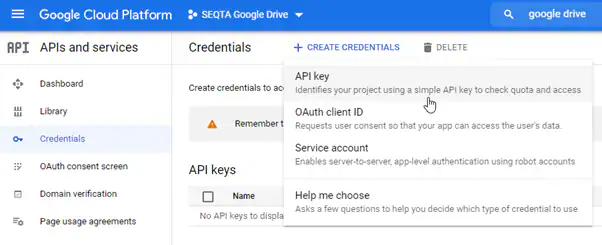
- Click on Create Credentials > API Key
- Once key is created click on Restrict Key
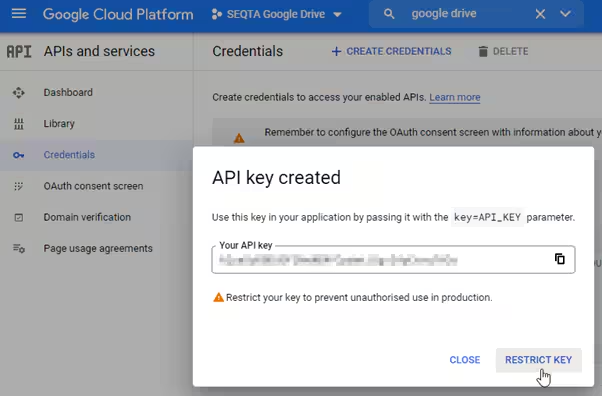
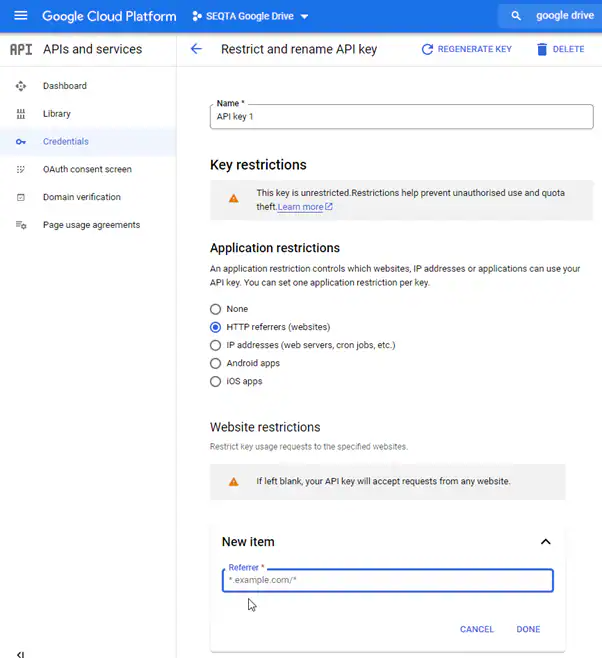
14. Select 'HTTP Referrers (Web Sites)' and enter the school URL in the format https://*.example.com/*
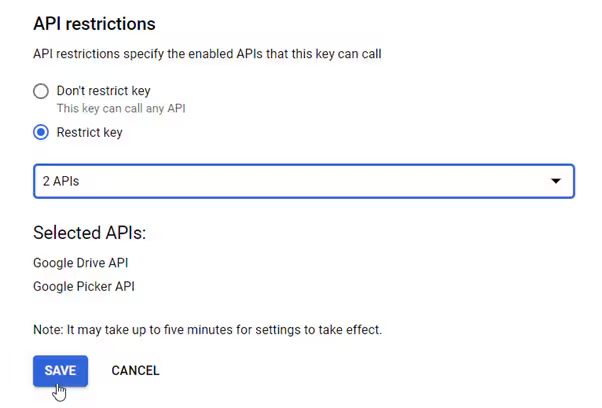
15. Then under API Restrictions click on Restrict key and then select 'Google Drive API' and 'Google Picker API' and click Save.
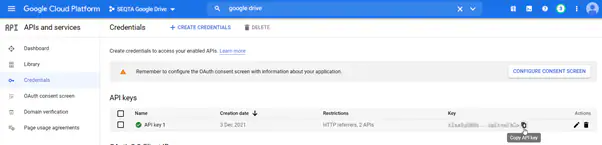
16. Click on the 'Copy' icon next to the 'Key'. Make a note of this 'Key'.
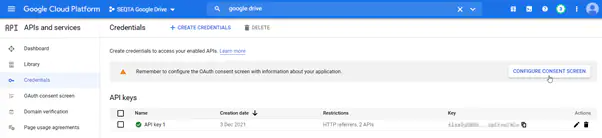
17. Select 'Configure Consent Screen'.
18. Select the appropriate User Type.
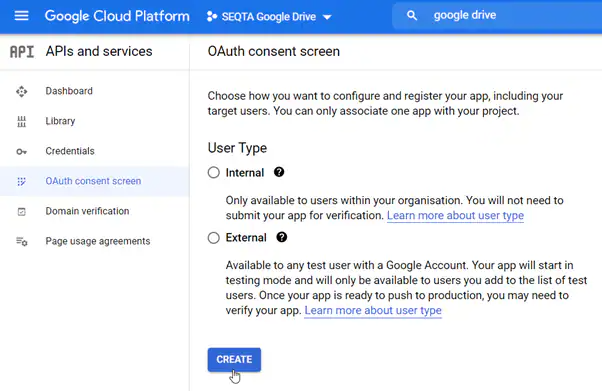
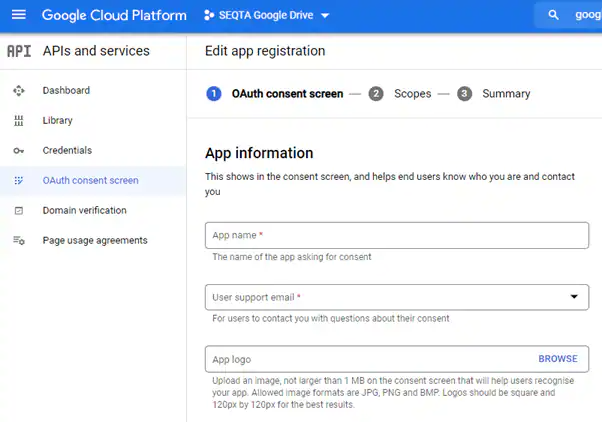
19. Enter the App name and support email
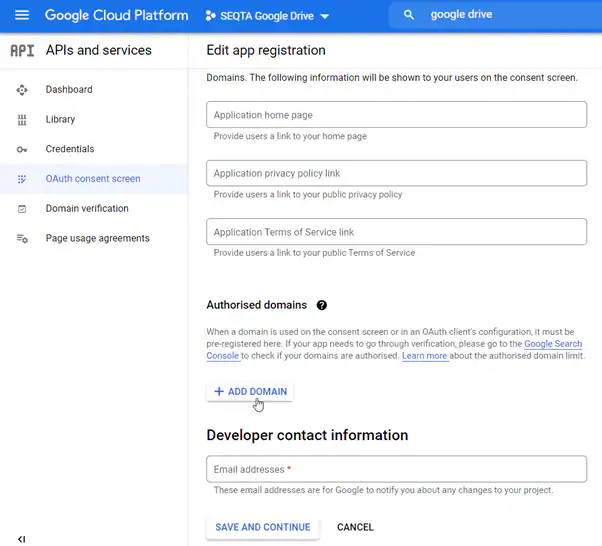
20. Enter an Authorised domain (this will be the school's SEQTA Teach domain i.e. teach.schoolname.wa.edu.au), and contact email, then click on ‘Save and Continue’.
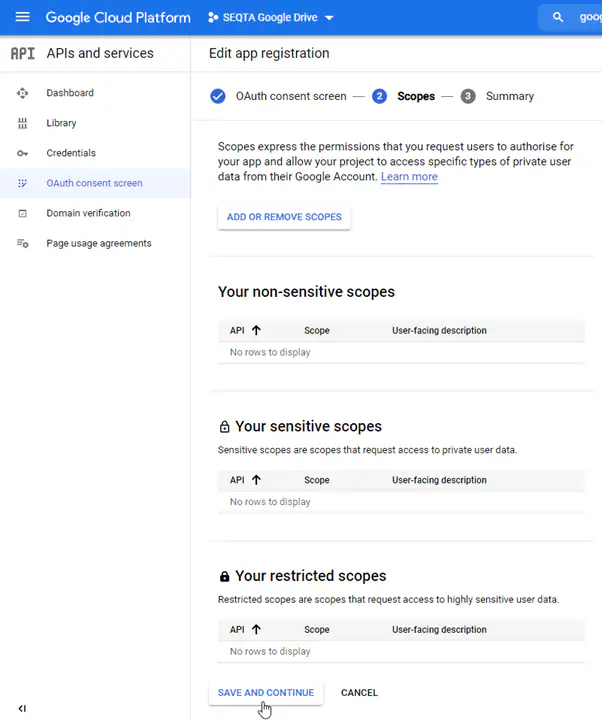
21. No requirement to enter Scopes. Click on Save and Continue.
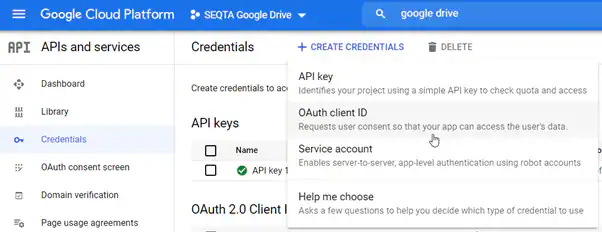
22. Select 'Credentials' from the left menu. Next, click '+ Create Credentials' then select 'OAuth Click ID'.
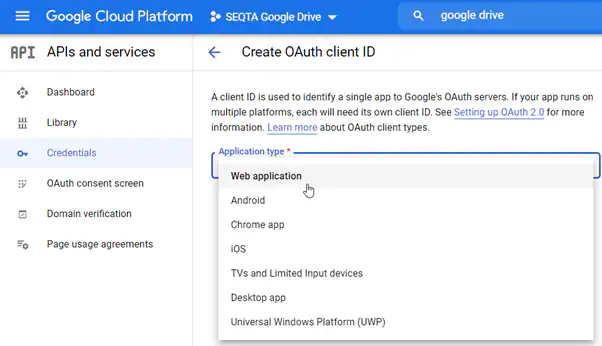
23. Select 'Web Application' from the drop-down.
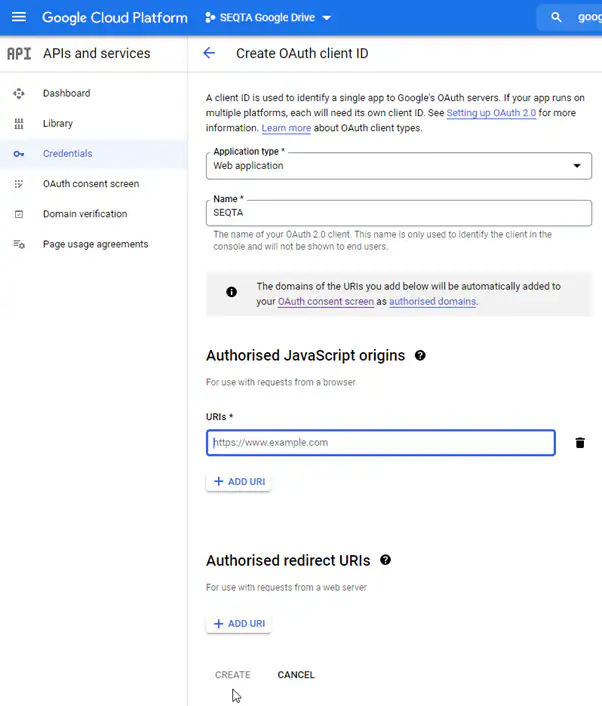
24. Enter the School's URIs (this will be the school's SEQTA Teach and SEQTA Learn URIS) and click 'Create'.
25. Click on the 'Copy' icon next to the Client ID. Make a note of the Client ID and click 'OK'. 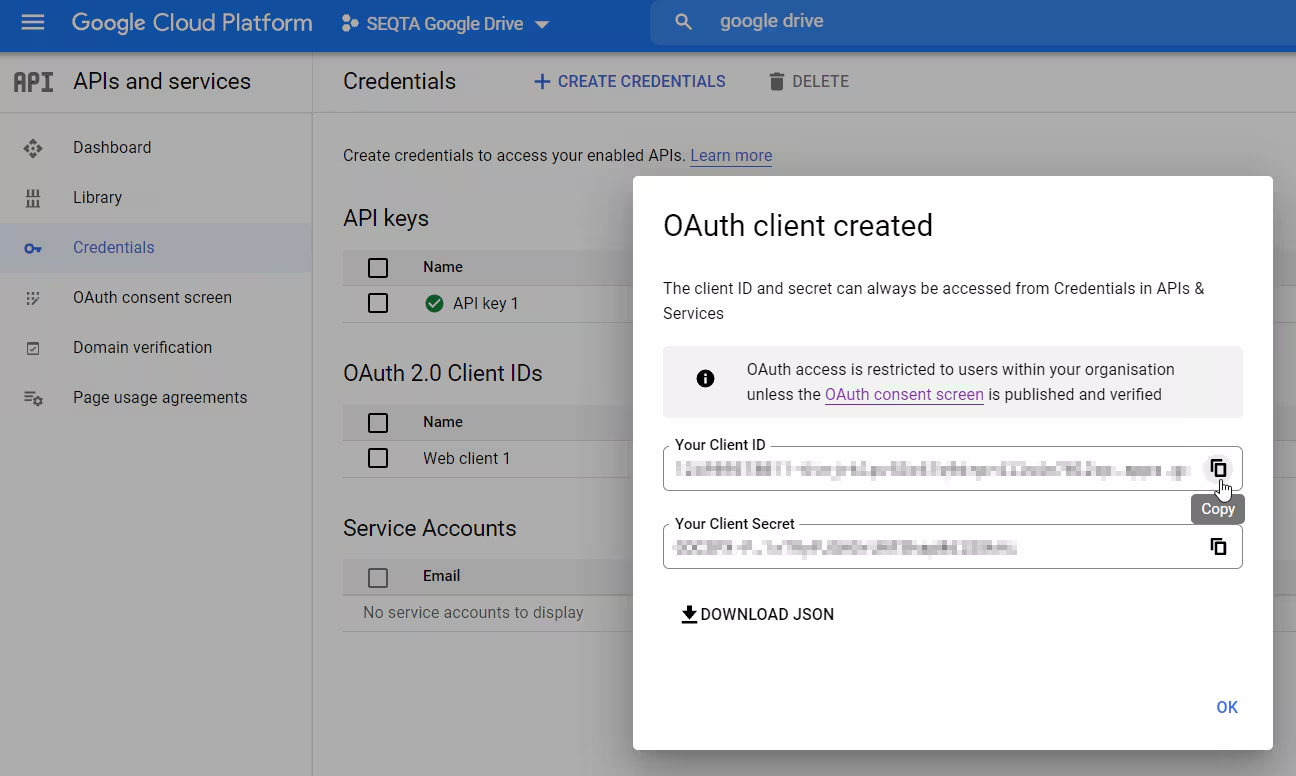
Enter the Client ID and API Key into the SEQTA Application Settings
- Click on the Administration Workspace > Application Settings > Application Settings.
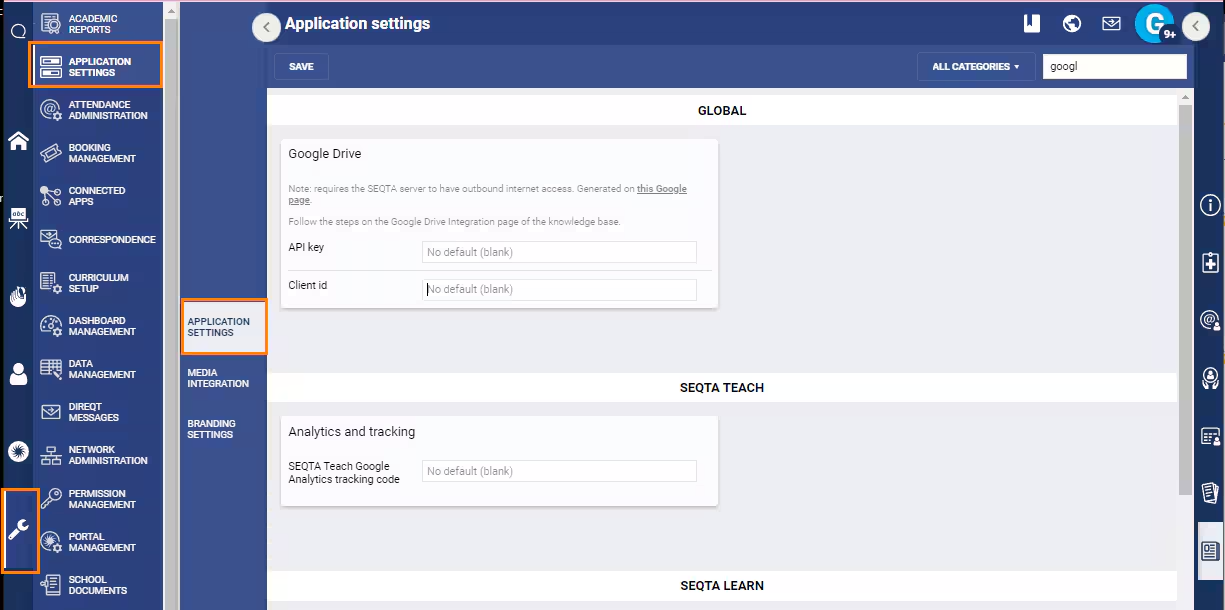
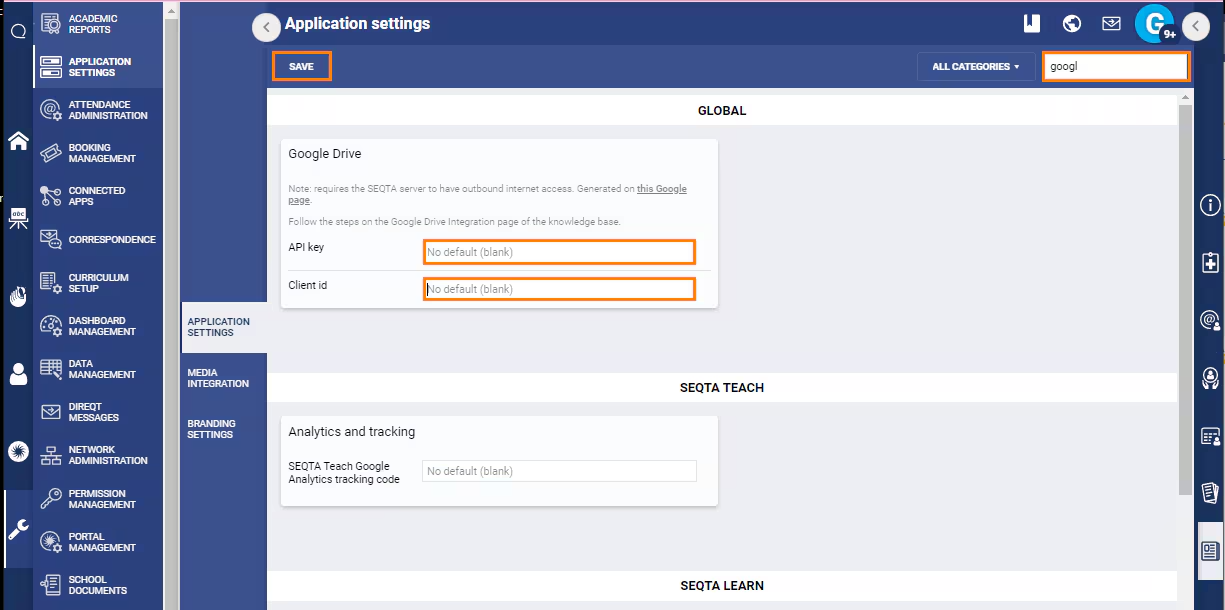
- Type 'Google' (without the quotes) in the search box in the top-right corner, then enter the API Key and Client ID and click 'Save'.
Google Drive first time authentication for each user
To update your schools Google Drive integration as per the new updates made by Google, please use the following steps:
1. Select the Google Drive option anywhere there is an Add files option.
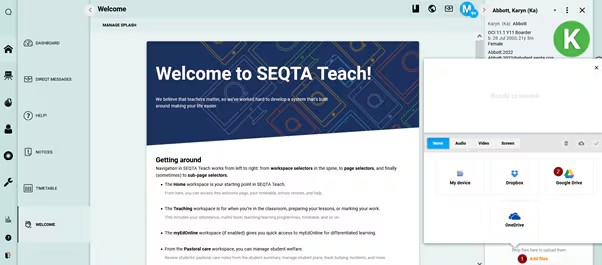
2. Two windows will then pop-up prompting a selection of your Google account (Please ensure you have pop-ups enabled on your browser). Select the desired Google account.
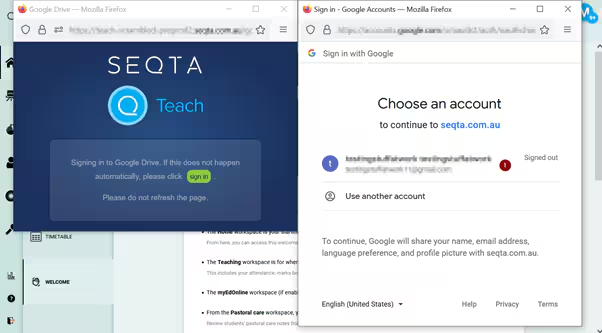
3. Tick the box for See and download all your Google Drive files and Continue.
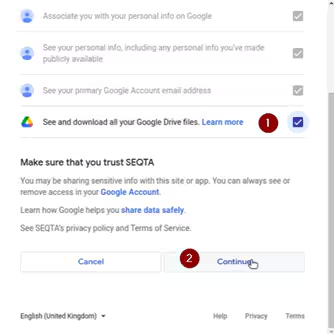
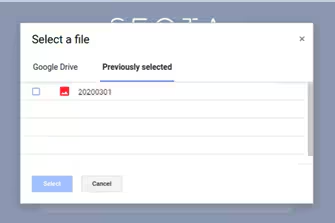
4. The first pop-up window will now allow you to select files to upload from your Google Drive.
Testing the Google Drive Integration
Once the above steps are completed the integration should be available in SEQTA any places where the 'Add Files' or 'Add Resource' option is available.
Please test to ensure the integration works correctly prior to notifying staff of its availability. If there are any issues please Clear the Cache and restart the web-browser.
Was this article helpful?
That’s Great!
Thank you for your feedback
Sorry! We couldn't be helpful
Thank you for your feedback
Feedback sent
We appreciate your effort and will try to fix the article