TABLE OF CONTENTS
- Cyberhound Overview
- Integrating Cyberhound with SEQTA
- Accessing Cyberhound Through SEQTA Teach
- Related Articles:
This Article outlines the process required to integrate Cyberhound with SEQTA. Once this process has been completed, the Cyberhound Network history, Social media and Admin settings can be accessed through SEQTA.
Cyberhound Overview
The Cyberhound software offers a range of web filtering and reporting tools. SEQTA integrates with Cyberhound (formally known as Netbox Blue) to allow the Network history, Social media, and Admin settings to be accessed through SEQTA.
Integrating Cyberhound with SEQTA
The integration of Cyberhound with SEQTA requires the 'Pre-Shared Key' and 'Server URL' to be entered into SEQTA, and then the authorised users will require the appropriate permissions to view the Network history, Social media, and/or Network administration pages.
If you get a blank page or error when trying to access Cyberhound through SEQTA, please contact Cyberhound as this indicates it is not set up to be delivered over a secure connection (HTTPS).
Step: 1. Entering the 'Pre-Shared Key' and 'Server URL' into the Application Settings
To following steps outline the process for integrating SEQTA with Cyberhound.
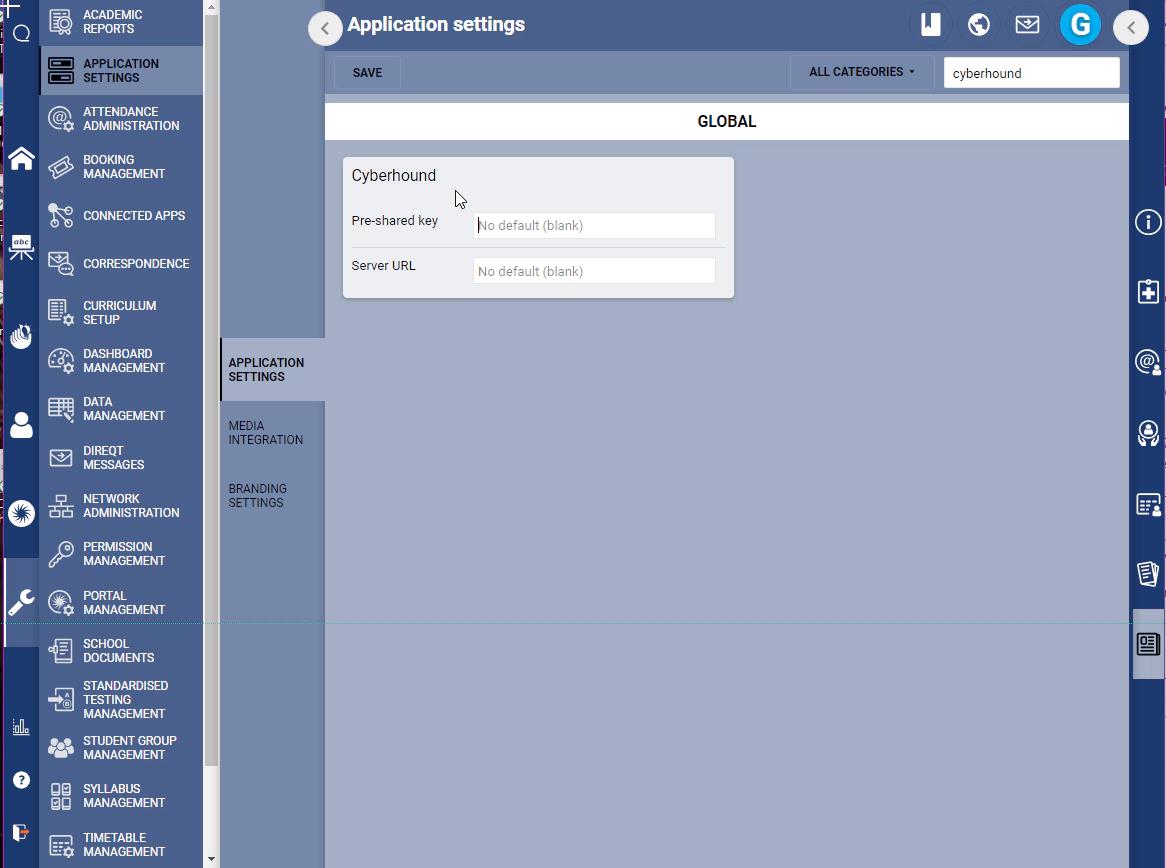
- Go to the Administration Workspace > Application Settings > Application Settings
- Search for Cyberhound using the search box in the top-right corner
- Enter the details for the Pre-shared key and the Server URL (i.e. https://schoolname.safenetbox.biz)
- Click Save
Step 2: Set Permissions for Authorised Users
The following permissions are required to access the Cyberhound pages in SEQTA Teach. Refer to the article Creating, Managing and Deleting Permission Groups for the steps.
Note: Please contact the school's SEQTA Administrator should one of these permissions be required. Permissions are managed entirely in-house by the school and will not be changed by the SEQTA Service Desk.
- STS:NET: This permission will give access to the Network history tab in the Pastoral care workspace
- STS:SOC: This permission will give access to the Social media tab in the Pastoral care workspace
- NET:ADM: This permission will give access to the Network admin page in the Administration workspace
Accessing Cyberhound Through SEQTA Teach
SEQTA Teach constructs a link to a particular part of the Cyberhound instance. When accessing this information, a login prompt will appear to authenticate with Cyberhound. If the page loads without the login prompt, this indicates that the account information is being stored by the browser (i.e. Browser Cookie).
Accessing the Network history
- Go to the Pastoral Care Workspace > Network History (requires the permissions 'STS:NET')
Accessing the Social Media
- Go to the Pastoral Care Workspace > Social Media (requires the permission 'STS:SOC')
Accessing the Viewing the Network Administration Page
- Go to the Administration Workspace > Network Administration (requires the permission 'NET:ADM')
Related Articles:
Was this article helpful?
That’s Great!
Thank you for your feedback
Sorry! We couldn't be helpful
Thank you for your feedback
Feedback sent
We appreciate your effort and will try to fix the article