TABLE OF CONTENTS
- Creating and managing presets
- Using presets with pastoral care data
- Using presets with attendance data
- Setting the time and date
Correspondence presets allow the system to filter data based on a set of conditions which can then be merged into correspondence to students or parents. A correctly configured preset removes the need to select individual students. Instead, all the students are added and the system then selects only those that meet the rule requirements set in the preset. The filtered students are used as the basis for a "mail-merge" using the selected correspondence template.
When working with presets, it helps to have a clear idea as to which date-range includes the required records. Presets might be used for the following reasons:
- Find all students who were given a detention during Mon-Fri of the previous week and where "Requires follow-up" was ticked
- Send a letter to all parents where the student has received and award or commendation for Semester 2
- Select all students who were marked "Late - No Note" for the previous 2 weeks up until yesterday at 4.00pm and send a follow-up email to their parent/contact(s)
Creating and managing presets
- Go to the Administration workspace > Correspondence
- Select a correspondence method (eg. Send letters). It doesn't matter which method is selected as Presets are available across all correspondence methods.
- Set the 'Mode' to either Attendance data or Pastoral care data. Presets are not available for the other modes.
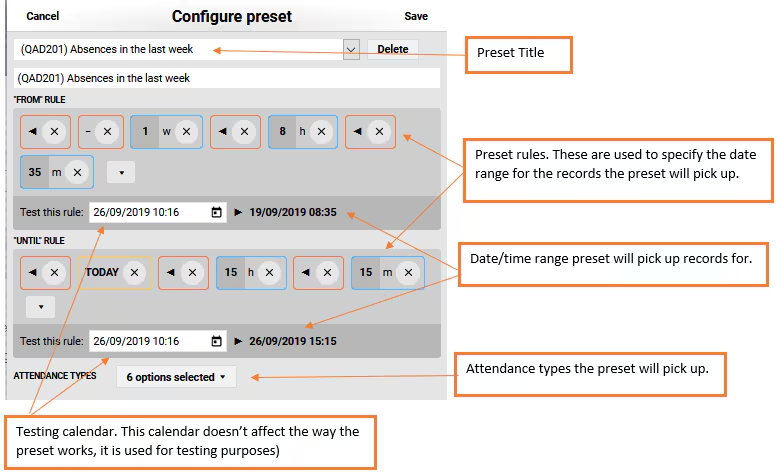
- Click the Edit buttonnext to the Preset drop down. This will open the 'Configure preset' box.
- To edit an existing Preset, select it from the drop down.
- To create a new preset, click on New preset from the bottom of the drop-down list. Type a name for the preset in the "Preset name" field under the drop-down list.
Set the 'From' and 'Until' by using the data selectors (the symbol '▼'). A date and time can be entered in the "Test this rule:" field. The effect of the rule in the preset will be shown to the right of the test field.
- Select the conditions from the drop-down below the From and Until date rules.
- If the Preset is for attendance, select the Attendance types to be included.
- If the Preset is for pastoral care, select the Pastoral care categories that are to be included. Some pastoral care checkbox options can also be selected.
- Click Save.
Using presets with pastoral care data
Presets can be used in conjunction with the 'Pastoral care data' mode to notify parents of pastoral care notes (eg. detentions, merits, etc). Regardless of the purpose of the correspondence, the process will always be the same. When creating presets, it can be helpful to have a clear idea of the school process prior to the creation of the preset.
Detention preset example
Requirement: Send detention letters for last week's detentions (perform this task on Friday morning)
Preset rule: Merge data from pastoral care records from the category 'Detentions', that have been assigned from Wednesday the previous week, to Wednesday on the current week.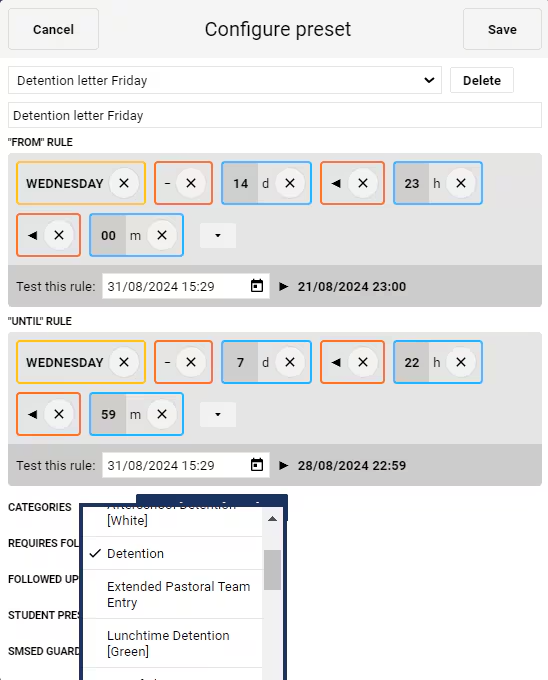
Each condition requires a separate preset to be created. For example, some schools may choose to follow-up on detentions twice a week, in which case two presets would need to be created.
Using presets with attendance data
Presets may be used in conjunction with the 'Attendance data' mode to notify parents of attendance issues or events. For example, unresolved absences or lates that need to be addressed, notification of excursions, or sports days. Regardless of the purpose of the correspondence, the process will always be the same. When creating presets it can be helpful to have a clear idea of the school process prior to the creation of the preset.
Attendance preset example
Requirement: Prior to end of term, parents are asked to follow-up on any unresolved absences recorded for the student during the term. Any absences received in the previous two days are to be excluded. (Perform this task towards the end of term, so that parents have some time to respond).
Preset rule: Merge data from attendance records for the attendance types 'Unresolved absent', 'Absent', or 'Unresolved late' from the first day of term until the current day (minus 2 days).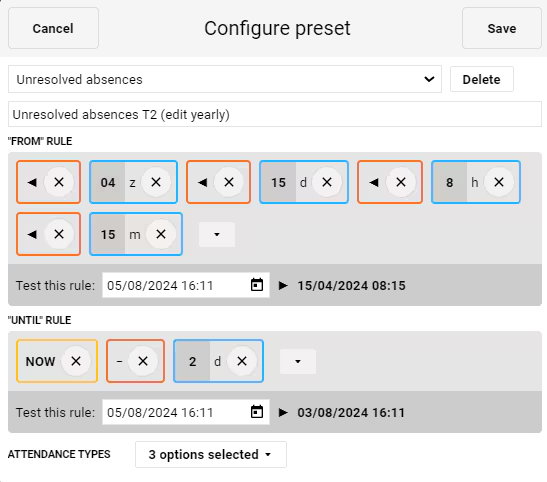
Should assistance be required with setting up a preset, please contact the SEQTA Support team with the exact details of the rule required.
Setting the time and date
- Select an Operator
- Select a Keyword
- Choose a Value
- Set the Value (edit the field beside the value)
Operators
+ | Adds a value to the date/time variable |
- | Subtracts a value from the date/time variable |
< | Assigns a value to the date/time variable. |
Keywords
now, today | Sets the variable to the actual date/time. |
monday, sunday | The nearest specified weekday that is not in the past, including today. |
upcoming | Evaluates if the variable time is in the past and if so, adds 1 day to the variable date. |
Values
y | Years: a number of years. |
z | Months: a number of months. |
w | Weeks: a number of weeks. |
d | Days: a number of days. |
h | Hours: a number of hours. |
m | Minutes: a number of minutes. May be used with the addition, subtraction and assignment operators. |
Was this article helpful?
That’s Great!
Thank you for your feedback
Sorry! We couldn't be helpful
Thank you for your feedback
Feedback sent
We appreciate your effort and will try to fix the article