TABLE OF CONTENTS
- Step one: Enabling the 'Notices app' in the Application settings
- Step two: Enter the URL into the Application settings SIP pane
SEQTA Notices can be displayed in the SIP. The setup process is outlined below. It entails enabling the 'Notices app', setting the 'News pane' to show and entering the Notices URL into the 'News pane path'.
Important information:
- While this may be suitable for a small school, due to the additional load from constant live updates, this is not suitable for mid to large schools +500 users. Where this is required Portal pages (Creator) are better suited.
- Notices does not have the required support for images and resources. Inclusion of these into a Notice might cause Notices to load slowly or not load at all. Where images and resources are required it's recommended Portal pages (Creator) be used.
Step one: Enabling the 'Notices app' in the Application settings
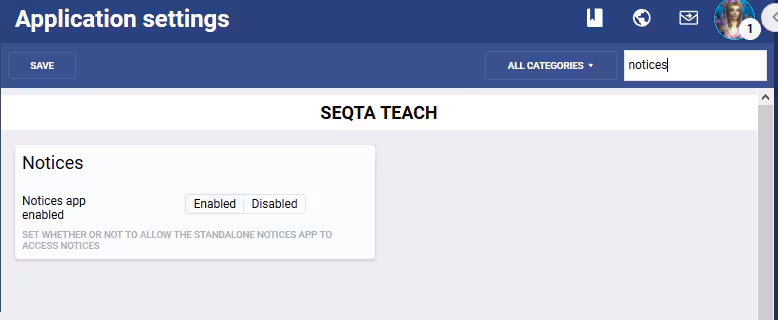
- In Administration workspace > Application settings, search for "notices".
- In the Notices settings pane, click on the Enabled button.
- Press Save in the toolbar.
Step two: Enter the URL into the Application settings SIP pane
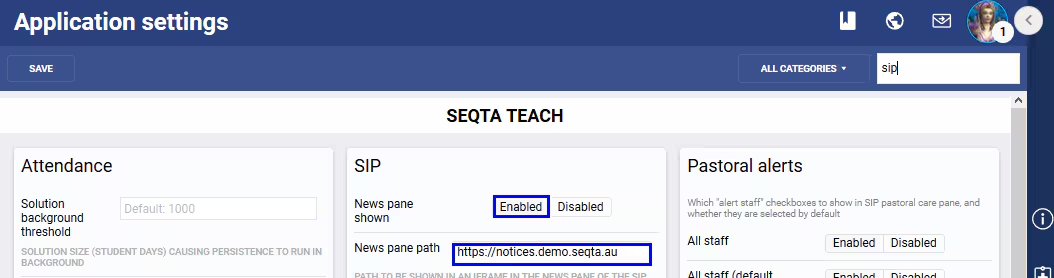
- In Administration workspace > Application settings, search for "news".
- Set the News pane shown to be Enabled in the SIP pane.
- The URL can then be added to the News pane path field.
a. This requires the Notices app to be setup as an external page, which is covered in the KB article Enabling and Configuring the Notices Wallboard URL. - Press Save in the toolbar.
Was this article helpful?
That’s Great!
Thank you for your feedback
Sorry! We couldn't be helpful
Thank you for your feedback
Feedback sent
We appreciate your effort and will try to fix the article