TABLE OF CONTENTS
- Academic reports
- Elements available through the Academic reports page.
- Permissions required to print Academic reports
Academic reports
Reports are generated through the 'Academic reports' page. The required permissions are listed in the table below.
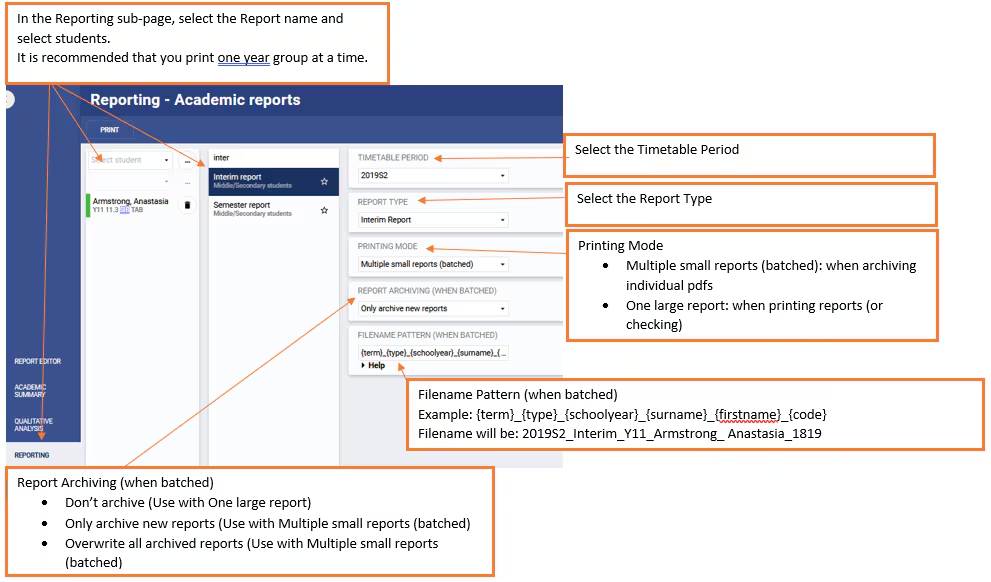
It is recommended to run reports no more then one year group at a time. Large schools may need to run one or more roll groups at a time. Wait for each batch to completed before running the next group of students.
- Go to Administration workspace > Academic reports > Reporting
- Access is also possible via Teaching workspace > Academic reports > Reporting
- Select a student or group of students.
- Select the Report (eg. 'Semester Report' or 'Interim Report')
- Select the Timetable period and the Report type
- Multiple selection is possible for either of these drop-down menus. This will be enabled if a bespoke report is created for your school that requires data to be captured from more than one selection.
- Set the 'Printing mode' to Multiple small reports (batched) to generate a ZIP file containing the individual PDFs. This is recommended as part of the end of year backup process.
- Alternatively, to generate one large PDF for printing, select One large report.
- If you are ready to add reports (Archive) to the student record in the SIP, go to step 10. Otherwise continue with step 7.
- Set 'Report archiving (when batched)' to Don't archive
- Click Print
- If prompted, click OK. This will run the report as a background process. Once complete, an alert badge will display on the profile (notification) icon in the top-right corner. Click on the profile icon to display the link to the finished report.
- Select Click here to access your document.
- The following steps are only required if 'Printing mode' is set to 'Multiple small reports (batched)' and you are going to archive student reports.
- Report archiving selection:
- 'Overwrite all archived reports'. For the current selection of student(s), Timetable period and Report type, any existing reports will be overwritten by the current printing process. (Typically there will not be any existing reports for that combination of selections, so nothing will be overwritten).
- 'Only archive new reports': If a report already exists, nothing will be changed. Otherwise a report will be added to the student's record.
- Check the filename pattern is suitable. The default filename pattern can be set in Application settings. This sets the unique filename for each PDF report. The Help button below the input box shows the list of possible substitutions that can be used. For consistency and ease of use we strongly suggest setting the filename pattern in Application settings.
- IMPORTANT: Please make sure that the filename pattern includes specifiers to uniquely identify the student.
- Report archiving selection:
- Click Print
- If prompted, click OK. This will run the report as a background process. Once complete, an alert badge will display on the profile (notification) icon in the top-right corner. Click on the profile icon to display the link to the finished report.
- Select Click here to access your document.
Elements available through the Academic reports page.
Permissions required to print Academic reports
The permissions required to generate and print academic reports are shown in the table below. For a full listing refer to the articles called Curriculum and academic reports permissions, and About SEQTA Permissions (Permission Listing).
| Permission | Function |
| RPTS | Allows the printing of most reports |
| ACAD: EDIT | Access the Report editor tab on the Academic Reports page |
| ACAD: PRINT | Access the Reporting tab on the Academic Reports page |
Was this article helpful?
That’s Great!
Thank you for your feedback
Sorry! We couldn't be helpful
Thank you for your feedback
Feedback sent
We appreciate your effort and will try to fix the article