TABLE OF CONTENTS
- Disable the Sync
- Archive Academic Reports
- Print and Save Attendance and Pastoral care Reports
- Complete the Timetable Rollout Process (All Schools)
- Create a new Sync Profile (Only Required for Schools with External Admin or Timetabling Systems, excluding AOS admin systems)
- Set Attendance Alert Reset Date
- Revoke access to old SEQTA Engage accounts for parents
- Re-Enable the MANAGE SYNC (New) profile - Sync-Next
It is recommended the following tasks be completed as part of the year rollover process. Please note, some schools may have additional items that need to be completed depending on the school's policy and processes.
Please do not roll students into the next school year in SEQTA prior to Archiving Reports. Should this occur, a backup restore will need to be done to retrieve the reports.
Disable the Sync
If you are using The sync profile: MANAGE SYNC (NEW) for syncing data with and External Admin or Timetabling System, the Sync process will run regardless of an active timetable.
All schools using sync-next need to ensure that the sync is disabled until the roll over data has been completed in the external Admin system.
Click here to see how to turn off (disable) the sync.
Archive Academic Reports
Schools that use SEQTA for Academic Reporting will need to archive reports prior to students being rolled over into the next year level. This will ensure the reports are available in SEQTA should they need to be accessed or reprinted.
The steps for archiving reports are available in the Article: Archiving Academic Reports
Print and Save Attendance and Pastoral care Reports
Each school has their own set of attendance reports that are used to report to the different governing bodies (i.e. Federal STATS Reports). These should be printed and saved in a safe location prior to the student year level roll over at which point the student demographics will change.
Useful attendance reports:
- Attendance Statistics ReportsFederal STATS Report - How to Correctly Print Report - Run with no students selected, Semester 1 and Term 3 separately.
- Federal STATS Report (w/Headings) - No students selected, for individual semesters or terms.
- Student Summary Reports (i.e. Quantitative Data)
To print Attendance Reports:
- Go to Administration Workspace > Reporting.
- Select the report from the list and select students.
- Set any available filters (i.e. Date-Range).
- Click 'Print' once the report is finished it will be available under the notification icon in the top right-hand side.
- Select the notification to open the file, then rename and save the document.
Complete the Timetable Rollout Process (All Schools)
It is recommended that the timetable setup process be completed at least two weeks prior to commencement of classes. This allows sufficient time should changes be required or if there are any issues that need to be addressed.
Schools that use an external timetabling system an complete this process prior to the data being ready in the timetabling system.
Please refer to the following article for steps:
Create a new Sync Profile (Only Required for Schools with External Admin or Timetabling Systems, excluding AOS admin systems)
The Sync classic process will only run if there is a timetable period assigned with an end-date in the future (For Non Sync -Next schools). In most cases, this means that once the end date of the semester two timetable period has passed, the Sync will no longer run. Once the timetable setup process has been completed and the timetable added to the Sync profile, the process will run again.
Please refer to the following article for steps:
Set Attendance Alert Reset Date
Set the attendance alert to the start of the year. This will stop students from being flagged with Attendance alerts (blue dots) due to unresolved absences in the previous year.
The suitability of this option will depend on the school's policy and processes with regards to managing attendance.
Please refer to the following article for steps:
Revoke access to old SEQTA Engage accounts for parents
This needs to be done after the Year 12 and other exiting students have had their records archived. Remind student to download and save their academic reports prior to them loosing access. Always Revoke Access to ALL Contacts under READY TO REVOKE ACCESS as their will accounts from contact code changes, and SEQTA Engage flag changes in there as well.
Detailed information on this process and steps are available in the article:
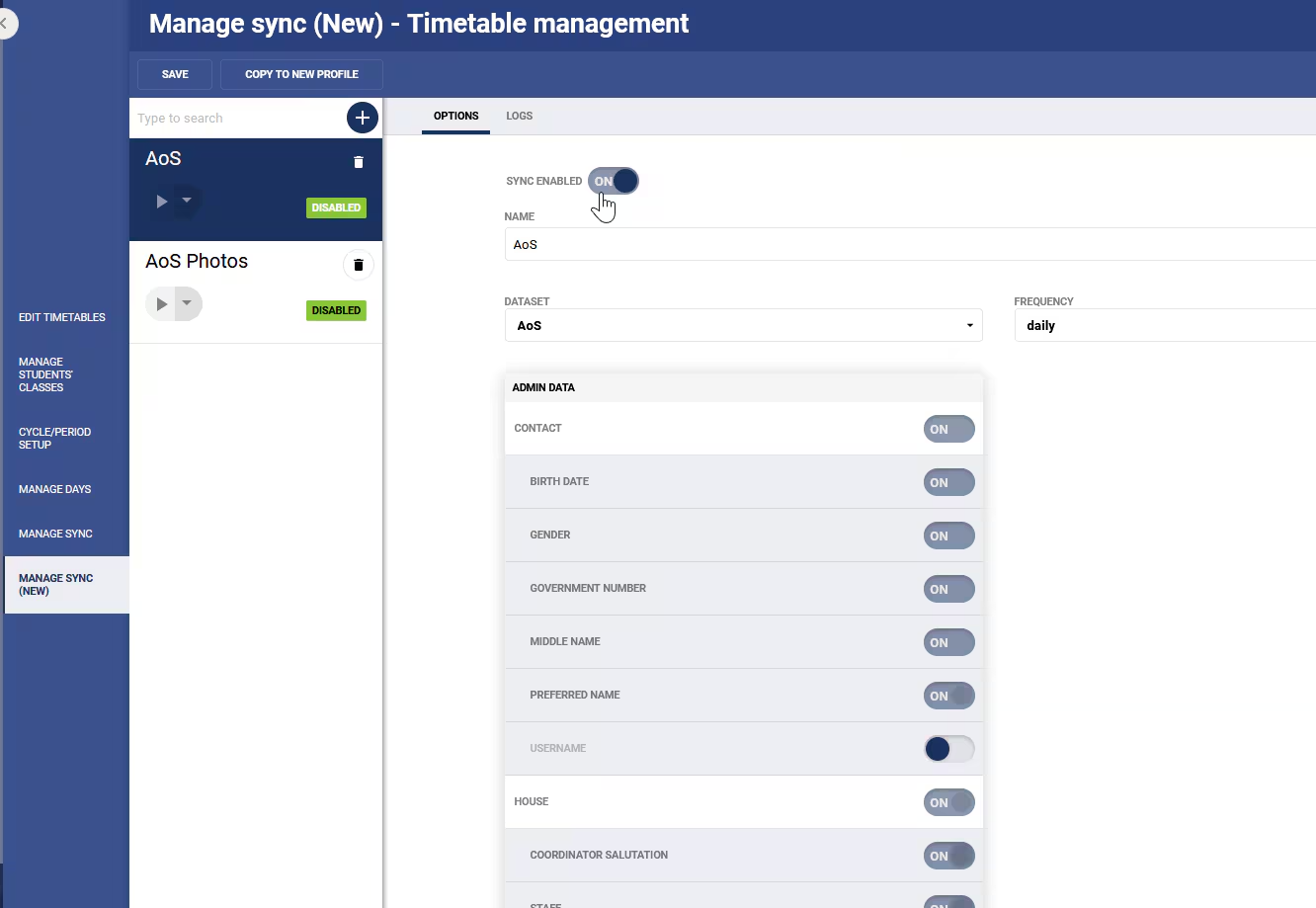
Re-Enable the MANAGE SYNC (New) profile - Sync-Next
After the roll over process have been completed the Sync-Next profile needs to be re-enabled.
- Click on Manage Sync (New) under Timetable Management
- Slide the setting for SYNC ENABLED to the right
- Turn on the Admin data fields as required
- Click save
Was this article helpful?
That’s Great!
Thank you for your feedback
Sorry! We couldn't be helpful
Thank you for your feedback
Feedback sent
We appreciate your effort and will try to fix the article