TABLE OF CONTENTS
- Requirements to display student info in the SIP
- Incorrect student information showing
- Advanced troubleshooting
Before starting the troubleshooting process, please ensure the steps in the article Consent2Go integration setup have been completed.
Requirements to display student info in the SIP
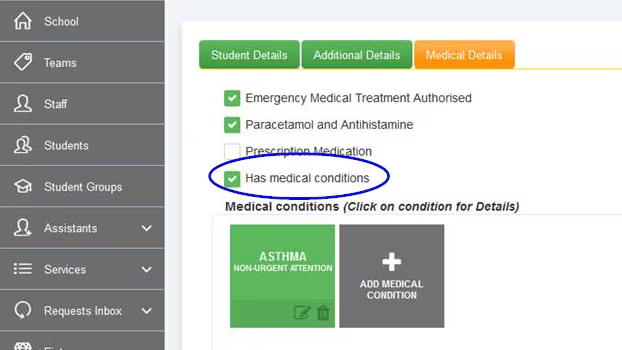
The following conditions in the Consent2Go data need to be met for the medical information to display in the SEQTA.
- The option 'has medical conditions' needs to be selected
- The student must have one or more medical conditions listed
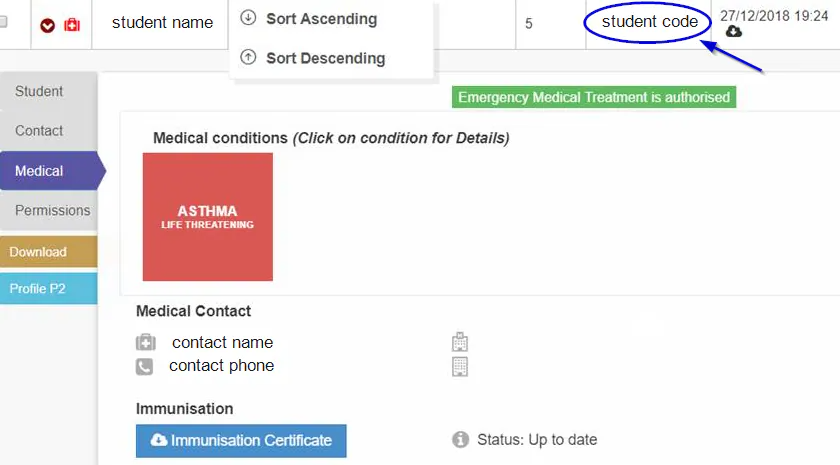
- The student code in Consent2Go needs to match the student code in SEQTA.
Incorrect student information showing
The incorrect students information may display if there is more than one student in Consent to go with the same code.
Where this is the case, check to see what the correct student code is for the students, in either SEQTA or your school's Admin system, then update the student code in Consent2Go so it matches. Once this is done please refresh/reload the page in SEQTA and the change should then show in the SIP medical pane.
Advanced troubleshooting
- There may be an issue with the URL parsed from SEQTA
- Timestamp of Consent2Go info differs by more than (say) 5 minutes from the SEQTA server.
Both items can be checked by looking at the URL. The URL should show the student_code, timestamp, clientID, and hash.
Accessing the URL being parsed from SEQTA
- Open SEQTA Teach for the school and if using Firefox, right click on the page and choose Inspect Element. Other browsers will most likely have a similar capability.
- Navigate to the Consoletab.
- Select a student in the SIP - you'll notice a string like https://www.<your_school_site>/Integration/MedicalDisplay?student=ABCDEF&clientId=099999×tamp=2018-10-03T06:26:03.386Z&hash=5f4b5558754118cc4465e27b7c123d971a51b192cc6977eh9eed056b2b106c3a8
- Bold text has been added for clarity
- The hash will be a random string of letters and numbers. Don't compare it.
- The timestamp is the part after T in hours, minutes and seconds (with decimal accuracy)
- Cross reference student code and clientID with the information Consent2go has provided.
- Compare the timestamp with the time shown on your school's SEQTA server.
If there are any issues please raise a case with the SEQTA Support team via the Help portal.
Was this article helpful?
That’s Great!
Thank you for your feedback
Sorry! We couldn't be helpful
Thank you for your feedback
Feedback sent
We appreciate your effort and will try to fix the article