TABLE OF CONTENTS
- User account management
- Revoking Access to the SEQTA Learn web page and app
- The Student's Status, Exit Date and Username
There are four fields in the student record used to manage student access and visibility in SEQTA. These are the Status, Exit Date, Username and Password. Please note all information pertaining to the student (Attendance etc.) will remain available in SEQTA for all time. See: Accessing Information for Students that have Left
User account management
When a student departs, the recommended procedure is as follows:
- Disable the account in your authentication management system (e.g., Active Directory).
- Revoke the account from the User management page using the steps below
Revoking Access to the SEQTA Learn web page and app
If your school uses Active Directory, even once the student record is disabled in AD their credentials might not be deleted immediately in SEQTA. We recommend that access is explicitly revoked using the following steps.
- Go to the Administration workspace>User management>Account manager
- Choose Students in the user selection drop-down menu
- Choose Ready to revoke access in the drop-down on the right-hand side (it will be titled Ready to provision when first opening the page)
- Search for the students' accounts either by visually scanning the rows or by using the search box in the top-right corner
- The columns can be sorted by clicking on the column heading
- Select the appropriate students by ticking the checkbox on the left-hand side of the row
- Select Actions...>Revoke access from the drop-down in the top-left corner, then click Confirm
- Follow the same process but at step 3, choose Active if you need to review or block student access to SEQTA Learn in other circumstances
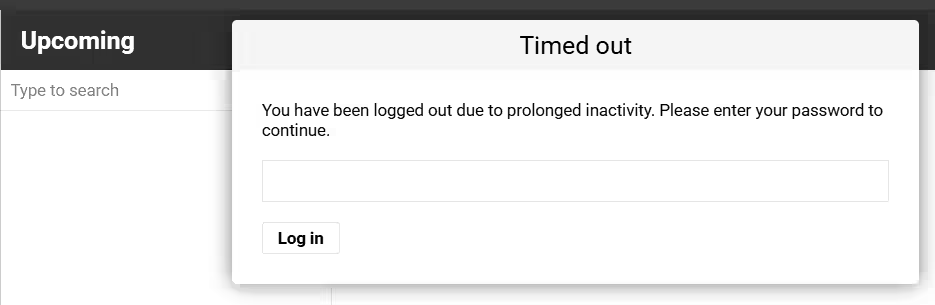
- This process will immediately remove the Username and Password from the student record in SEQTA Teach. If the student uses SEQTA Learn they will see the following dialog box and will not be able to re-authenticate.
The Student's Status, Exit Date and Username
The student Status will be changed from FULL to LEFT by the sync process once the student record is archived in your school's Admin System. Schools who manage student records directly in SEQTA need to change the status through the Data Management page.
Once the student's status has changed:
- The student will no longer appear anywhere in SEQTA other than the Data management page.
- Students' reports will remain accessible in the Report Archive in SEQTA Teach. However, they need to be searched for using the filters (TT period..., Type..., etc) as their name will not appear under the Student... drop-down.
If session data and cookies exist on the student device (from previously authenticated sessions), they can allow a student to continue to log in even if the AD account has been disabled or the password changed. It is essential to remove the username/password to ensure the student can no longer log in. See Revoking access above.
Students will continue to appear in the Marks books until the Exit Date in the student record has passed or when the student has been unenrolled from the class. In most cases, this needs to be set through the Data Management page directly in SEQTA. Refer to the article Syncing the Student Exit Date for more information.
Was this article helpful?
That’s Great!
Thank you for your feedback
Sorry! We couldn't be helpful
Thank you for your feedback
Feedback sent
We appreciate your effort and will try to fix the article