TABLE OF CONTENTS
- 1. Can’t access the new report only the old template
- 2. Does CART require a Mod Gd or Mod % for a subject to show on reports?
- 3. Two teacher names on the front and the second name is split
- 4. Pre-primary report is using progress descriptors but they are only showing the name of the subject not the descriptor
- 5. The teacher and Principal names are too small
- 6. OPTIONS appears on the report printout
- 7. The comment has appeared above the title ‘General Comment’
- 8. Some subjects are split across two pages
- 9. Names of the teacher and Principal not centred and under each other
- 10. Strands/progress descriptors doubling up
- 11. Report affectives (effort, descriptors) not appearing
- 12. Values labels not appearing
- 13. Specialist teacher name not appearing as they don’t have a record in SEQTA
- 14. Principal signature appearing and we want it removed
- 15. Values template not appearing in the report
- 16. Descriptors not appearing in the report
- 17. Why don't the arrows appear to work?
- 18. Can the order of the components (tables within a page) be changed?
- 19. How do I add additional items to a table layout?
- 20. Teacher’s results (i.e. 1,2,3) not being accepted in subjects.
- 21. Double logo or no logo
- 22. Student Attendance not appearing
- 23. Errors with CEWA (Catholic Education Western Australia) schools using the current report template
- 24. Can I use HTML code in CART?
- 25. How can I control the order of assessments, syllabus, affectives, values, etc on my report?
1. Can’t access the new report only the old template
On the general page you need to set the Report Enabled toggle to ON.
This will then be visible in the list of reports available through the Administration workspace>Academic reports>Reporting subpage.
2. Does CART require a Mod Gd or Mod % for a subject to show on reports?
It doesn't have to be Mod Gd or Mod %, but there is a requirement for some reporting data to be entered into the purple section of the marks book (i.e. comments or affectives), in order for assessment data to appear.
3. Two teacher names on the front and the second name is split
When it comes to signatures, the area is actually separated into 3 invisible columns and the length of the name will determine if part of it will be shown on the next line.
4. Pre-primary report is using progress descriptors but they are only showing the name of the subject not the descriptor
(Specific to CEWA) If you are still using the descriptors for PP, then you will need to clone the current template you made and then change the syllabus area of the template to draw from the Details area and not the Strand.
5. The teacher and Principal names are too small
This can be changed by altering the font size in the General section of the template, but please note that this also alters the general text size throughout the report.
6. OPTIONS appears on the report printout
a) Under the subjects (Subject page>Affectives)
The Show Interview toggle is set to on for the Affectives. Turn this off.
b) Under the general comment (Values page>Value table)
The Show Interview toggle is set to on for the Values page. Turn this off.
7. The comment has appeared above the title ‘General Comment’
The title was placed in the COMMENT POST SCRIPT field rather than the COMMENT TITLE field. (Values page)
8. Some subjects are split across two pages
There are only two options at this stage:
a) Subjects flow continuously, and therefore some information may appear on the next page; or
b) Go to the Subject page and set the toggle to ON for single page per subject.
9. Names of the teacher and Principal not centred and under each other
Change the field Layout of Signatures Container to Vertical. (Values page>Signatures meta)
10. Strands/progress descriptors doubling up
(Specific to CEWA) Only one toggle should be set to ON. For Year 1 to 6 this should be Strand, therefore switch Details OFF. If Pre-Primary are showing progress against the descriptors, the current template will need to be cloned and the Details toggle set to ON.
11. Report affectives (effort, descriptors) not appearing
Check the Allowed values field has no spaces (ie: should be displayed like: 1,2,3,4).
- Navigate to the Administration workspace (Spanner).
- Click on the Curriculum setup page.
- Click on Report templates.
- Choose the appropriate Report template from the list.
- Check the Allowed values fields have no spaces and that any letter values are capitalised.
- Click SAVE.
12. Values labels not appearing
Check the Explanation field so that there are no spaces (ie: should be displayed like:
A=Always,F=Frequently,U=Usually,I=Intermittently,N=Never).
- Navigate to the Administration workspace (Spanner).
- Click on the Curriculum setup page.
- Click on Value templates (for Values list).
- Choose the appropriate Value template from the list.
- Check the Explanation fields so there are no spaces and the letter values are capitalised.
Check the case entered by teachers when completing the values.
- Navigate to the Teaching workspace (ABC blackboard).
- Click on Academic reports page.
- Click on Report editor subpage.
- Select a student, select the current report type and then the current timetable period.
- Check the value inputs are the correct letter and the correct case, as per the Explanation field in the Value template set up.
13. Specialist teacher name not appearing as they don’t have a record in SEQTA
- Navigate to the Teaching workspace (ABC blackboard).
- Click on the Timetable page.
- Locate the teacher whose class is being taken by the specialist teacher.
- Go to the My classes sub-page and look for the Bridge classes button.
- Click on this and then in the Report salutation field add the required teacher's name.
- Save this and repeat the process for all the setup subjects for the specialist area.
14. Principal signature appearing and we want it removed
Option 1: Upload a blank .svg file into the relevant area of Report Assets
- Navigate to the Administration workspace (Spanner).
- Click on Academic reports page.
- Click on Report assets sub-page.
- In the drop-down at the top of the page, select School.
- Then select Principal.
- You can drag and drop your blank file here or use the Add File button to locate it and add.
Option 2: Switch off the signature
- Navigate to the settings page in CART that is used for the Principal's signature.
- eg: Cover page, Values page
- Set the slider for Show Principal's signature to off
Refresh your browser and then test your report again.
15. Values template not appearing in the report
- Navigate to the Teaching workspace (ABC blackboard).
- Click on Academic reports page.
- Click on Report editor subpage.
- Select a student, select the current report type and then the current timetable period.
- Check there are not multiple value areas showing. Values will have a green bar and appear after the subject entries.
- If so, click on the bin button for the one not required, and it will be removed.
- SAVE the change.
- Use the arrows or make a selection to move to the next student to follow the same process. You can use the checkboxes (Roll, House, Year) to constrain the student selection when using the arrows.
16. Descriptors not appearing in the report
To do this:
- Navigate to the Teaching workspace>Timetable>My classes.
- Choose the teacher name whose subjects are having the issue.
- Click on the Load programme icon.
- Go to Marks book settings
- On the pop-up, in the Assessment groups area, make sure the relevant Semester group has a weighting (typically 100) and the Available on reports toggle is set to ON.
- SAVE the change.
If there are many staff to review or change:
- Click on List of Programmes.
- Retain the current timetable period but click on the staff box and remove the current staff member.
- This will display all programmes for the selected timetable period, so it may take a minute or so to display those found.
- You can use the Search title/outline box to search for the subject or programme details.
- eg: search for Science, PP, etc
- When the subjects appear, locate the ones that aren't showing descriptors and for each one, click on the first button in the row to the left (Edit marks book settings).
- On the pop-up, in the Assessment groups area, make sure the relevant Semester group has a weighting (typically 100) and the Available on reports toggle is set to ON.
- Repeat from step 4 for all affected programmes.
- SAVE the change.
17. Why don't the arrows appear to work?
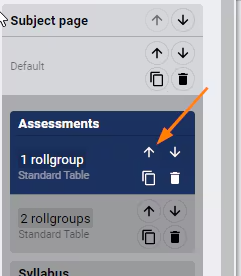
The arrows are for ordering items within a table layout (ie: If there are multiple items under Assessments.) See para#19.
18. Can the order of the components (tables within a page) be changed?
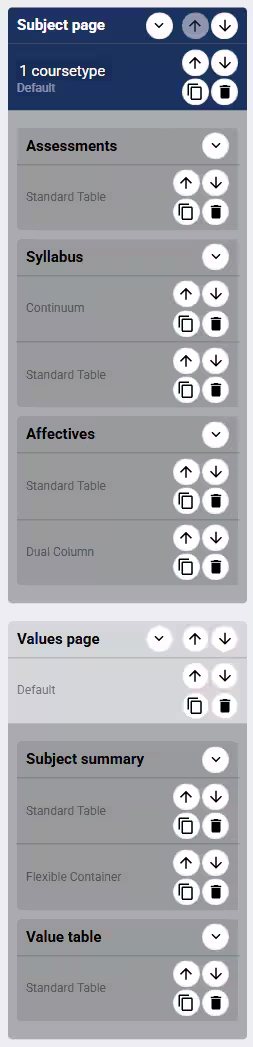
It's not possible to change the order of components: Assessments will always appear above Syllabus in the Subject page.
19. How do I add additional items to a table layout?
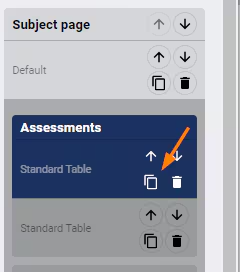
To add additional items (or layouts) to a component click on the copy icon on the Component. Then the arrow can be selected to change the order of the items. As the item name doesn't change, we recommend you temporarily place a number in one of the fields so that it is easier to track the order changes. If the component supports more than one table layout, you can change the layout of the items independently.
20. Teacher’s results (i.e. 1,2,3) not being accepted in subjects.
The Course Type might be incorrect or the Allowed values need to be updated.
To review the Course type selection for each programme:
- Navigate to the Teaching workspace.
- Click on the List of programmes link.
- Select the relevant timetable period.
- Click on the All staff drop-down and choose the staff members whose results are not working correctly.
- Alternatively, remove all staff members from the drop-down by clicking Clear. NOTE: for large schools the resulting list may take a little while to appear on screen.
- For each programme you will see the coursetype on the left-hand side, along with other metadata.
- To change this to the required one, click on the first button in the row, (Edit marks book settings).
- In the pop-up which appears, change the coursetype from the current one to the correct one.
- Press Save.
Continue this process for all the subjects which require changing over.
If the selected Course type is correct, check the Allowed values.
- Go to Administration workspace>Curriculum setup>Course types.
- Choose the relevant Course type.
- Check the Allowed values for each of the 20 fields to ensure they match the expectations for resulting.
21. Double logo or no logo
Upload your logo, even if it is visible in the area outlined below. To do this:
- Navigate to the Administration workspace (Spanner).
- Click on Academic Reports page.
- Click on Report Assets sub-page.
- In the drop-down at the top of the page, select School.
- Then select Logo.
- You can drag and drop your logo file here or use the Add File button to locate it and add.
Refresh your browser and then test your report again.
22. Student Attendance not appearing
- In the custom report go to the Values page area
- Locate the Attendance section
- Set the Toggles and preferred layout as required
23. Errors with CEWA (Catholic Education Western Australia) schools using the current report template
Schools MUST USE:
- the traditional value inputs (the labels can be changed).
- the traditional effort inputs (the labels can be changed).
- Strands/ ‘graded’ descriptors are NOT to be used as they can only be graded and CANNOT appear with CEWA’s 3 point progress statement requirements.
- The relevant progress statement must be placed in the Comment section of each subject area.
24. Can I use HTML code in CART?
Yes. The Layout fields called TEXT have a toggle at the bottom-right corner for the default Simple editor or the HTML editor. Text edited in the Simple editor will display in the HTML editor with tags, and can be further edited with more HTML tags. We recommend that only basic HTML is used, so that it remains compatible with publishing to a PDF academic report.
25. How can I control the order of assessments, syllabus, affectives, values, etc on my report?
- Use the information in section 19 above to create extra items in the component.
- Modify the Conditionals for each item to control what is displayed for each item within that component.
- Pay attention to the Conditionals at the page level so that page level and component level conditionals don't interact in unexpected ways.
- We recommend (strongly) that you practise this process on a COPY of an active CART report.
- It is also advisable to keep a written log of your steps so that it is easier to reproduce the process, or roll back when necessary.
- There is no one-size-fits-all scenario for this process - some experimentation will be required based on your individual school setup.
Was this article helpful?
That’s Great!
Thank you for your feedback
Sorry! We couldn't be helpful
Thank you for your feedback
Feedback sent
We appreciate your effort and will try to fix the article