TABLE OF CONTENTS
- Permissions and requirements for working with accounts
- Sending a Welcome email
- Sending a Password Reset Email
- Revoking User Access
This article outlines the process for managing user accounts in SEQTA's internal authentication. This information is only relevant in instances where internal authentication is being used. Internal authentication will be available if your school has explicitly set it up and/or if the user account in SEQTA Teach contains a username and password. Please speak to your school's IT department to confirm.
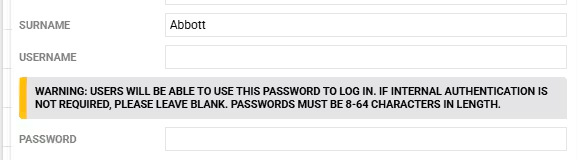
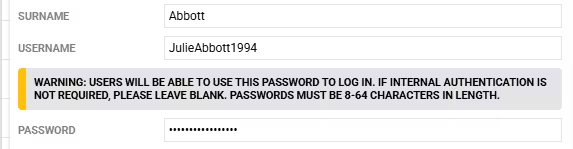
IMPORTANT INFORMATION: The User Management page should not be used to provision user accounts which are managed in an external system (eg: Active Directory).
Permissions and requirements for working with accounts
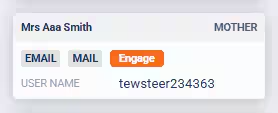
The Permission USER: EDIT is required to access the User management page. Users require an email address in their user record in SEQTA. Additionally, Parent/Guardian/Contact accounts need to be flagged for SEQTA Engage access (as indicated next to the Guardian's name in the SIP).
Sending a Welcome email
Welcome emails are designed to work with SEQTA's Internal authentication. However, in most cases providing the email address is populated they can also be used for other authentication methods (eg. LDAP).
- Go to the Administration workspace>User management>Account manager
- From the user drop-down select Students, Staff or Contacts
- Choose Ready to provision (select Active to send a Welcome email to an account which is already setup)
- Select the accounts that need to be provisioned by clicking the checkbox on the left-hand side. To select all, click on the box in the top-left corner. Take care if selecting in bulk.
- Select Actions...>Send welcome email
- A confirmation dialog will appear, click Confirm. A Welcome Email will be sent to the selected users.
- NOTE the link will expire after one week.
Sending a Password Reset Email
The steps below will generate a password reset email containing a link, that when selected enables the user to choose a new password. The link for password reset emails expires after 1 hour, after which point the parent will need to use the Forgot your password link to generate a new one.
Refer to the following article for more detailed information:
The steps for sending a password reset email through SEQTA Teach are as follows:
- Go to the Administration workspace>User management>Account manager.
- From the user drop-down select All users, Contacts, Students or Staff.
- Select Active from the status drop-down on the right-hand side (will usually say Ready to provision when first opening the page).
- Select the accounts that need to be sent a reset email by clicking the checkbox on the left-hand side. To select all, click on the box in the top-left corner. Take care if selecting in bulk.
- Select Actions...>Send password reset email.
- A confirmation dialog will appear, click Confirm. An email will be sent to the selected users.
- NOTE: the reset action is only available for one hour.
Revoking User Access
User Access can be revoked when the person leaves the school (Students, Staff, Tutors) or no longer has any children attending the school (Guardians/Parents/Contacts).
There is some important information that account administrators should be across in the following articles:
- Revoking Access to Parent Accounts
- Availability of Information and Impact of Revoking Account Access for Staff and Guardians
- Availability of Information and Impact of Revoking Account Access for Students
- Archiving student records
The steps for Revoking Access are as follows:
- Go to the Administration workspace>User management>Account manager.
- From the user drop-down select All users, Contacts, Students or Staff.
- Select Ready to revoke accessfrom the status drop-down.
- If the account is a staff account or student (who is still attending the school or recently graduated) select Active.
- Select the accounts that need to be revoked by clicking the checkbox on the left-hand side. To select all, click on the box in the top-left corner. Take care if selecting in bulk.
- Select Actions...>Revoke access from the top left of the work area. This will revoke access by removing the username and password from the record.
Was this article helpful?
That’s Great!
Thank you for your feedback
Sorry! We couldn't be helpful
Thank you for your feedback
Feedback sent
We appreciate your effort and will try to fix the article