Before importing Standardised testing data ensure all steps in the Standardised testing setup have been completed.
The process for importing Standardised testing reports (ie. PDFs) is covered in the article Importing NAPLAN or OLNA files (option to be made visible in SEQTA Learn and SEQTA Engage) .
The steps for importing data are as follows:
- Go to the Administration workspace>Standardised testing management>Import data.
- Select the Instrument and Series the data is for.
- Click Add a file and select the .CSV file with the Standardised testing data.
- Select the headings that match the data in the list. The items should display in green on the checklist (left-hand side) and in the column in the central section. If the student ID information in the .CSV file matches a student in SEQTA Teach, the Matched student column will display Import next to the student name (green font on a dark green background).
- If there is a partial match to a student, the text will display Import? (green font on a grey background).
- Partial or fuzzy matches should never occur if the unique student ID number is used. They might occur if student names are used for data matching.
- If there is no match then the display will report No suitable candidates found (orange font on a white background).
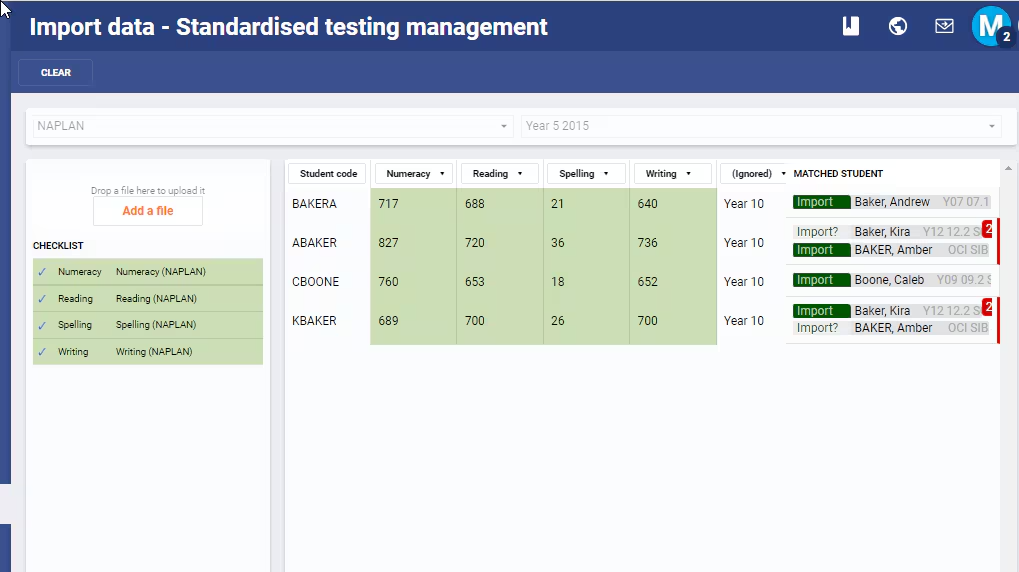
- Once you are satisfied that the data matching is correct, click the Import data button in the bottom-left corner. This will import the data into SEQTA Teach.
- Refresh/reload the page and check that the Standardised testing data is visible in SEQTA Teach.
NOTES:
- If matching on Student code, which is the recommended method, do not select the headings for First name or Surname.
- Ensure there are no blank rows in the .CSV file, as these will cause an error when the student code is selected. To check for blank rows, inspect the spreadsheet carefully. Also the file can be opened in a text editor like Notepad or BBEdit. The blank rows will display as a row of commas, eg. ,,,,,,,
Related articles:
Was this article helpful?
That’s Great!
Thank you for your feedback
Sorry! We couldn't be helpful
Thank you for your feedback
Feedback sent
We appreciate your effort and will try to fix the article