TABLE OF CONTENTS
- How do I normalise standardised testing data?
- Why does the standardised testing data not display in the SIP?
- How do I archive an instrument?
- How to manage students with standardised testing data for multiple years?
- Can Standardised Testing Data be viewed by Students or Parents in SEQTA Learn or SEQTA Engage?
- Calculating the statistical data for Standardised testing setup
- What is Error Code: 1102 when selecting column heading during the import process?
- Why is there an Overall column appearing?
- What other methods are available for importing NAPLAN data?
This article includes information that may be helpful for the setup and management of Standardised testing data. The following articles may also be of assistance.
- Standardised testing setup steps
- Standardised testing Creating and configuring Instruments
- Standardised testing setup: Entering the Statistical Data for an Instrument
- Importing Standardised testing data
- Deleting and clearing Standardised testing data
- Standardised testing data: Creating and managing Organisations
- Standardised testing: Calculating the statistical data (Min, Q1, Median etc.)
- Standardised testing data: Viewing standardised testing data in SEQTA Teach
Standardised testing data can be viewed through the SIP by clicking on the Standardised tests button (at the bottom of the SIP) and through the Attendance roll or Marks book by clicking the icon to the left of the student's name.
This article contains the following sections:
How do I normalise standardised testing data?
If the high and low values are significantly different, it may be necessary to normalise the data in the spreadsheet upload. For example, should 'Numerical' have numbers for the range of 10 - 13, whereas 'Score' is in the range of 120 - 310, then a formula can be used to increase each of the results for numerical i.e. (formula: E2*20 = value will be 5*30 = 150). Normalising data is managed in-house by the school.
Why does the standardised testing data not display in the SIP?
The two most common reasons are:
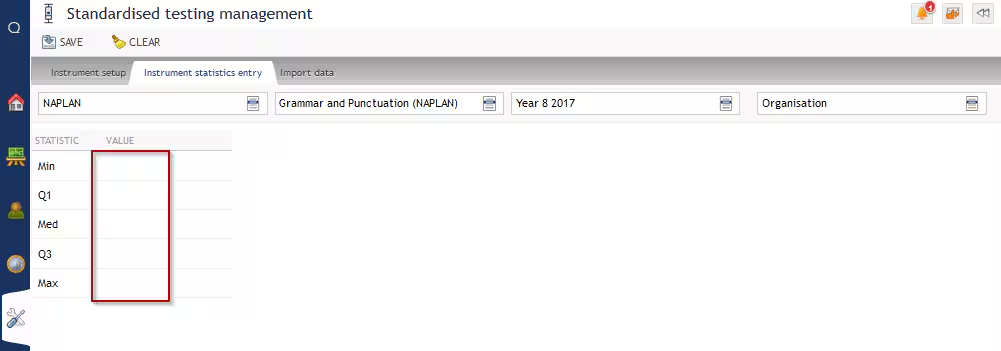
- No statistical break-point values set for the Items for the Series.
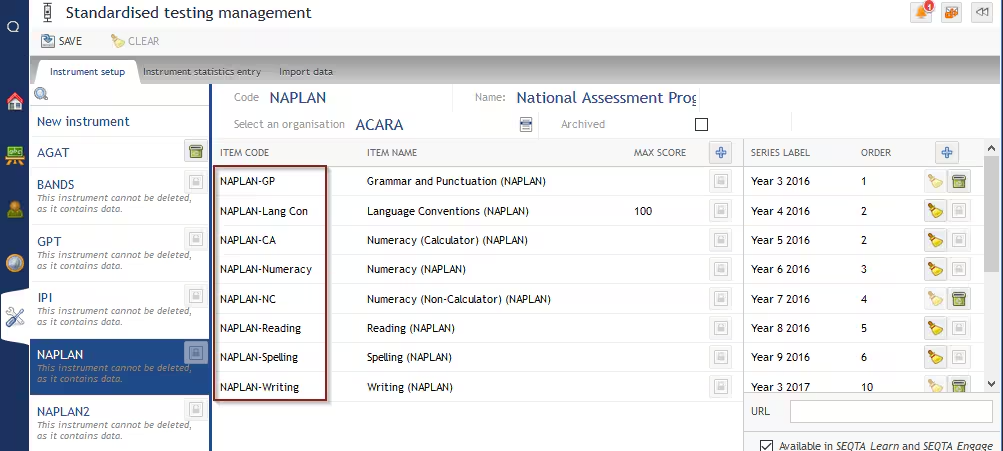
- The Item Code is used in two different Instruments. Where this is the case, the Item Code for one of the instruments will need to be changed.
How do I archive an instrument?
The option to Archive an Instrument is available for schools that would like to hide standardised testing data that has been imported into SEQTA.
How to manage students with standardised testing data for multiple years?
There are several methods for managing standardised testing data for students that attend the school for more than one year.
- Option 1: Archive the old Instruments each year and create new ones. This requires completing the standardised testing setup from scratch.
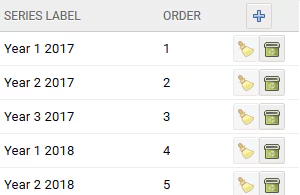
- Option 2: Use the same instruments and create additional Series (include the year level in the label)
- Option 3: Update the instrument statistics entry values and then clear the previous year's data and import the current year's data.
Can Standardised Testing Data be viewed by Students or Parents in SEQTA Learn or SEQTA Engage?
No, this is not possible at this point. However, it may be added in a future release.
Calculating the statistical data for Standardised testing setup
This information is in the article Standardised testing setup: Entering the Statistical Data for an Instrument
What is Error Code: 1102 when selecting column heading during the import process?
This generally indicates an issue with the Excel file. It may be non-standard characters in the names (such as the auto-correct smart or curly quotes). These look normal to view however they are stored differently than the standard ASCII quote mark that most software uses.
In most cases, the following process will resolve the issue:
- Open the CSV file in spreadsheet programme (i.e. Excel).
- Highlight and copy the data.
- Open a new spreadsheet.
- Paste the data into the new spreadsheet.
- Save the new spreadsheet in CSV UTF-8 format.
- Try importing the file again. If this still does not work, please raise a case with the SEQTA Support team (via the Help portal) and provide a screenshot showing the drop-downs that data needs to be imported under (eg: NAPLAN > Year 3 2021). The file can then be tested to check for any other issues.
Why is there an Overall column appearing?
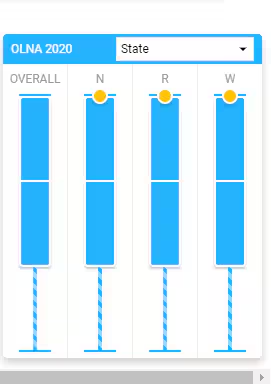
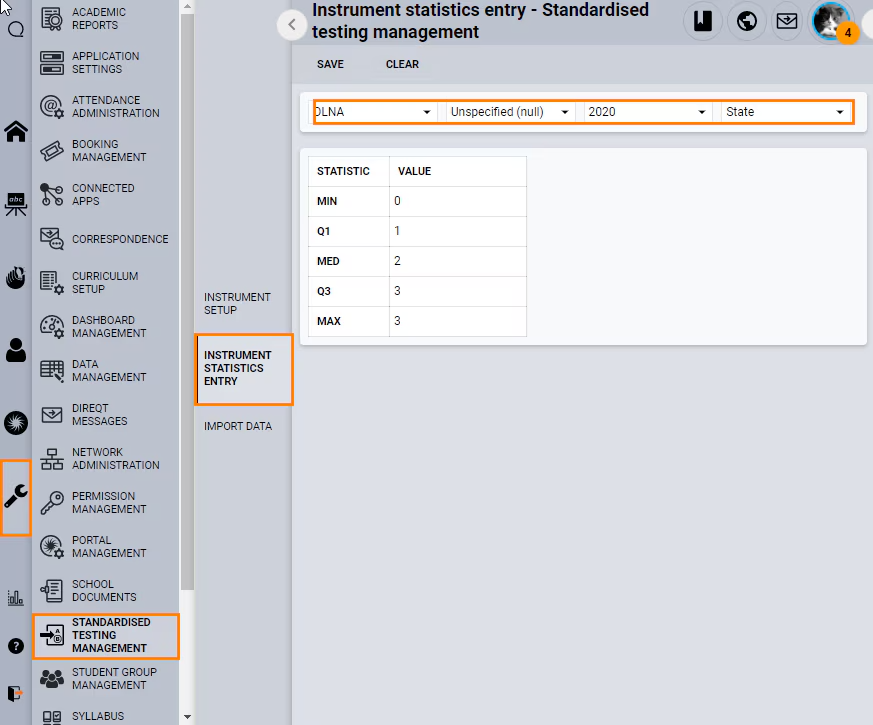
This occurs when data is entered under the 'Unspecified (null)' in the Instrument statistics entry. To resolve this, delete the values. The steps for this process are as follows:
- Go to the Administration workspace > Standardised testing management > Instrument statistics entry.
- Select the Instrument, Series and Jurisdiction from the drop-downs. Leave the Item as Unspecifed (Null).
- Delete the values and click Save.
- Refresh/Reload the page and check in the SIP to ensure it has worked.
What other methods are available for importing NAPLAN data?
Import the PDF files so they appear under Student files in the SIP. The steps are here: Importing NAPLAN or OLNA files. To increase the file size limit (if needed) go to the Administration workspace>Application settings>Application settings and search for file size. The setting can be changed independently in each category: Teach, Learn, Engage and Tutor.
Was this article helpful?
That’s Great!
Thank you for your feedback
Sorry! We couldn't be helpful
Thank you for your feedback
Feedback sent
We appreciate your effort and will try to fix the article